
Version 2.0
| 2.2 Mail and News (using pine) |
[Back to Homepage]
|
Your account has email enabled. For an account cs61a-zz, the email address would be:
[email protected]
To read the mail sent to your account, and to send email to others, you can use a program called pine.
Type pine in the shell to start the program.
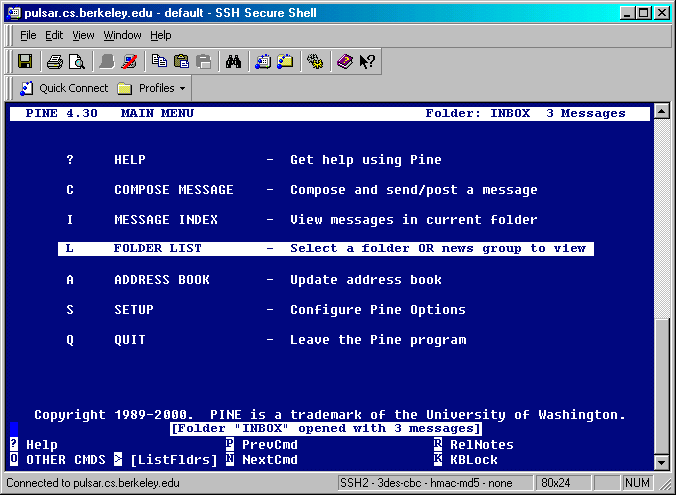
The main screen offers several options which you can choose by using the cursor
arrows or the indicated letter shortcut. The menu options on the bottom of the
screen can be selected by the highlighted letter shortcut.
To go to the Folder List, press the L key and choose INBOX. You can do standard email functions like compose, reply, forward, etc. by looking at the menu bar on the bottom which shows different options specific to particular screens.
For example, you can press the C key to compose a message, R key to reply to a message, or D key to mark a message for deletion. (To see additional command listings, you can press the O key for "Other Commands".)
You can always go to Help if you have more questions.
Automatic Forwarding
You can also have your account email forwarded to your normal email address. To do so, create a file called .forward in your home directory and in it type your email address (and nothing else). Example, if your email is [email protected], then in ~/.forward, it should read:
[email protected]Or, if you want mail forwarded but copies still kept on your account use this line instead:
\cs61a-zz, [email protected]
Newsgroups
This section explains how to use pine to read the class newsgroups, which are great ways to exchange ideas with your classmates. When you run into some problems with your homework or projects, you can post questions to the newsgroups. But be sure to read the newsgroup first, because maybe the same question has already been asked (and even answered).
- Open up pine as normal.
- Hit S for Setup to configure your Pine options.
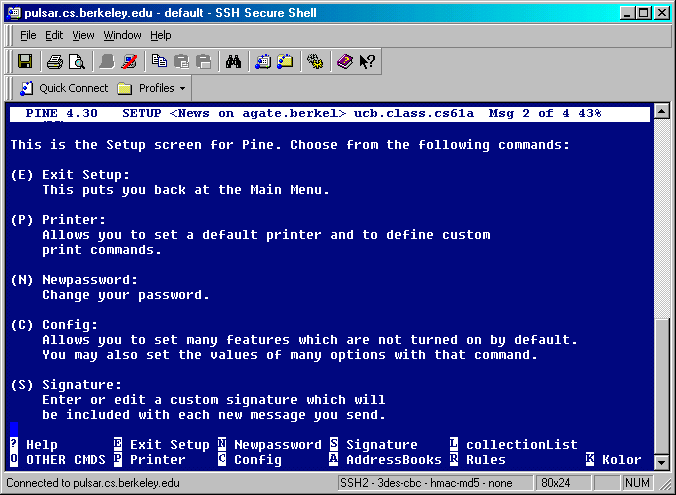
- Hit C for Config at the prompt.
- Select nntp-server and hit Enter.
- Enter agate.berkeley.edu and hit Enter to accept.
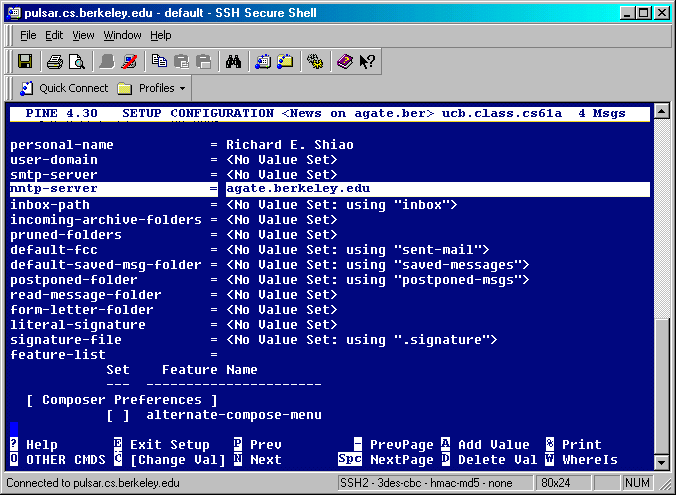
- Hit E to exit Setup.
- When prompted, hit Y to accept changes.
- Hit Q to quit your pine session.
When you start a new pine session, you can select Folders. And you will see this:
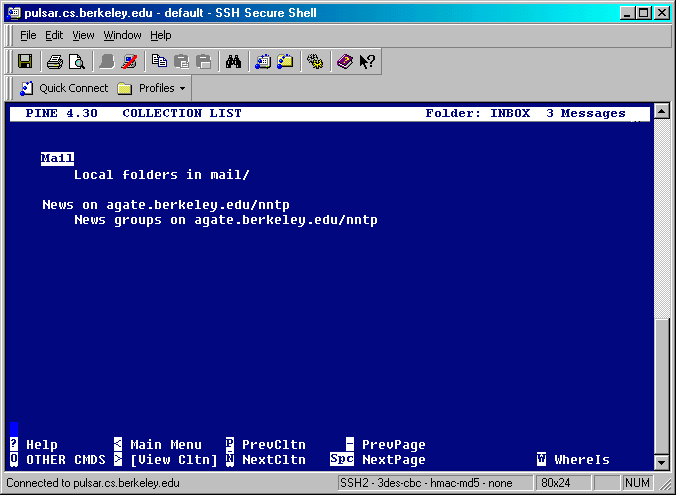
- Select the second folder (News) and hit Enter.
- Hit A to Add a newsgroup.
- Enter the newsgroup name you would like to add, such as ucb.class.cs61a, then hit Enter.
- You should get the message 'Subscribed to ucb.class.cs61a'.
You can now use the arrow key to select ucb.class.cs61a, hit Enter, and see all the newsgroup messages! Read and post messages as you normally would with pine!
Some useful keys for newsgroup reading are:
- d - to mark a message for deletion (useful for trimming down the posts to what's important for you).
- x - to exclude from view all messages you marked for deletion
- & - to unexclude (bring back to view all messages you previously deleted)
- j - to jump to a certain post
- $ - to sort messages (by thread, date, etc)
Source: Thanks to Frances E. Uku for her newsgroup post.