home

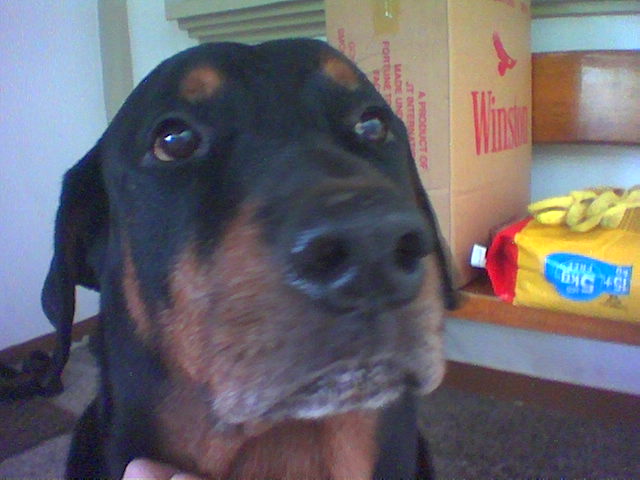
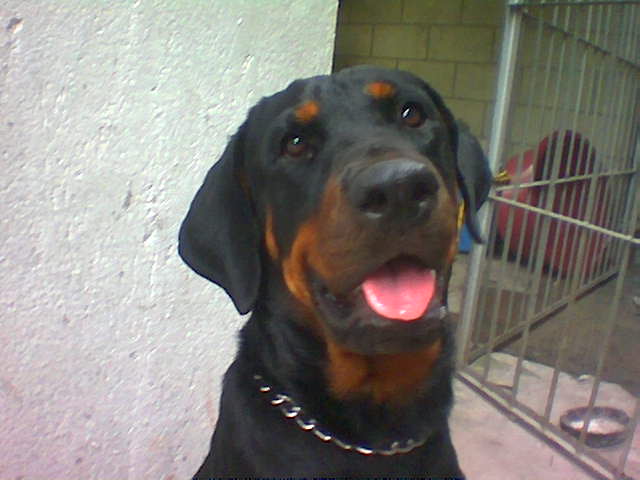
Alan


alan alan

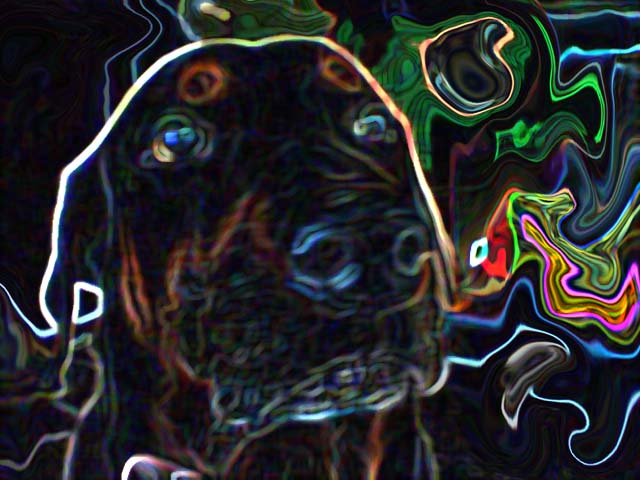
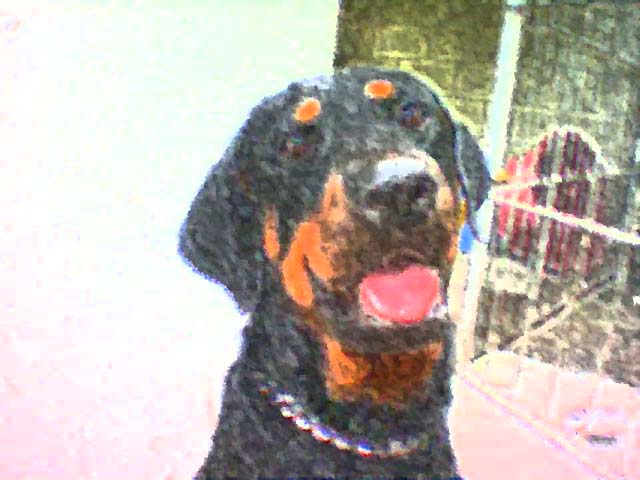
made using Adobe Photoshop 7.0

  1. Go to the Filter menu, located on the menu bar
  2. Click Stylize
  3. Then choose Glowing Edges (Edge Width 5, Edge Brightness 6 and Smoothness 8)
  4. Click OK
  5. Go back to Filters
  6. Click on Liquify (adjust Tool Options: Brush Size 64, Brush Pressure 50 and Turbulent Jitter 70; Reconstruction: Mode - Stiff
  7. Click OK
paw

Keli


keli keli

made using Adobe Photoshop 7.0

  1. Go to the Filter menu, located on the menu bar
  2. Click Brush Strokes
  3. Then choose Angled Strokes (Direction Balance 50, Stroke Length 15 and Sharpness 3)
  4. Click OK
  5. Go back to Filters
  6. Click on Distort
  7. Then choose Ocean Ripple (Ripple Size 6 and Ripple Magnitude 7)
  8. Click OK
paw

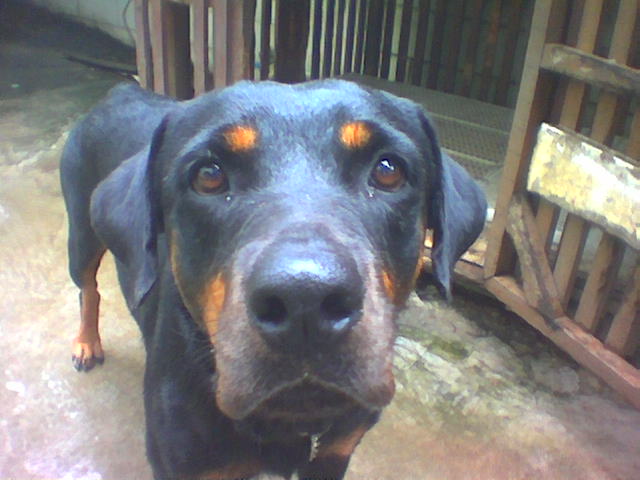
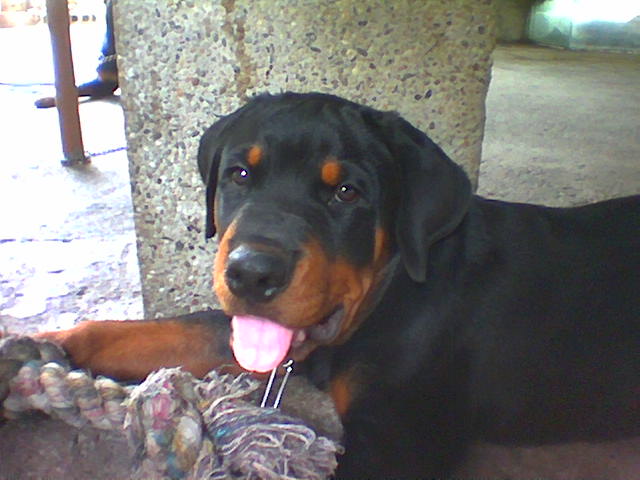
BoO


boo boo

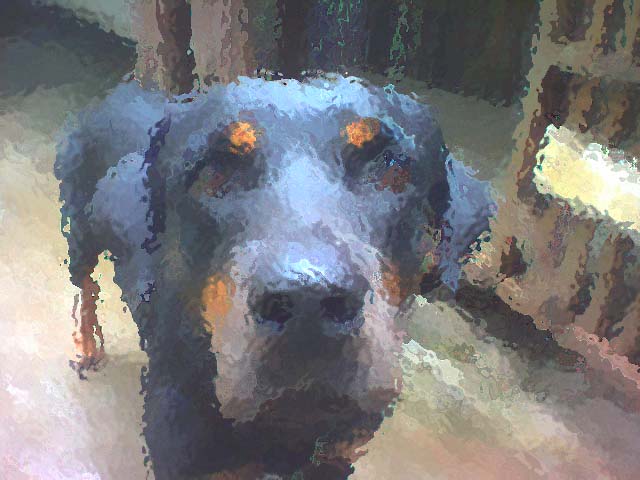
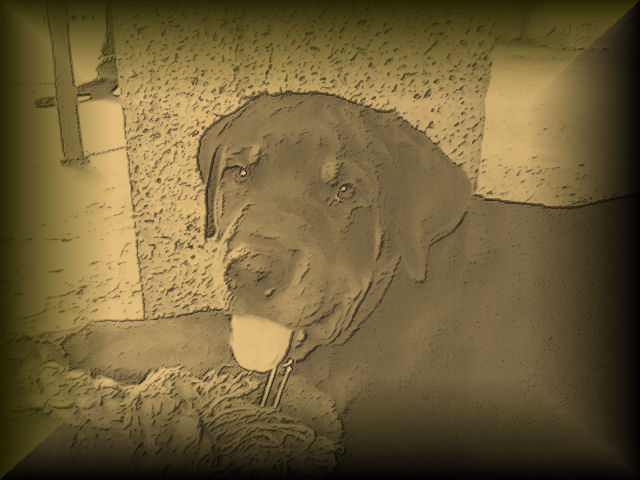
made using Adobe Photoshop 7.0

  1. Go to the Filter menu, located on the menu bar
  2. Click Artistic
  3. Then choose Smudge Stick (Stroke Length 4, Highligt Area 8 and Intensity 10)
  4. Click OK
  5. Go back to Filters
  6. Click on Brush Strokes
  7. Then choose Accented Edges (Edge Width 5, Edge Brightness 41 and Smoothness 3)
  8. Click OK
  9. Go back to Filters
  10. Click Pixelate
  11. Then choose Crystalize (Cell Size 3)
  12. Click OK
paw

Sammy


sam sam

made using Paint Shop Pro 9

  1. Go to Effects, located on the menu bar
  2. Click Art media effects
  3. Choose Charcoal (detail 100 and opacity 35)
  4. Click OK
  5. Go back to Effects
  6. Click Artistic effects
  7. Choose Aged newspaper
  8. Go back to Effects
  9. Click 3d effects
  10. Then choose Buttonize
  11. Adjust parameters to height 101, width 112 and opacity 97
Cursor by nuthinbutnet.net
Hosted by www.Geocities.ws

1