 |
|
|
|
|
|
|
|
|
|
|
|
|
|
|
|
|
|
|
|
|
|
|
|
|
|
|
|
| Me & My HTML | |||||||||||||||||||||||||||
 |
|||||||||||||||||||||||||||
 |
|||||||||||||||||||||||||||
| Lesson 7.1 | Lesson 7.1 for Classreport.org Administratiors | ||||||||||||||||||||||||||
 |
|||||||||||||||||||||||||||
| Lesson 7.1 Picture | |||||||||||||||||||||||||||
| Home | |||||||||||||||||||||||||||
 |
|||||||||||||||||||||||||||
| Email: | |||||||||||||||||||||||||||

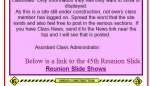
| Lesson 7 part 1 This is Lesson 7 but has little to do with the previous lessons. It is more about the classreport.org website. The steps here are Site specific and I will be referring to a site that is not like yours. You will have to adapt what is said to your Home Page display and your name where the reference is to Debbie H. Use your Class Administrator's name in those references. Your site may have a different set of graphics. On the site I was using the fall graphics were being used and they were retrieved from coolholidaygraphics. Your may vary. We are going to look into how to go through the source code of your site and find what is making it tick. Our objective is how to find out how we can go to your profile when we click on your name on the home page. We need a copy of your source code, sometimes called source or code or maybe even site tags. I like the term source code, as that is what it really is. You probably have done some of these steps before so you may be old hat at it. Open your site at the home page. To access the source code, you will right click on the home page. Not every location is sensitive to the popup menu that has View Source as an option. I find that the upper right corner of any box is the most sensitive. On your site, the word under your class logo also is a sensitive location. Do the right click and select View Source and Notepad will open with all of the source code that makes your site. This will include what you have put in the Reunion section and the 3 HTML Blocks. There is a lot that is not changeable and is part of the programming provided by classreport. I like to save this with the HTML Block code that I have put on the site, even if it is included in this one. I would do a Save As and put it in a folder for your site. I like to rename it to something more than 1986[1] like WHS 1986 or something like that. Remember that if you log on and do this, you will get a different set of Source Code. For this lesson, do not log onto your site. Just go up in the Lookie Lou mode. Notepad has most of the tools that MS Word has to explore the text. Probably the most used when you are doing this lesson is the 'Find' tool. Notepad is not as technical as MS Word from the standpoint that it does not loop. If you happen to be in the middle of the page of text and do a find, it will search from that point to the end and not return to the top and continue. If you want to search the complete document, you have to move the cursor to the first line of the document yourself. and <Ctr><Home> will do that for you. If the occasion arrives in this lesson I will just use <CH> to mean that. You use a lot to the thanksgiving divider from coolholidaygraphics. Either of these would make a good search test. I like to narrow the number of hits to just those I am looking for but being lazy, I do not want to type in the complete word or words. So to start, let us make sure that we are at the top with a <CH>. You can select Edit and Find or use the <Ctrl> F {<CF>} to do the same thing. Let us see how many of the graphics you have on your site. This will be nice to know when you want to change them out to candy canes and the other Christmas decorations. So we are at the top and <CF> to find. in the box enter thanksg as this will get us to each of the dividers. After finding the first, you click on find next and keeping count, I found 20 occurrences on this site but there is 2 in each graphic, so you have 10 in your home page. Do a <CH>. Go to the home page display and near the top you will see your name as Class Administrator. By clicking on your name, you can see that it takes you to your profile page. Let us say that we want to know how to do the same thing but in a link in one of your HTML Blocks. Do a <CF> and enter Debbie H and click Find Next. I find 9 occurrences of your name on the site. One of those is what we are looking for. Cancel the search after looking at each and <CH> to do it again. This time we will look at each search looking for the rest of the statement that is near the one we see on the home page. I see "This site is operated and ..." so let us look for Debbie H again. The first one that comes up is not the one we are looking for as Class Administrator is nowhere in site. The Find Next moves you to the second one and there it is. (This is site specific so yours will be different.) The complete section of what we want to use is: <span> This site is operated and funded by members of our class.<br> Class Administrator: <a target="_blank" href="/main/selectprofilemain.asp?dname=/usa/oh/toledo/whs/&clid=326934&cl= 1986&hs=WHS&clr1=mediumblue&clr2=gold&clr3=lightgrey&stcnt= 665&item=1551666">Debbie Huffman Baker</a><br> Page Hits: <b>3,221</b> </span><br><br> We will modify this a bit to suit our needs so select the text from the Website Source code and paste it into another Notepad, practiceboard or HTML-Kit. You can not test the function of this outside the website so we will be shooting blind. A lot depends on our knowledge of the code we are working with and the knowledge of HTML itself. There is not much here to mess up so we have the advantage over the functions of HTML. (Hopefully) Our lead in will be something like what I used on my site. "Below is the slide show link of the 25th Reunion pictures." I used the horizontal marquee to make it Eye-catchy. (This is from my site and again it is site specific so yours will be different.) I used: <!-- Marquee for Slideshow selection on a Profile --> <center> <p align="center"><span style="font-weight: 400"> <font face="Times New Roman" color="#810541" size="4"> <marquee width="100%">Below is a link to the 45th Reunion Slideshow. The Slideshow is divided into two, 10 minutes sections. They are larger than what can be shown on the Home Page. Please enjoy... </marquee></font></span> </center> <!-- End of Marquee --> <!-- This is the select link --> <font face="Arial" size="3"><strong> <span><a target="_blank" href="/main/selectprofilemain.asp?dname=/usa/or/ashland/ahs/&clid=192485&cl= 1958&hs=AHS&clr1=red&clr2=red&clr3=lightgrey&stcnt=149&item=1648935">Reunion Slide Shows </a><br></b></span> </strong> <!-- End of Profile Link --> We will want your link section to have the profile page you want to display from. we will not need the <span> </span> tags in our use. We will replace, "This site is operated and funded by members of our class.<br> Class Administrator:" with our own lead-in and we do not need the number of hits. On the example site, what we are left with is: <a target="_blank" href="/main/selectprofilemain.asp?dname=/usa/oh/toledo/whs/&clid=326934&cl= 1986&hs=WHS&clr1=mediumblue&clr2=gold&clr3=lightgrey&stcnt=665&item=1551666">Debbie Huffman Baker</a> The item=1551666 is the Class ID number from the Profile edit page when going through The Office. You will change this number for the different profiles you access with external displays. You have to have the Fake Profiles established first that then get the numbers. I would surround this with a lot of comment lines as I did so it is easy to find and you know what the parts of this section are for. This has only the 2 parts, Marquee and Link, but it is a good habit to get into. I go as far as commenting each HTML Block so I can find it on the fill source code. It only takes a few seconds to put; <!-- HTML Block 1 {aHS YYYY} --> at the top of your block one code and <!-- HTML Block 1 End --> at the bottom. When you are looking for help on line, the person can find your code quickly also. Back to the task at hand! You will have the <!-- start of the link & Marquee -->, <!-- Start of Link --> and <!-- End of Marquee and link --> as parts of this section. I add the Link name to finish the link and it should look like: <a target="_blank" href="/main/selectprofilemain.asp?dname=/usa/oh/toledo/whs/&clid=326934&cl= 1986&hs=WHS&clr1=mediumblue&clr2=gold&clr3=lightgrey&stcnt= 665&item=1551666">25th Reunion Slideshow Link</a> I would save this for future use with all of the other site related HTML code as DummyProfileLink.txt. You never know where you might want to use it. |