| Erasing a background using Magic wand |
 |
 |
 |
 |
 |
 |
 |
 |
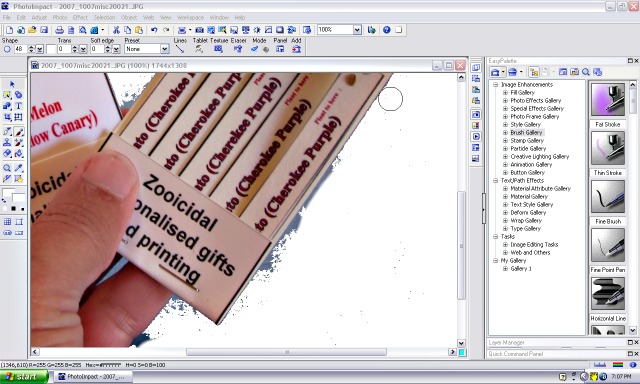 |
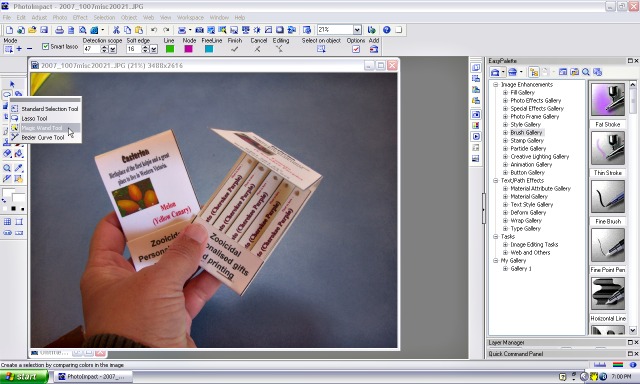
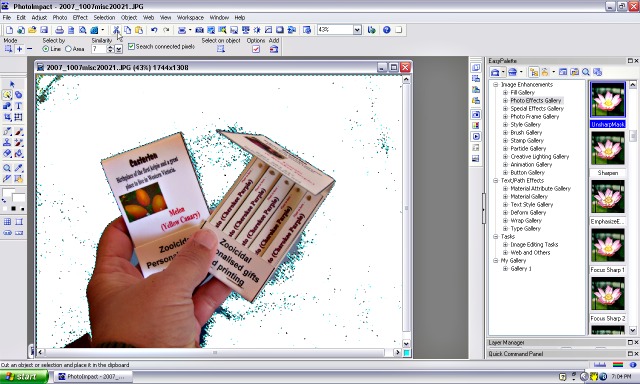
| 1, Open your picture. On the left tool panel choose 'magic wand' tool |
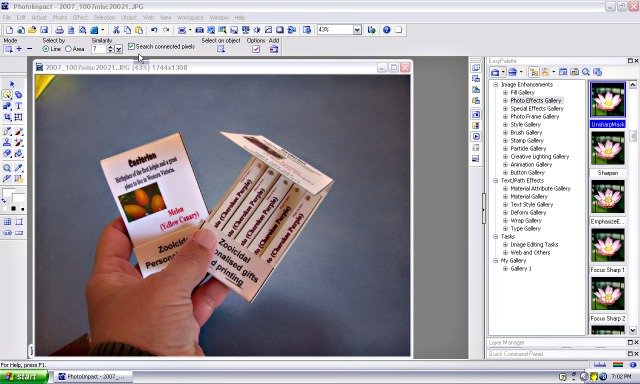
| 2, On the tool panel that appears above you can set the 'similarity' which selects pixels (dots of colour) that are similar to the ones that you want to erase. Try between 20 and 30 to start (you can always change it). If you tick the 'search connected pixels' box then only pixels that are next to the ones that you choose to remove are selected. Ie. If you have a design that is three horizontal black lines on a white background and you tick 'search connected pixels' then click on one of the lines, then only the black of that line will be selected. If the 'search connected pixels' box is not ticked, then, if you click on the black of one line, then all three lines will be chosen. |
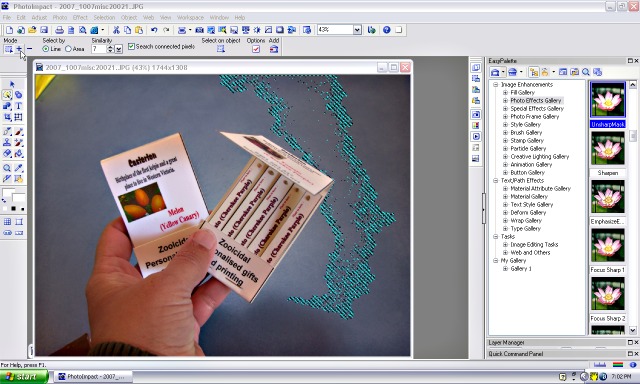
| 3, Click your 'wand' on a part of the background that you want to erase. You will probably find that only part of it will be selected. (you can 'click and drag' the pointer a little to choose a bigger area). 4, Go to the tool panel and click on the + button. This will allow you to keep clicking on the background until you have selected as much as you want. |
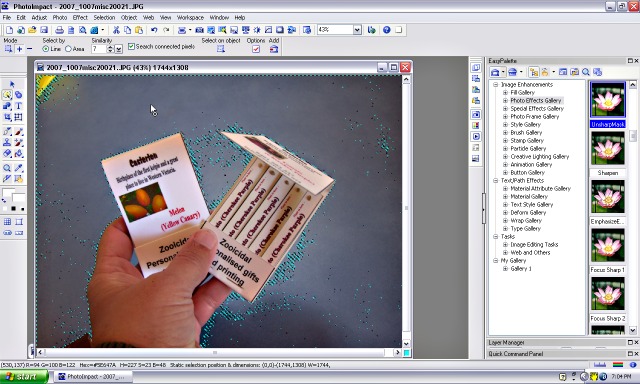
| 5, If you make a mistake and have selected part of the image you want to keep, just click on the 'back arrow' to undo a move or click on the � button on the tool panel (next to the + button) and click on the part of the image that you want to deselect. Play around with the similarity to get a selection that you desire. 6, You can see that most of the background is selected with just some random pixels left. We will now get rid of what I have selected and clean it up. |
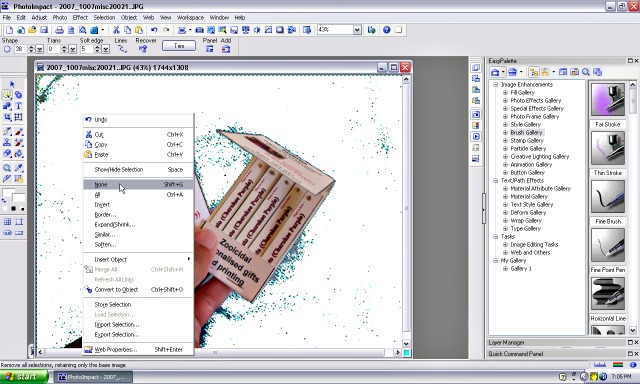
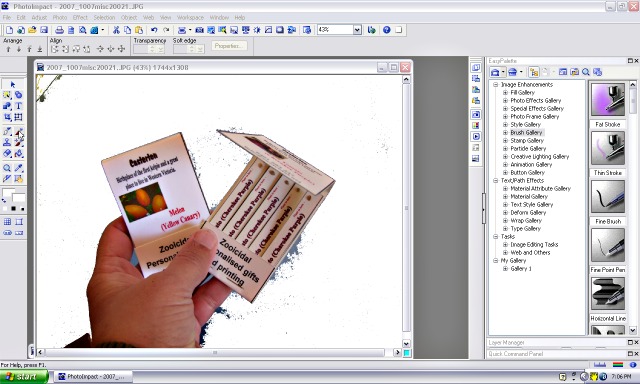
| 7, Click on the scissors/cut button at the top. The selected part of the image will turn white. Now right click and select 'none. This will take away the 'selection lines' |
| 8, Click on the 'paintbrush' tool on the left tool panel. We are going to paint out the missed spots in the background white to match the rest. Choose white as the colour and choose the size of your brush as well as changing the 'soft edge' value to 0 or as you like. |
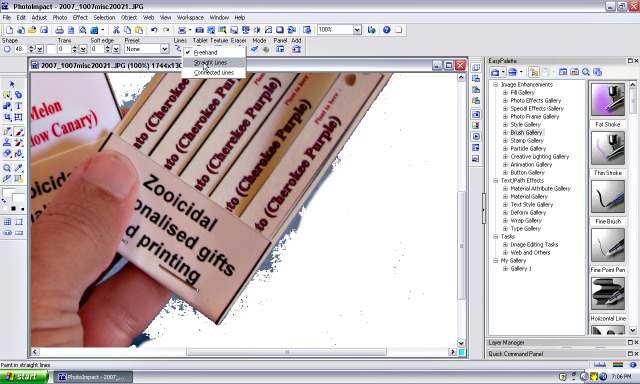
| 9, Up the canvas size to 100% or 200% (top toll bar) so you can see and have more control of your paint brush. Use the paintbrush to paint over the background that you don't want. 10, As this picture has some straight sided items, I will choose the 'straight lines' tool at the top to paint around the cards. |
| 11, I am placing the brush at the bottom of one edge then dragging to the top. When I let go, it will erase the line. |