| Making ghostly faces page 2 |
 |
 |
 |
 |
 |
 |
 |
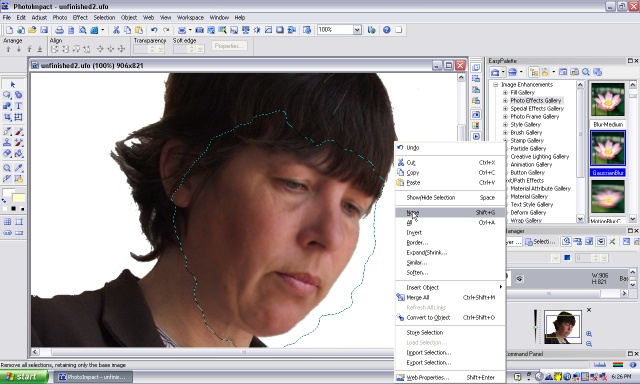
| Right click your mouse and choose 'None'. |
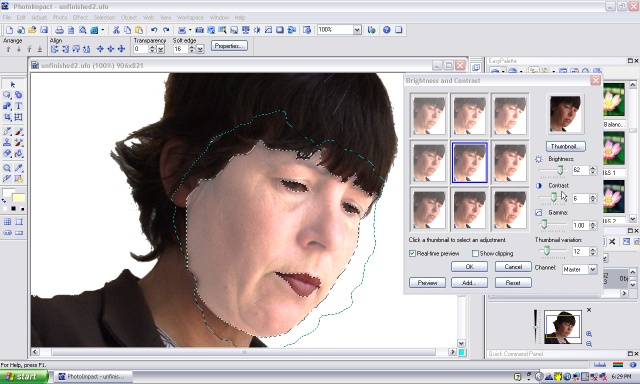
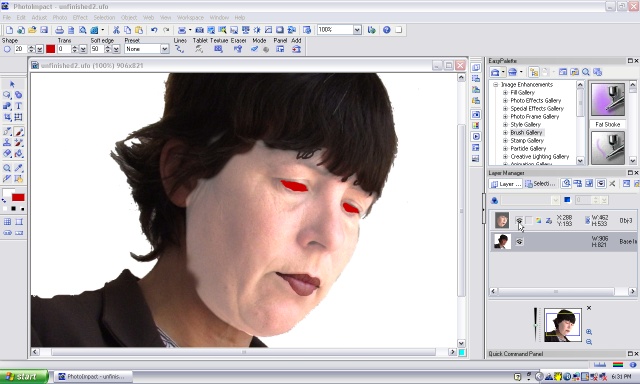
| With your face layer highlighted (has little lines around it), change the face to how you want it. Here, I have clicked on 'Adjust - brightness and contrast' and have used the sliders to make the face almost white. |
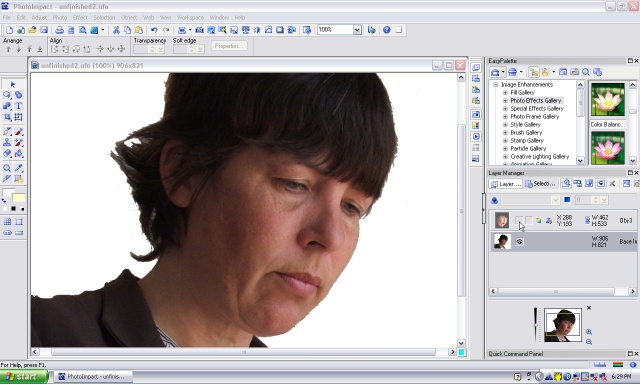
| I have decide to make the eyes red so I have gone to the layer box (bottom right) and clicked on the box next to my face layer so it becomes hidden. It is still there but you cant see it. This allows you to work unimpeded on the bottom layer. |
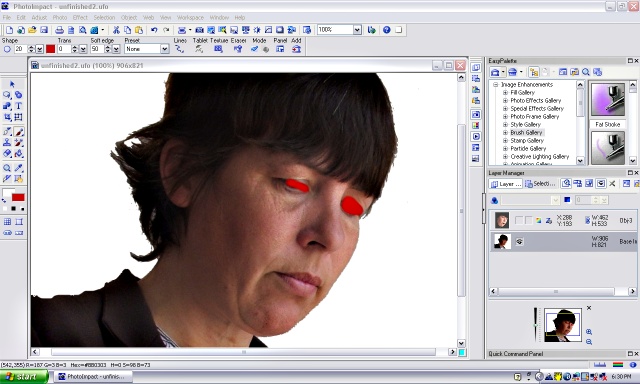
| Now, I have used the paintbrush with red paint to roughly paint the eyes red. |
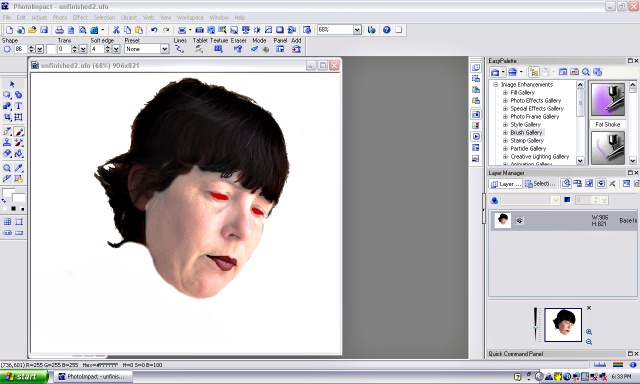
| Now when I click on the box next to the face layer it becomes visible again and the red eyes show through where the eyes were cut out of the layer earlier on. |
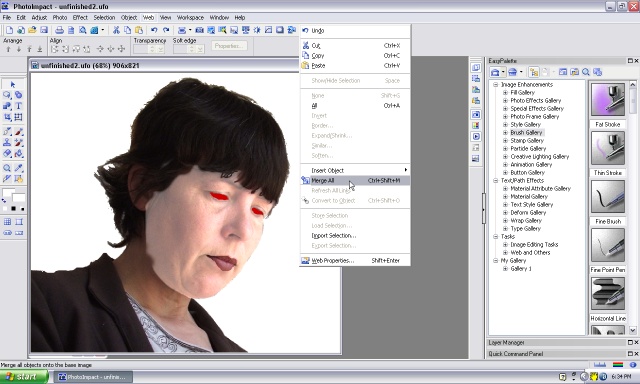
| Now, if you want to, you can right click your mouse and choose' Merge all' to merge all the layers together. This allows me to use the paintbrush tool to paint in whate all the areas that I don't want so I can isolate the head. |
| This is really rough but it gives you an idea of what you can do if you are more careful. You can, of course, do the ears and other parts like the face. I have just left them out here for convenience. |