| Making ghostly faces |
 |
 |
 |
 |
 |
 |
 |
 |
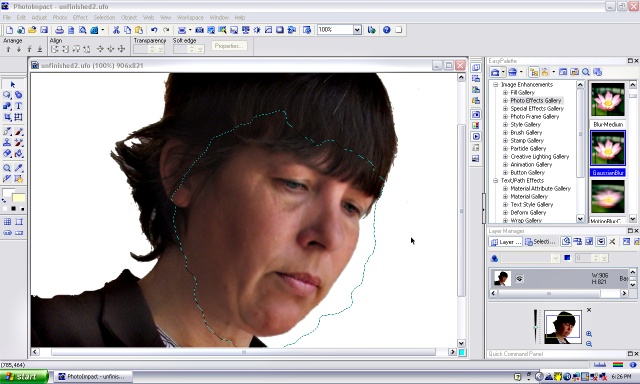 |
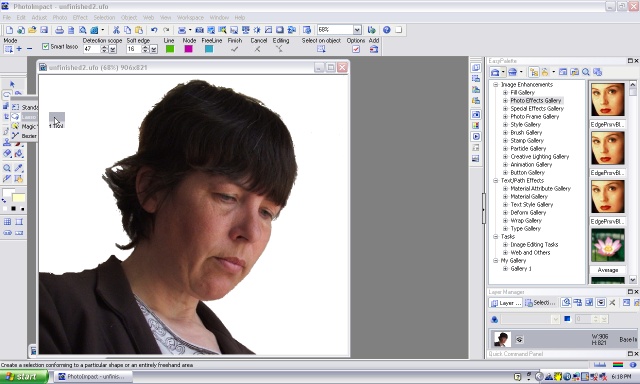
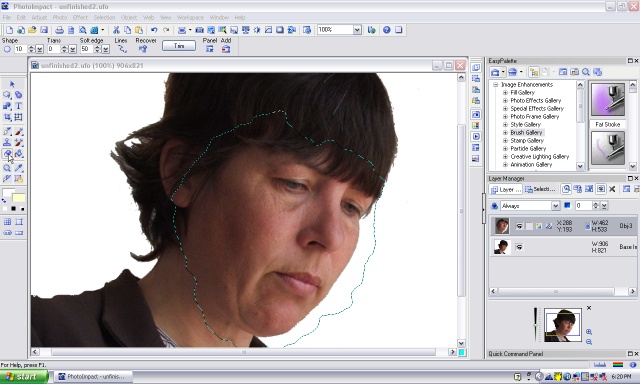
| Open a picture of a face. Choose the lasso tool from the laft tool menu. |
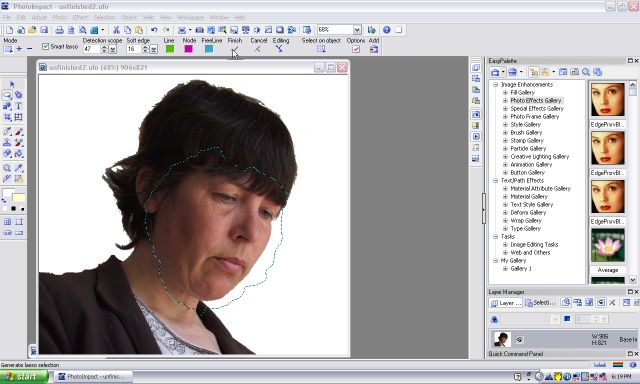
| Draw around the face and click on the 'finish' tick above the image. |
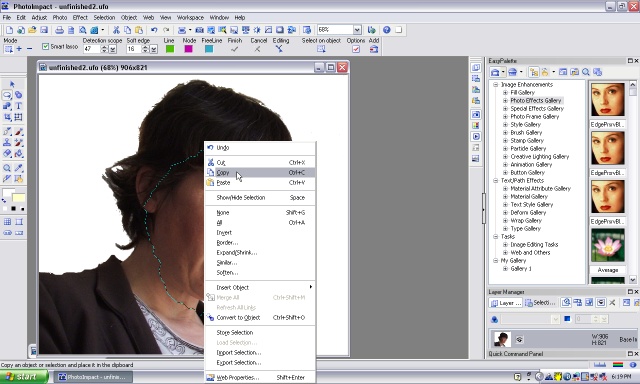
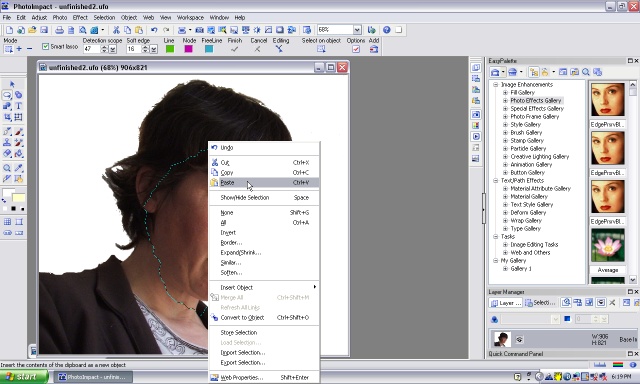
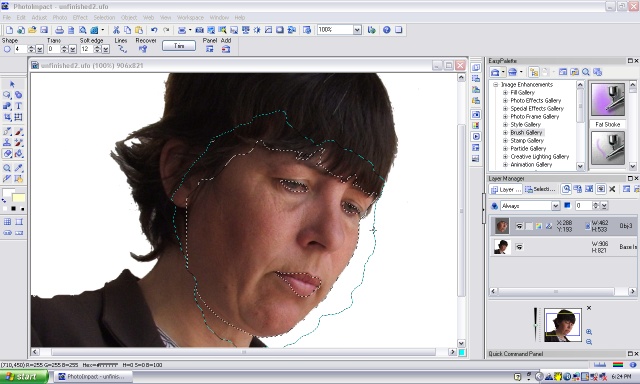
| Right click your mouse and 'copy' then 'paste'. You now have a copy of the face right over the original image (on a seperate layer). |
| Click on the erasor tool on the left tool bar. Use the erasor to erase parts of the face (the top layer) that you don't want to change like the eyes, lips, eyebrows and whisps of hair. You can see in the 'layer' menu at the bottom right the two layers. |
| This is a quick demonstration. The more care you take, the better this will work out. |
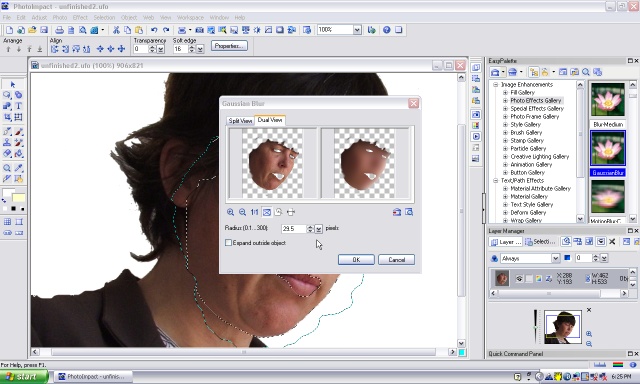
| Now you can have fun changing the skin/face. In the 'Photo effects' gallery (right side) choose 'Gausian blur'. If you right click your mouse on the blur picture it will bring up a screen where you can change the amount of blur. |
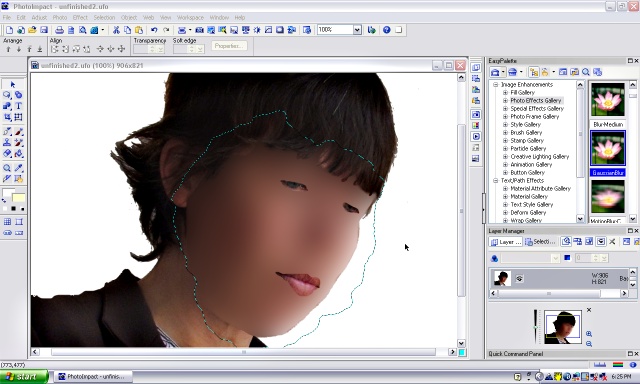
| Using lots of blur will make an effect like this. For our purposes at the moment, you don't need this much, about 2-5 will do(or just the default) |
| Now the skin is a little smoother. This is useful for touching up photos. Next page we will make a ghost-like effect. |