 |
| Erasing a background using the erasor tool page 2 |
 |
 |
 |
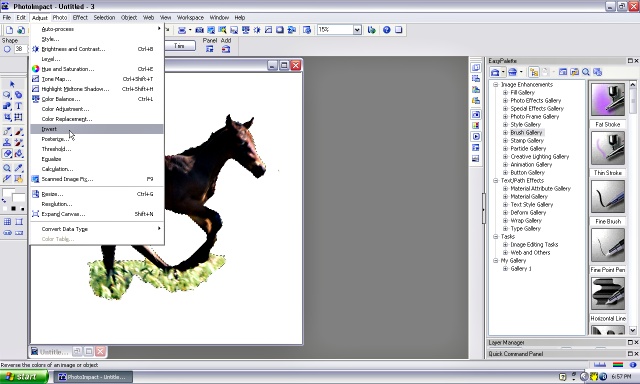
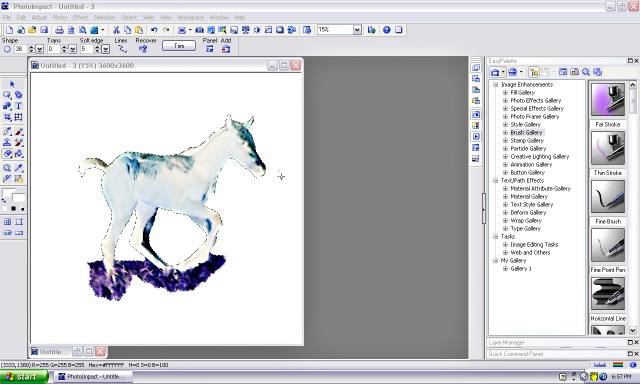
| To find pixels that you have missed, click on 'Adjust' in the top tool bar, then 'invert. You need to have the design highlighted with the little moving dots before you do this or it will not work. |
| If you see a few spots outside your image click the erasor tool (on the left tool bar) and erase them. Now click on 'Adjust - invert' again to bring the picture back. |
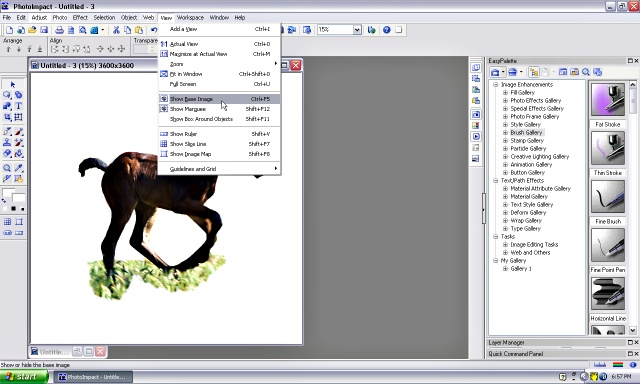
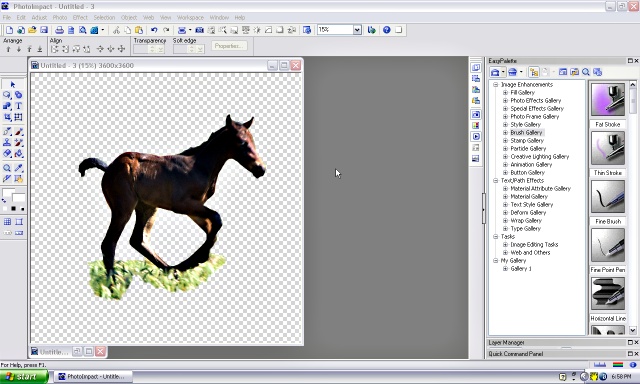
| If you are using this design on a dark t-shirt you now need to click 'View - show base image' (top tool bar). This will get rid of the background so you are left with only your image.. |
| You can now save your image (file - save as - PNG) and upload it to your POD shop. |