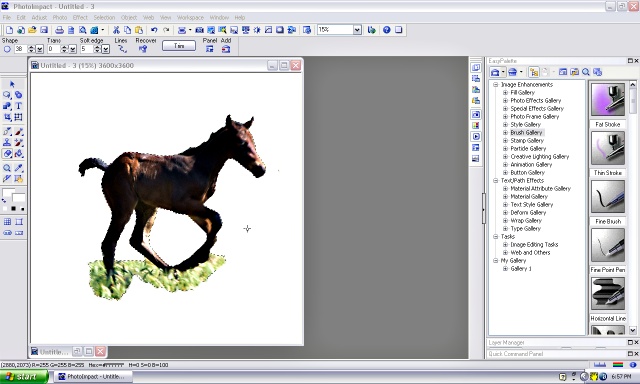
| Deleting a background using erasor tool. |
 |
 |
 |
 |
 |
 |
 |
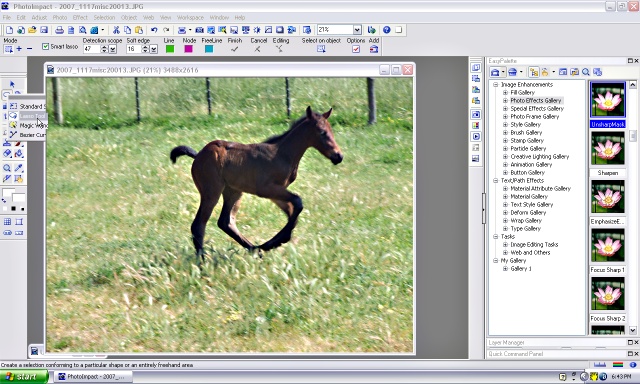
| Open your photo and choose 'lasso tool' from the tool menu on the left. |
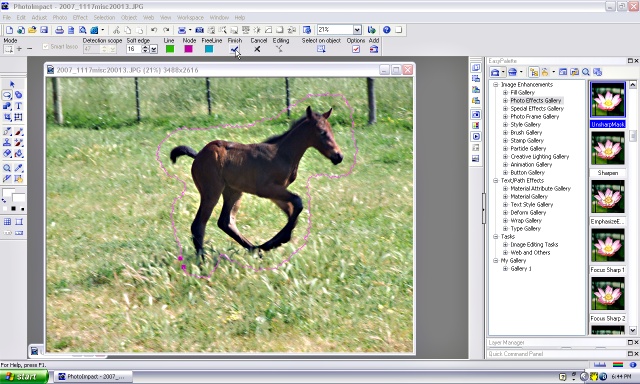
| Draw loosly around the object that you want to keep and click the 'finish' tick at the top. Right click on the image and choose 'copy' |
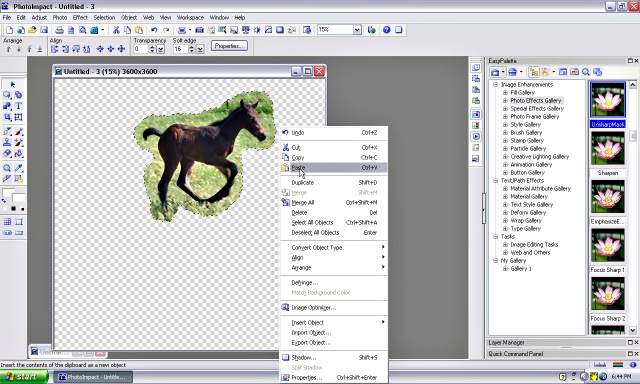
| Open a new transparent canvas and right click your mouse. Choose paste. Your image is now a layer on the canvas. |
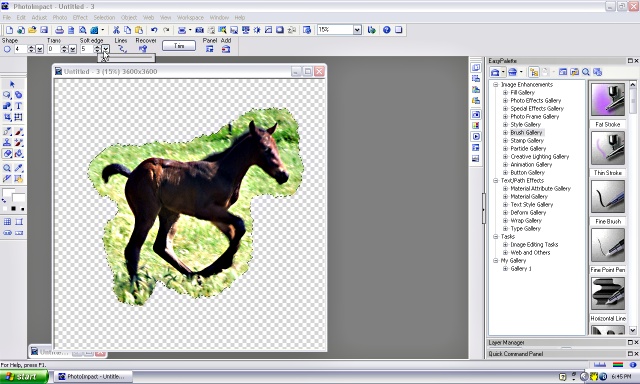
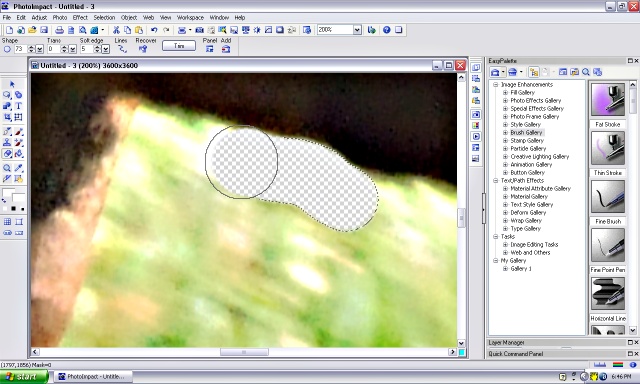
| Click on the 'eraser' tool on the left tool bar. Then change the 'soft edge' on the tool bar above the image to 0 or up to 10 (whatever you feel comfortable with). A 0 tolerance will make a sharp edge. |
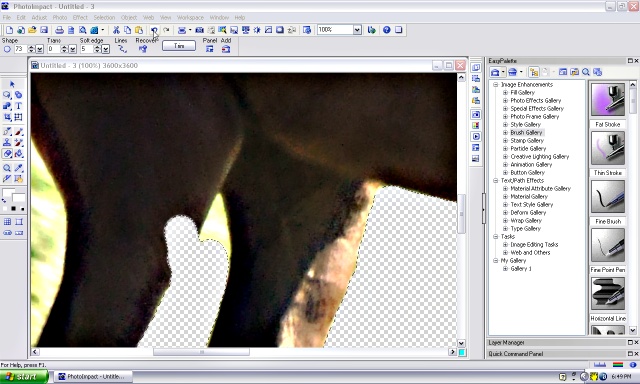
| Increase the view to 200% or 300% (top tool bar) so you can see what you are doing. Change the size of the erasor tool so you are comfortable with it. Use your erasor to trace around the image and erase all the area that you don't want. Make the tool smaller to get into tight and fiddly spots. |
| If you make a mistake use the 'back/undo' arrow on the top tool bar. |
| Now that you have isolated the image you need to make sure that you have not missed any hard-to-see pixels (small dots of colour) |