


|
|
|
|
|
|
|
|
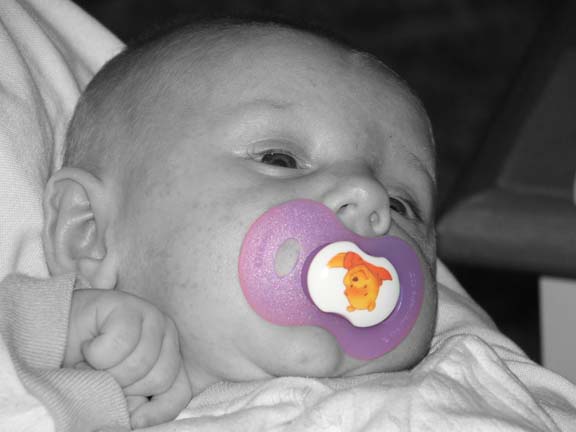
| To Make a Black and White with Color: Open your picture then goto Image, Duplicate to make a copy of it. Turn the copy of it to black and white go to Image, Mode, Grayscale. Then making sure you have your Move Tool selected, drag and drop the black and white picture onto the colored picture. Shrink down or close out the black and white to unclutter your work area. If you close, you don't have to save it, just say no. Next, I always like to extend the window frame a little so that I can see that the two pictures are matched up. Then to make it easy, the more you zoom your picture, the bigger your erase area is and it's easier to focus in and see the color coming through. So, zoom zoom zoom. Select your eraser tool and start erasing the black and white, the color will show through from the bottom. Once you have erased all the black/white area you want, then you can zoom down and check it out, make sure you have it the way you want it. Then, merge your layers and save using the save as command so you can rename it and it doesn't use the same file name as your original. After I merge I usually do all the sizing adjustments and using the save as command you can pick what you want to save it as...gif, jpeg, etc | |||||||
|
|||||||
|
|||||||
|
|||||||