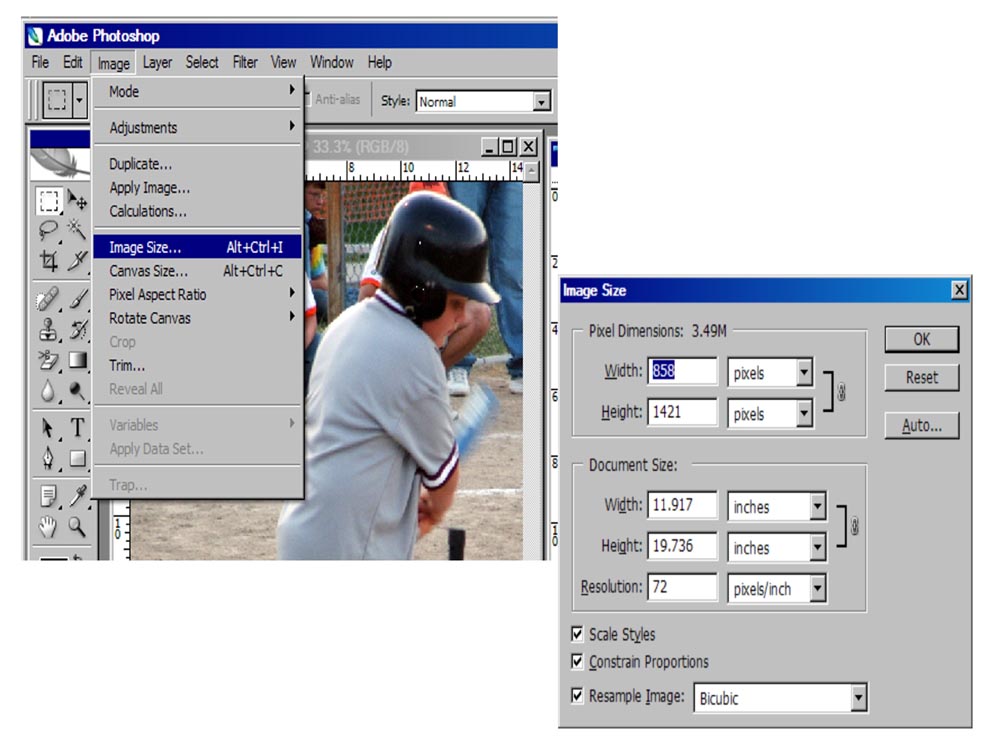
The first few instructions will be the same for both programs. I�ll let you know when I am giving instructions specifically for either one.
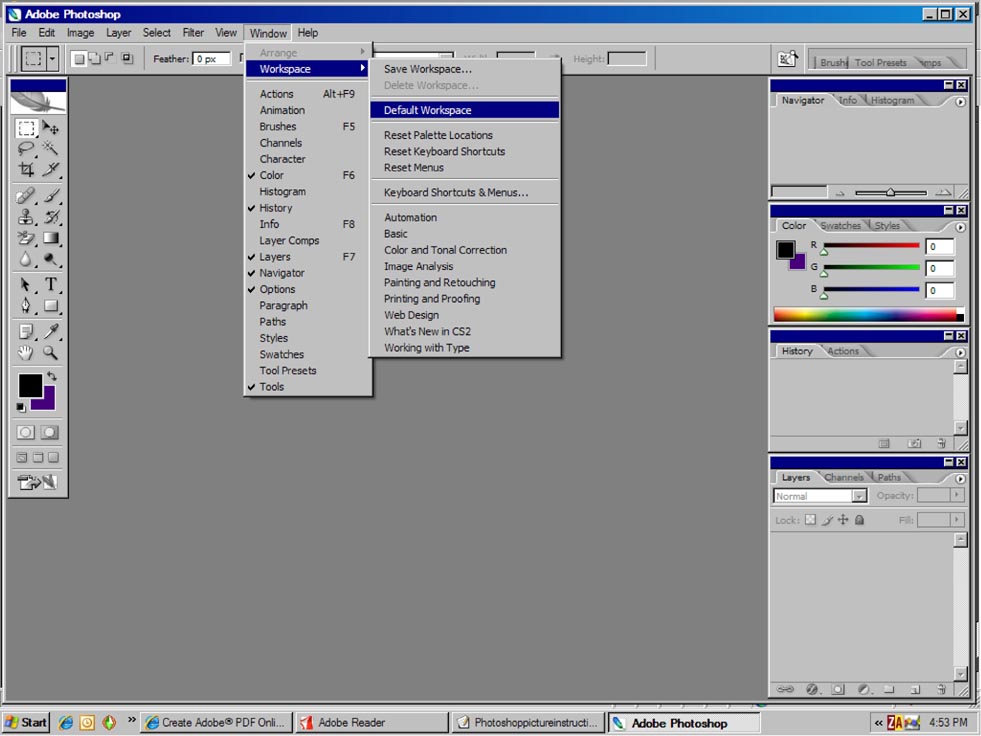
Hopefully you know about layers?? On the left hand side of your Photoshop there should be about 4 smaller windows open showing various items
like navigator, color, history, layers. That layer box will show you the photos you have layered in one window.
If you don't see this then click on Window, Workspace, Default workspace and it should pop up. It should look something like this: ( this is in PSCS2)
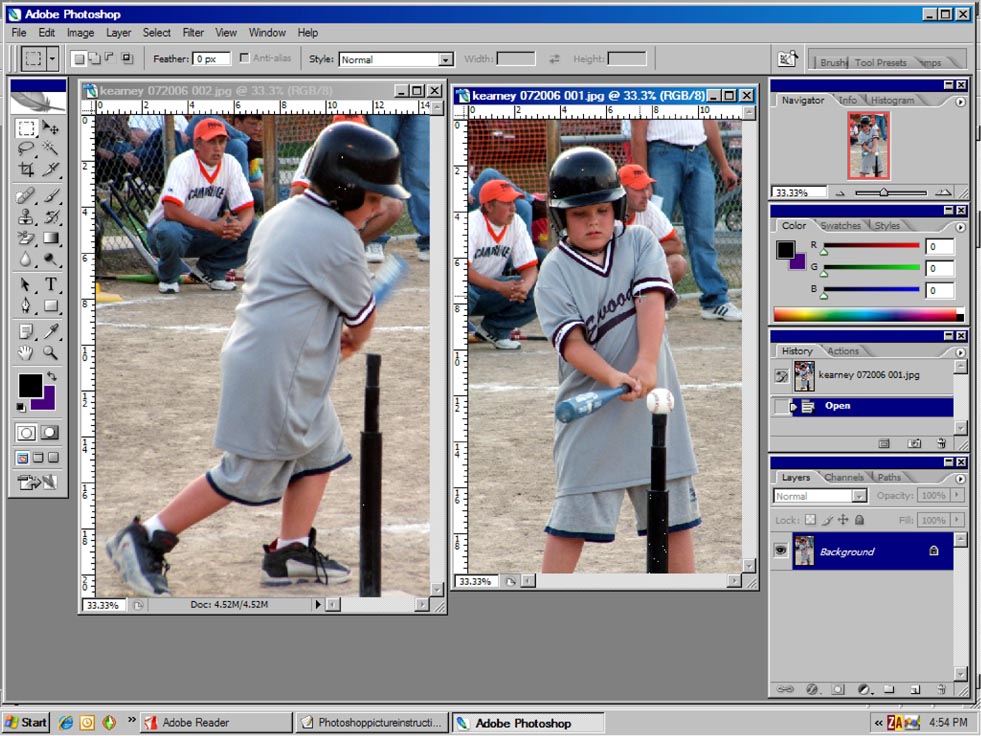
Now you can edit each photo by fixing the picture, cropping it, adding stamps (little hearts and such), words etc. TIP: Trimming you photos to 4x6 or smaller is a good idea. My photos here are larger than 4x6.
Take notice in the layers it shows each photo as the background. I have the 2nd photo (Right) highlighted and chosen and it appears in the layers box. You want to �pile� all your photos onto one frame so they all show up in the layers box. Make sure you have your Move Tool selected (upper left highlighted against the white background here). Drag and drop all your pictures to one window. TIP: IF you have a lot of pictures to drag and drop, after you drag and drop the picture, shrink it down so you know you have moved that one.