
Once everything is adjusted and you like what the Animation plays in the Primary Window, Go to File, Save For Web.


|
|
|
|
|
|
|
|
|
|
|
|
|
|
|
|
|
|
|
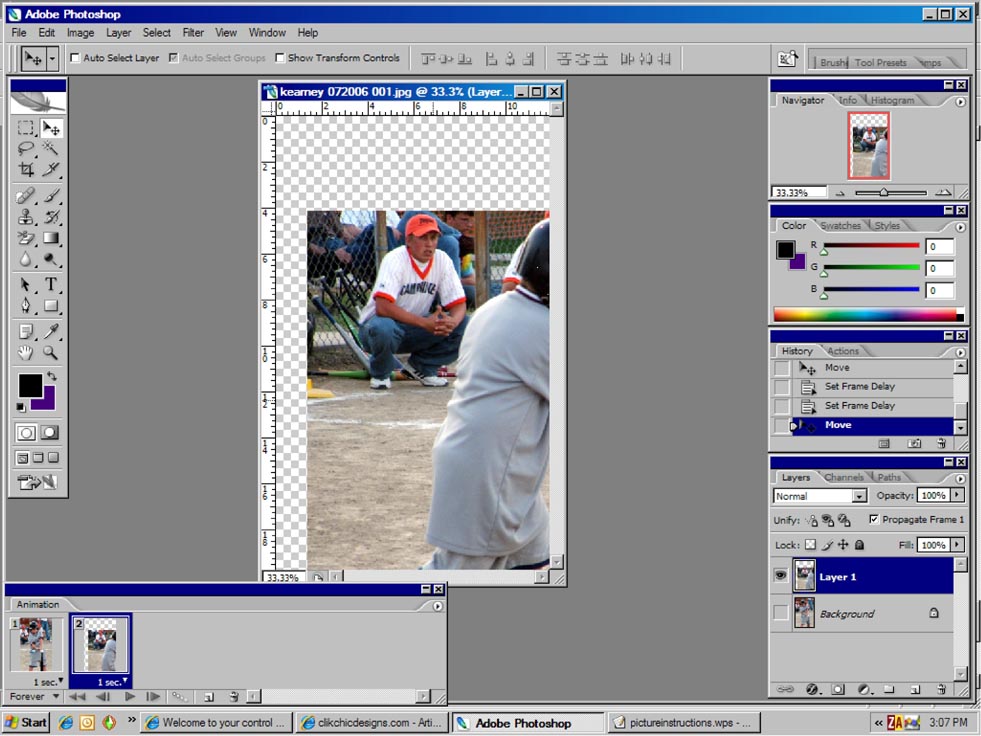
| Now you need to set the speed of the animation. A good one is 1-2 sec. Click on the down arrow beside 0 sec and pick a speed. Then underneath that, there is a little window to open that will select your looping option. Make sure Forever is selected. It should look like this: you can view the animation by pressing the play button. | ||||||||||||||||||
|
||||||||||||||||||
| You can switch to each frame in the animation by selecting it. If you can see the checkered background of the frame, like in the example above, then make sure you have your MOVE Tool selected and select the frame that is showing the checkered picture in the Animation box, it will display in the Primary Window above of all the layers and you can move it around to match it up right and show what you want to see.
Once everything is adjusted and you like what the Animation plays in the Primary Window, Go to File, Save For Web. |
||||||||||||||||||
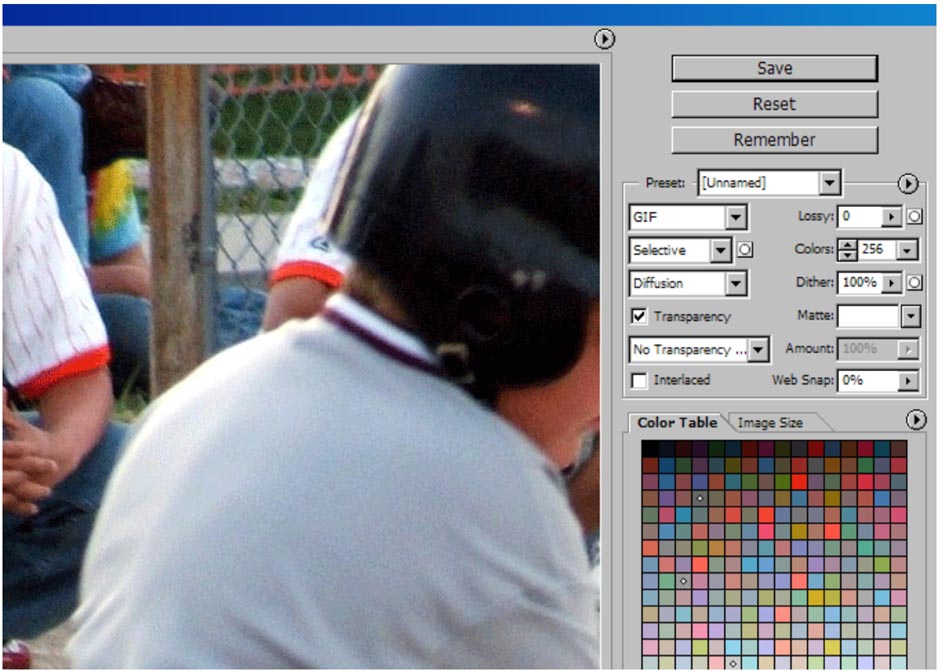
| It will look like this: Make sure GIF appears and that you have 256 color and 100% dither for a good, clear picture. Press Save and save your file. | ||||||||||||||||||
|
||||||||||||||||||
| Now I assume you know how to get it to your signature?? TIP: get a photo bucket account. | ||||||||||||||||||
|
||||||||||||||||||
| Using photobucket is better because it will store gifs as well as jpegs and gives you the html format to put it in your signature as an Image. If you need that help leave a note in my guest book on my home page. | ||||||||||||||||||
|
||||||||||||||||||