How To Burn The Data On CD-R
Before burning any data(s) on CD-R, Obviously we need a PC with a capture card and capture driver software. A CD-writer is also needed to make the final product. Furthermore video editing is rather demanding on hard disc space. It is preferred to use a large and fast disc with a capacity of 30 or 40 GB as an extra, dedicated drive.
After installation of the Nero 6.0 software, we are ready to burn the data(s) on CD-R
Here are commonly three ways of how we burn the data(s) on CD-R
The first one is : The file compilation
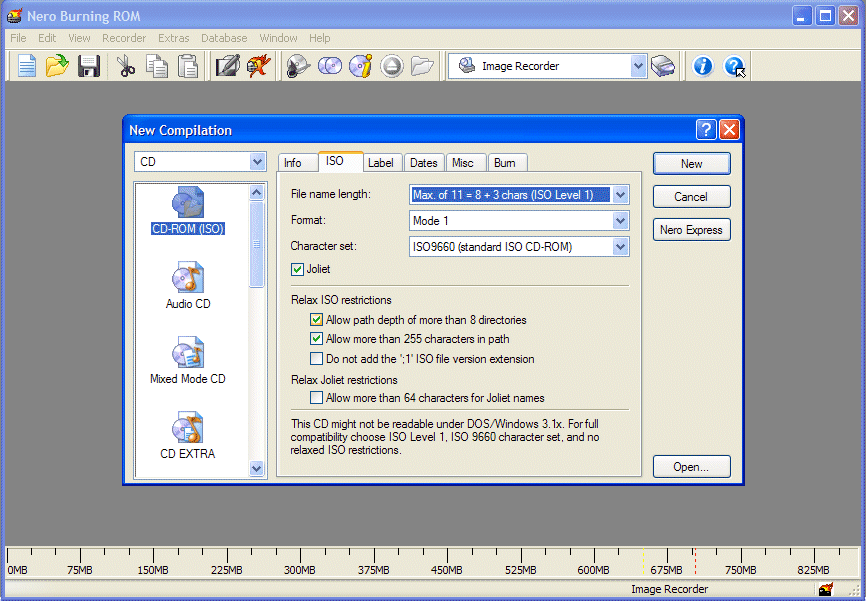
Immediately after the program has been launched, Nero Burning ROM 6 offers us the chance to select the desired task.
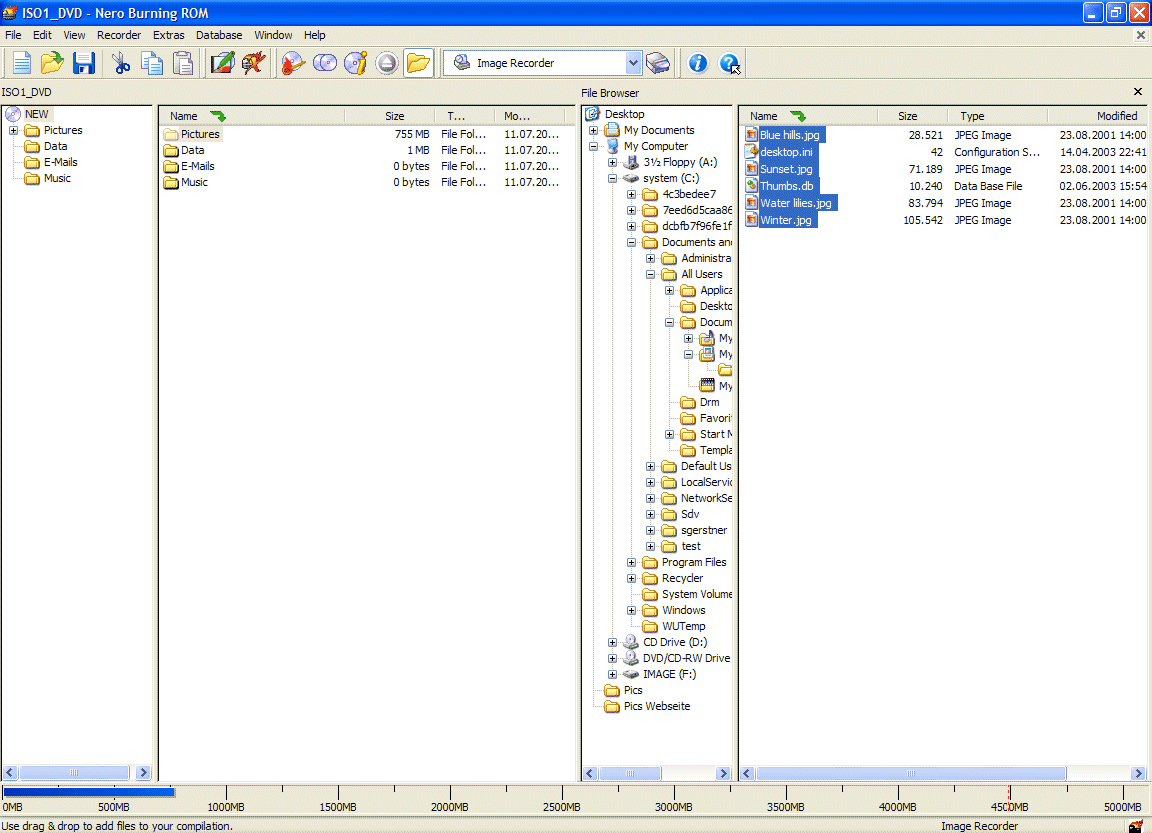 This window shows us which files are contained in our compilation. Files can easily be added to the compilation by drag and drop.
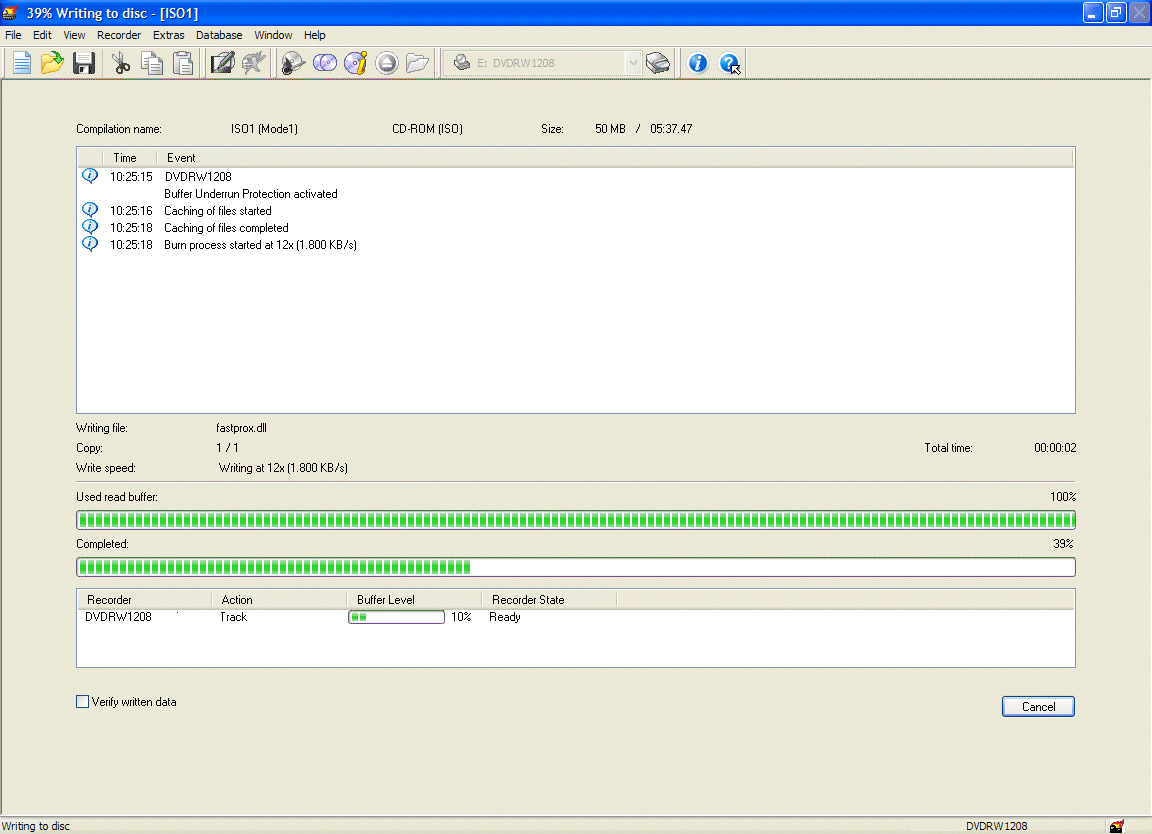 When we burn a disk with Nero Burning ROM 6, we will be kept informed of progress by the window shown here. We are also able to cancel the burning procedure manually.
In addition, we can also burn any songs on CD-R using Nero Burning Rom 6
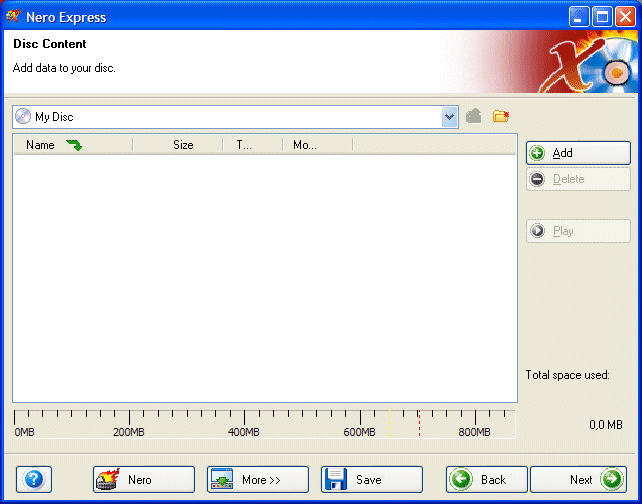 In this window we can add to the compilation those files we want to have burned. "Next" and "Back" make navigation within our project a simple matter.
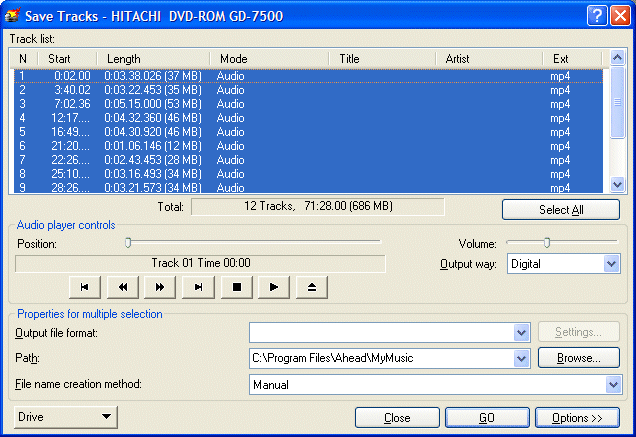 In this format, for example, we can decide between WMA, HE-AAC and WAV as output formats; we can also obtain a MP3/mp3PRO encoder.
Advanced photo editing/authoring: Crop, clean up, and add special effects to photos then add transitions and a soundtrack. Cut, edit, dub into Hollywood style masterpieces.
Next
In this format, for example, we can decide between WMA, HE-AAC and WAV as output formats; we can also obtain a MP3/mp3PRO encoder.
Advanced photo editing/authoring: Crop, clean up, and add special effects to photos then add transitions and a soundtrack. Cut, edit, dub into Hollywood style masterpieces.
Next