Back to Part 6
Frets
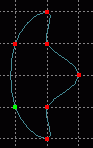 Click the New button on the Dialog Window under the Object tab and choose Show Only Select Object. Rename the layer guitar_frets and change the color to a brownish gold. In a Right view with grid setting of .1 and Grid Lock - All turned on draw the shape of the side of the fret to be extruded along the X-axis.
In a Front view  Extrude for eight grid spaces along the X-axis. In a Perspective view (with Grid Lock - None chosen) connect corresponding points of the two ends of the fret. In this case three point patches will be acceptable because the section will be so small that wrinkles will probably not be seen if present. So make one 4 point patch and three 3 point patches.
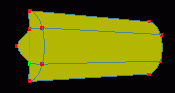
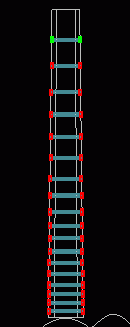 Using the Dialog Window click the check box for Show in the guitar_frets and guitar_fretboard layers only (remain active in the guitar_frets layer). In a Front view Select - All points of the fret and
  Scale the fret in the necessary axes so that it is the same width as the section of the fret board one grid space up from the bottom and measures about 1 grid space along the Z and Y axes. Place the fret one grid space from the bottom of the fret board.
  Clone the fret and in only the Y-axis Translate it up about 1.25 grid spaces (repeat twice). Clone the last fret translated and move it up 1.5 grid spaces (repeat once). Clone and move up 2 grid spaces (repeat twice). Clone and move up 3 grid spaces (repeat once). Clone and move up 4 grid spaces (repeat four times). Clone and move up 5 grid spaces (repeat once). You should now have 20 frets. Now go to each fret and use the
  Square Select tool to select each one individualy then scale it along the X-axis so that either edge lies just within the respective boundaries of the fret board.
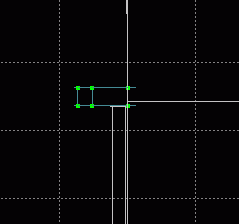 The fret board still needs a nut to cap it off. It is not realy necessary to create a nut with six grooves to hold each string individually because this groove would be unapparent when the strings were placed, so I will just reuse the bar from the bridge here. Switch to the guitar_bridge_pegs layer and choose to Show it under Option from the Dialog Window. Select a point from the bar (the only object which is not a peg in this layer) and Select - Connected. Clone the selection and Translate along the Y-axis up to the top of the fret board. In a Front view Scale along the X-axis only until the width matches the top of the fret board. Show the guitar_neck layer as well and in a Right view Zoom in and Scale in the Z-axis until the bar measures a little less than one full grid space (.1 setting still). Translate along only the Z-axis until the right most portion of the bar rests atop the left most portion of the neck.
Strings
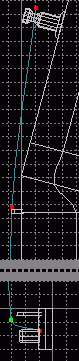 Almost finished, all we need are strings for the guitar. Create a new patch_obj and name it guitar_strings and change the color to a white gray. Show only the following layers: guitar_bridge_pegs, guitar_frets, guitar_neck, guitar_pegs using Show under Option on the Dialog Window. In a Right view Zoom in on the bridge pegs section and begin drawing a line from the base of a peg over the top of the bridge and extending on slightly above the frets, resting directly atop the nut at the end of the fret board and passing through a peg. Switch back to a Top view and position the line as necessary so that it is the first string from the left of the guitar. Edit - Copy the line, create a new patch_obj, and Edit - Paste therein. Switch back to the guitar_strings layer and select the entire line. The best way to make this string is to use Extrude Select Curve, but we are in the wrong plane so with the entire line selected choose Model - Rotate from the menu and type 90 in the X field. Select an end point and the curve leading from it. Choose Model - Extrude (select curve) from the menu and type .03 in the entry field. While the guiding line point is still selected, Select - Connected and press the Delete key. Now Select - All and Model - Rotate -90 in the X field. Switch to the unnamed (patch_obj_00) layer holding the guideline and copy paste it into guitar_strings. Repeat the placement process (you should use Model - Subdivide Select Curve once to add a point before the topmost point for the two inner strings) and then the Rotation and Extrusion processes with the same radius of .03. Do all these steps once more for the third string in from the left. After three strings are finished, Select - All points and Clone then Model - Flip X to create all six strings. Technicaly the strings should be of varying widths, but they become more difficult to make correctly with radii much smaller. Save current progress. guitut20.hmp
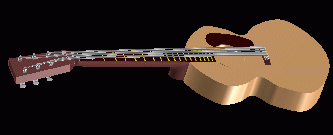
In the unnamed layer from earlier add tori around each peg created with Extrude (select curve) and a radius of .03 in the same manner as before. Place 2 tori atop each other on each peg slightly below the hole. Place all tori in the guitar_strings layer and delete the temporary layer when done. Now you should have a fairly decent guitar model with everything needed for some amount of realism. Save current progress. guitutfin.hmp
 Tutorial created by Jonathan Lee Dec. 31, 2001. Updated Jul. 13, 2002 for version 2.8.1.
Submit question, comments, or ask for further instruction from [email protected]
Home