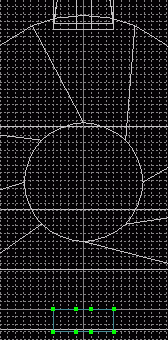
 Now we need to make the bridge so that the strings may be held in on both ends of the guitar. The bridge goes below the hole in a Front view and the central portion is two grid spaces larger than the size of the base of the neck and extends out for about half the central portion's length on either side. Create a new layer via the New button under the Object tab on the Dialog Window, name it guitar_bridge and change the color to a darker brown like the neck layer. In a Front view with
  Peak tool to square the edges.
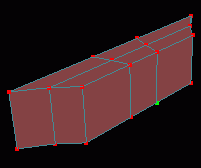 With all points still selected, use the
  Extrude tool then the
  Scale tool to make an attached copy two grid spaces larger in the X-axis only. Switch to a Right view and move the cloned selection back along the Z-axis 1 grid space and Extrude the extruded portion. Translate the newly extruded portion one more grid space along the Z-axis and switch back to a Front view to Scale one grid space on either side along the X-axis. Switch to a Perspective view and connect corresponding points on the original rectangle to create a face (make sure to peak these new connecting splines where needed). Switch back to a Right view and Scale all points along only the Z-axis until the piece is about one grid space wide. While still in a Right view Translate all points along the Z-axis as needed so that the object rests atop the guitar body.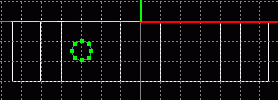
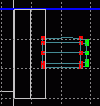
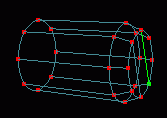
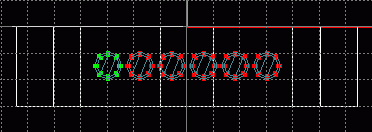
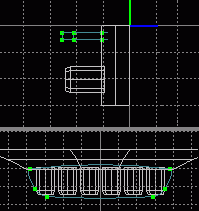 There is still one more piece to be added before the bridge is complete, but the pegs are slightly in the way. Select - All points of the pegs and move them down along only the Y-axis about half a grid space. Create a New patch_obj via the Dialog Window for temporary modeling. Switch to a Top view and Zoom in as necessary to see only the bridge and its pegs. Insert an 8 point circle, Rotate it around the X-axis 90, and Scale it to a diameter of 3 grid spaces (.1 setting). Select the curve extending up from the leftmost point and delete the selected curve. Select the bottomost point and the curve extending to the right then delete the selected curve and the five point section to produce one fourth of the circle through three points. Scale all points in the X-axis only until the total width is one grid space. Translate all points of the section along the X and Z axes until it rests just within the bottom left most corner of the bridge almost profiling the endmost peg. Clone
  the section and Model - Flip X. Attach only the corresponding bottom and top points. Switch to a Top view, translate all points along the Y-axis until it rests within the bridge, and Extrude along the Y-axis about one fourth of a grid space. In a Perspective view connect the corresponding middle points on each spline and Peak only these two new curves for a solid final piece of the bridge. Select - All points and Edit - Cut. Switch to the guitar_bridge_pegs layer and Edit - Paste. Save current progress. guitut18.hmp
Fret Board and Pick Guard
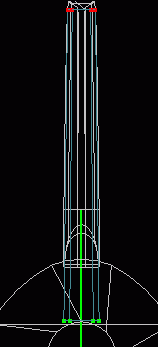 Switch to the guitar_neck layer and click the etc. button under the Object tab on the Dialog Window and choose Show Only Select Object. Switch to the guitar_body layer and look at the Dialog Window's lower portion. If there are no words between Option and Material Click the arrow beside the word Option to display the choices. Click the box beside show and the body of the guitar should also display now. Repeat the process on the newly added, unnamed layer from earlier to show the only three layers necessary for the fret board placement. Change the name of the patch_obj_00 layer to guitar_fretboard and the color to a darker brown than any before it. In a Front view find the section where the neck and head meet and Zoom in. Draw a four point line along the X-axis the width of the top of the neck and
  Freehand Select the endmost points. In a Right view Translate along only the Z-axis the endmost points a very small amount towards the neck of the guitar. Select - Connected and Translate the spline along the Z-axis to rest atop the neck. Switch to a Front view, Zoom out, and Extrude the selection down the Y-axis to the top of the circular hole in the body. Scale in only the X-axis until the extruded spline is slightly larger than the base of the neck.
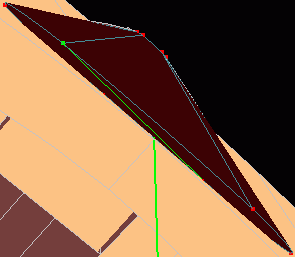 Zoom in on the spline closest to the hole and in a Perspective view connect the bottom two points to form a closed end. Select the curve just added and choose Model - Subdivide Select Curve type 3 and add a spline to connect one of the top two points to the opposite point on the newly added/subdivided spline. Peak where necessary and a face should be formed from two four point patches.
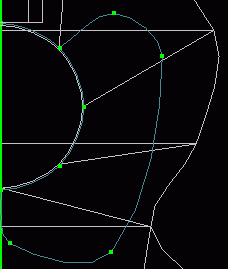 The pick guard needs to be created so that the guitar body will look more realistic. In a Front view insert an 8 point circle and Translate and Scale it until it aligns with the hole in the body. Turn Show Grid off and select Grid Lock - None. Remain in a Front view and use the
  Add Point tool to draw a 6 point spline with one point welded to the bottom most point on the circle and the other welded to the second point clockwise from the topmost point on the circle. Select - All points, switch to a Right view and Model - Align Points along only the Z-axis (probably by the Min value closest to or at 0).
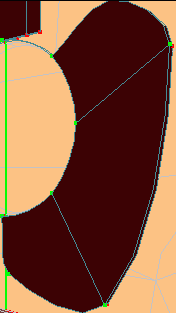 The pick guard needs to be solid all around and this would usually be done by extrusion to make solid sides and connecting corresponding points to make a face. However, the current selection is two splines, one 8 point circular spline and one 6 point spline which happens to be welded to the circlular spline. So we must Clone the two splines together and connect them with connecting splines (which is what extrusion would usually do for us) to make a side face for apparent thickness and then connect corresponding points to make a front face. I did this in the following way: After cloning and while the clone is still selected use the type in Translate feature under Model on the menu. Type in -3.2 in the Z-axis and then in a Perspective view connect the corresponding side points but only those making up the guard not the left overs from the circles. Now connect the corresponding points on the top face only, using exactly four points per patch. Select only the cloned spline and use the type in translate feature again to move 3 spaces. Connection should have been easier with such a large gap and the resulting overall translation was still very small as desired. Save current progress. guitut19.hmp
Submit question, comments, or ask for further instruction from [email protected] Part 7
Home