here i
shall tell some photoshop basic skills and
techniques. i'm not a photoshop expert but i think it's good to share our
knowledge right?. hmm.. highlight the word
'share'.
how to;
1.
combine
2 pictures become 1 without the picture's border
2.
create anomaly shape besides circle and rectangle
3.
make a border form selection
4.
create an arrow board with different colors
5.
brighten my face and my skin because i'm too dark..
6.
create text filled with picture
7.
recolor my picture with 1 color only
8.
make interference line (light effect; refer Physic F5 text book :)
9.
create the metal part of a 'keris'
10.
create text with motion blur effect
combine
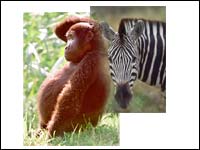
2 pictures become 1 without the picture's border
 |
make
sure zebra layer is above the gorilla layer. use eraser
 and select
a soft brush such as 60 or 100, depends on the size
of pictures. you can also change the type of layer to multiply
(default setting is normal) before erasing the zebra picture. and select
a soft brush such as 60 or 100, depends on the size
of pictures. you can also change the type of layer to multiply
(default setting is normal) before erasing the zebra picture.
 |
create
anomaly shape besides circle and rectangle
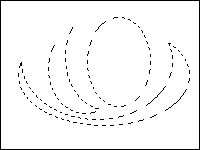 |
use
marquee tool  to create basic shape (rect or circle). click
the tool for a while to switch to circle. make
a normal shape first. then to modify the shape, press ALT to decrease
or CTRL to increase the shape (+/- symbol will appear
at lower right of cursor). do not release ALT/CTRL while modifying
the shape.
to create basic shape (rect or circle). click
the tool for a while to switch to circle. make
a normal shape first. then to modify the shape, press ALT to decrease
or CTRL to increase the shape (+/- symbol will appear
at lower right of cursor). do not release ALT/CTRL while modifying
the shape. |
make
a border form selection
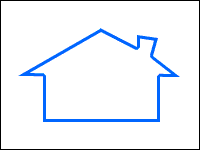 |
use
marquee tool
to create the shape. choose a color for the border such
as blue. make sure the selection
is still active. right click the
selection, choose stroke. you may adjust
the width of the line. the graphic beside used 3 pixels width. |
create
an arrow board with different colors
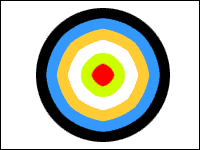 |
use
marquee tool to create the shape. choose a color then fill  into the selection. make sure you fill in another layer besides Background
layer to make your work easier. do not deselect the selection.
go to select>modify>contract. enter a value for
the contraction size. the selection will become smaller then choose another
color and fill again. repeat the steps.
into the selection. make sure you fill in another layer besides Background
layer to make your work easier. do not deselect the selection.
go to select>modify>contract. enter a value for
the contraction size. the selection will become smaller then choose another
color and fill again. repeat the steps. |
brighten
my face and my skin because i'm too dark..
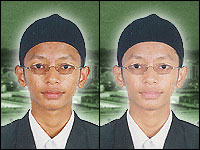 |
go to image>adjust>selective
color. choose the nearest color with the color you want to change,
usually red for skin but perhaps
black. depends...hehe.. adjust the options then..that's all. no need to do
any plastic surgery or use any face lotion or whatever!!
|
create
text filled with picture
recolor
my picture with 1 color only
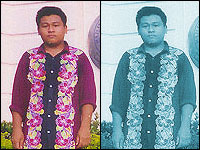 |
go to menu image>adjust>hue/saturation,
check the option colorize then adjust the setting for hue, saturation
and lightness. this method is also can make a sepia toning color which
can be found in action.
|
make
interference line (light effect; refer Physics F5 text book :)
create
the metal part of a 'keris'
Create
text with motion blur effect
|






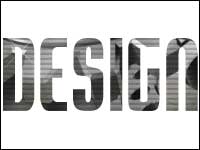
 .
type tool mask will create text selection (without color). then
inverse the selection by choosing select>inverse. delete
the selection.
.
type tool mask will create text selection (without color). then
inverse the selection by choosing select>inverse. delete
the selection. 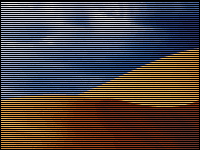
 .
zoom the line to 500%. hide Background
layer. select the line with 1 pixel (same with the line height)
exceed below. choose edit>define pattern. delete the
line layer. create new layer then edit>fill. use: pattern.
unhide Background
.
zoom the line to 500%. hide Background
layer. select the line with 1 pixel (same with the line height)
exceed below. choose edit>define pattern. delete the
line layer. create new layer then edit>fill. use: pattern.
unhide Background 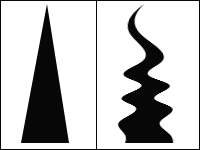
 to
create a triangle shape (picture 1). go to filter>distort>shear.
click on the line and adjust the coordinate. try to adjust the line
smoothly to get a better shape.
to
create a triangle shape (picture 1). go to filter>distort>shear.
click on the line and adjust the coordinate. try to adjust the line
smoothly to get a better shape.