| Ornamental Pin Up Frame Nayori Graphics ~ 2004 |

||||||||||||||||||||||
| This is a very simple tutorial using a ding font as a frame. For this tutorial you will need the following. PSP 7, or newer versions will work fine. A graphic of your choice or you can get mine HERE The pin up tube I used is from Mar's Design Tubes You can find it Here |


||||||||||||||||||||||
| You can download the ding font | ||||||||||||||||||||||
| HERE | ||||||||||||||||||||||
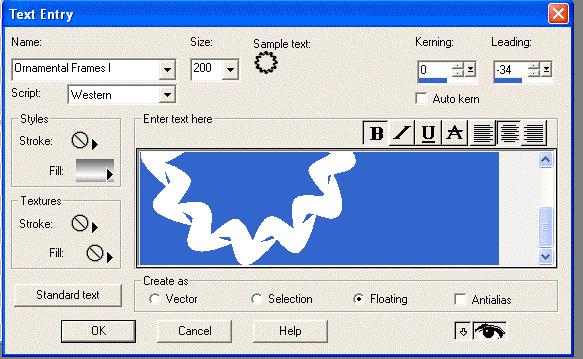
| Okay, lets get started. You can either install your Ding Font into your fonts folder, or just leave it open and it will show up in your fonts. Open a 400X400 transparent background image. Click on your text tool. Left click in the center of your blank image. Find the Ornamental Frames font in the drop down menu. Use the following settings with the lower case K. |
||||||||||||||||||||||
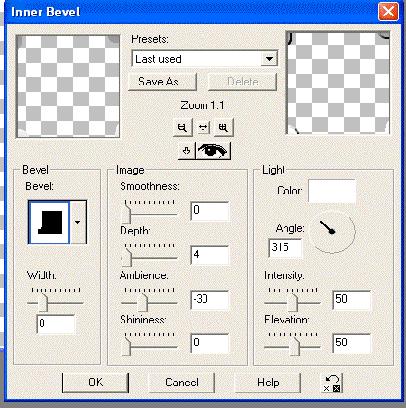
| No stroke color and your fill color should be the Metallic Gradient. Hit Okay. You will now need to center your frame in the image. Now go to Effects~ 3D Effects ~ Inner Bevel. Use the following settings. |
||||||||||||||||||||||
| NEXT PAGE | ||||||||||||||||||||||