1. Click Start > Select Control Panel > Double Click the Network Settings Icon
2. Right-Click on the Local Area Connection Icon and Select Properties.

3. On the General Tab, Double Click Internet Protocol (TCP/IP) or Highlight it and Select Properties.

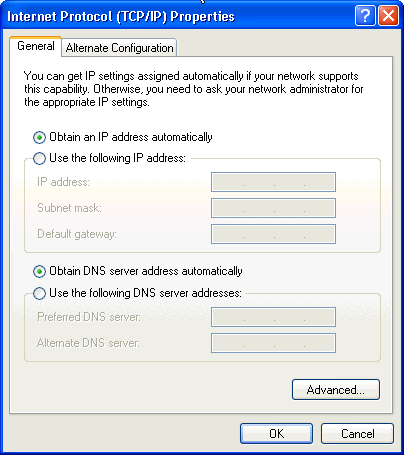
4. Select the General Tab of the Internet Protocol (TCP/IP) Properties window.
Make sure the radio buttons for Obtain an IP Address Automatically and Obtain
DNS Server Address Automatically are both selected.
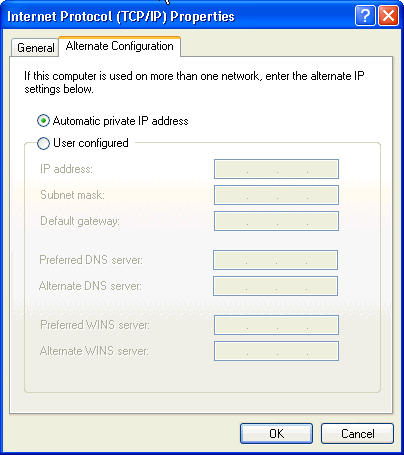
5. Select the Alternate Configuration Tab and make sure Automatic Private IP Address is selected.
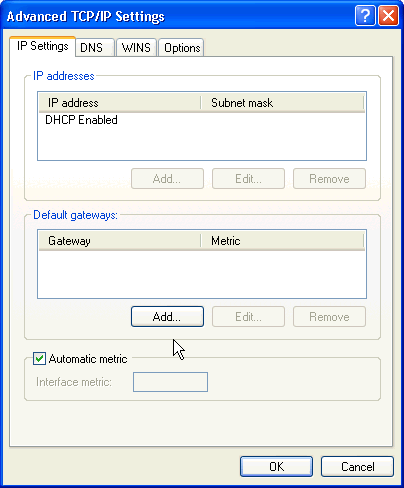
6. Select the General Tab again and Click the Advanced Button.
7. In the Advanced TCP/IP Settings window on the IP Settings Tab it should have DHCP Enabled in the IP Address section, nothing in the Default Gateways section, and Automatic Metric checked.
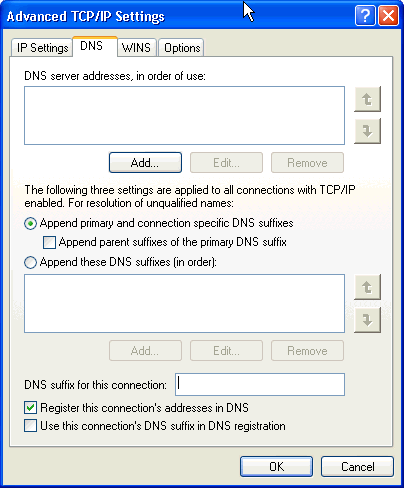
8. Select the DNS Tab and make sure Append Primary and Connection Specific DNS Suffixes and Register this Connection's Address in DNS are both selected. The rest should be blank.
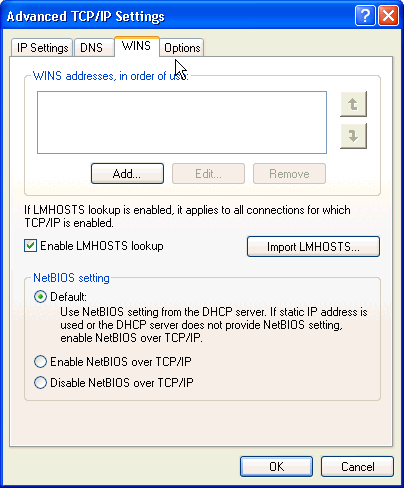
9. Select the Wins Tab. Make sure Enable LMHOSTS lookup is checked and Default is selected in the NetBIOS Setting section.
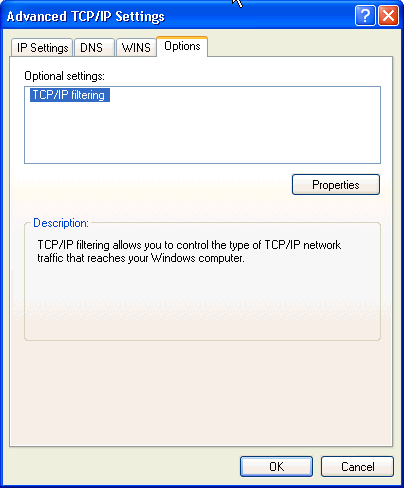
10. You do not need to do anything under the Options Tab.
11. Click OK.
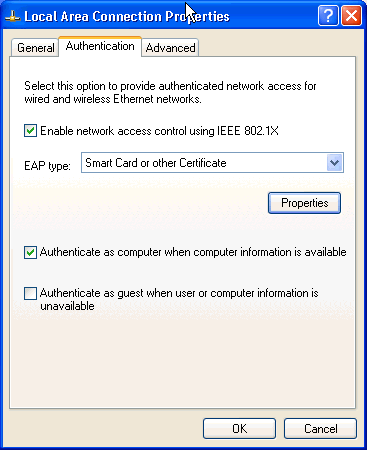
12. In the Local Area Connection Properties window Select the Authentication Tab. Make sure the defaults Enable Network Access Control Using IEEE 802.1X and Authenticate as Computer When Computer Information is Available are both checked. For EAP type it should have Smart Card or other Certificate in the box.
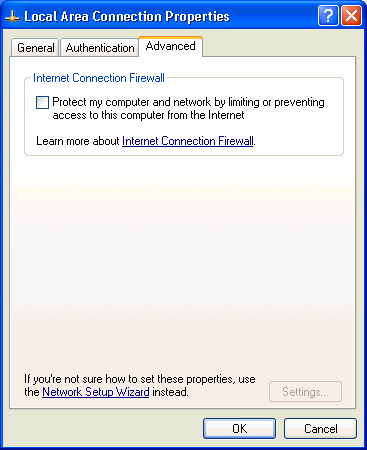
13. Select the Advanced Tab. Make sure that in the Internet Connection Firewall section, Protect My Computer and Network by Limiting or Preventing Access to this Computer from the Internet is not checked. This disables the Windows XP built in firewall which may hinder the connection. Advise the customer they can re-enable it after the call.
14. Click OK.
15. Verify the Customer's Computer Name. On Windows XP Home or Windows XP Professional.
Windows XP Home Computer Name Settings:
1. Go to Start > Right Click on My Computer> Select Properties> Select the Computer Name Tab.
Here the current Computer Name and Workgroup are displayed.
Click here for Windows XP Professional computer name settings.
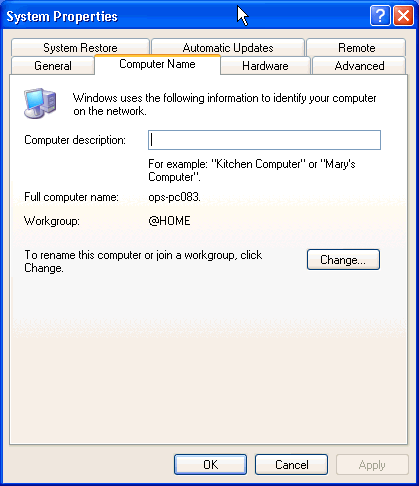
2. To change the Computer Name or the Workgroup, Click the Change Button.
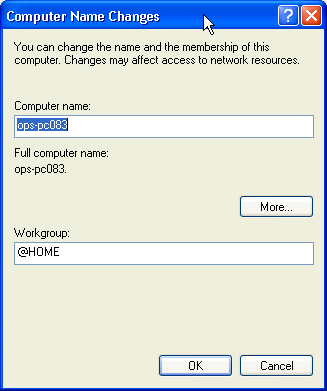
3. If you change the Workgroup a new window will welcome you to the new Workgroup.
4. Click OK.
5. Now a window will prompt you to restart the computer.
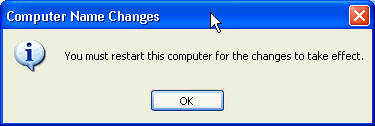
6. When the computer restarts the connection should be established.
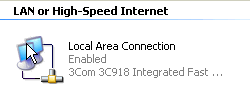
7. If not, Click Start > Select Control Panel > Click on Network Settings , Right Click on the Local Area Connection Icon and Select Enable.
An Enabled Connection should look like the picture below.
Back To Self Install