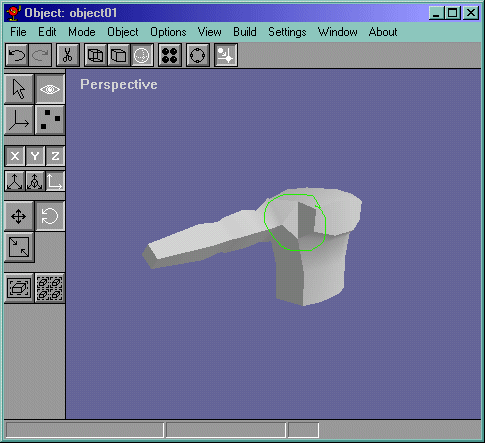
Now go into Ortho view and select the two middle "butt" vertices and go back to the side view. Now enable grid mode and move it right a bit, (2 or 3 times) Looks like Figure11. Do the same for the shoulder blade vertices and move them to the left 2 or 3 snaps. It should look like Figure 12.
Figure 11
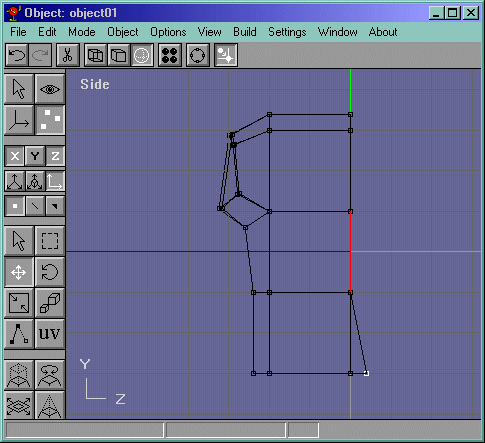
Figure 12
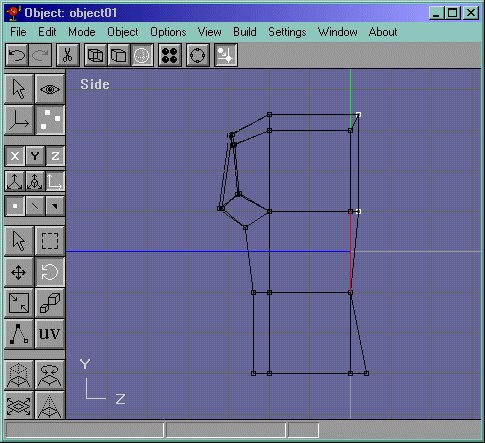
Now select the right arm face and delete it. (It should be selected with a box like in Figure 13.)
Figure 13
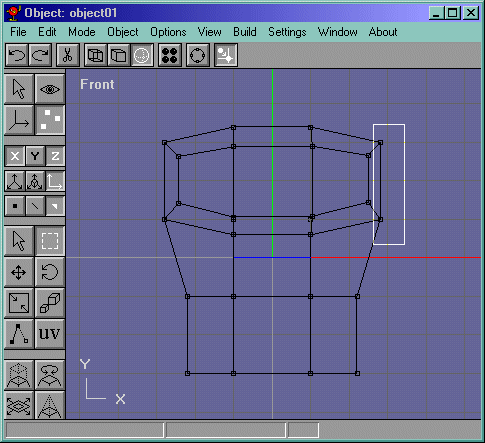
Now we add the detail to the arms!! No select the other arm and extrude it about one unit. Not select the vertices and go into the side view and rotate them using the right mouse button. Rotate it about 45 degrees. It should look like Figure 14.
Figure 14
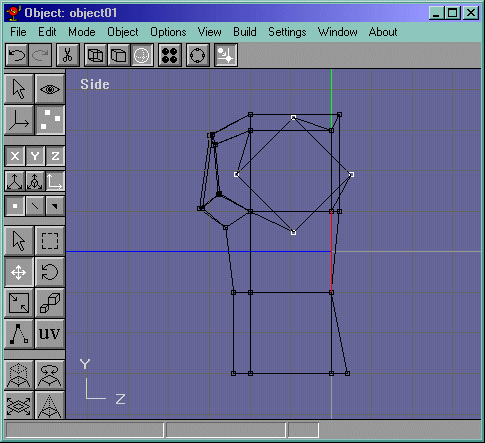
Now select the edges like in Figure 15. Delete them. Now draw the edges from the main body to the vertices to that floating face like in Figure 16. Also, select all those edges and fill them with Edit->Fill Holes.
Figure 15
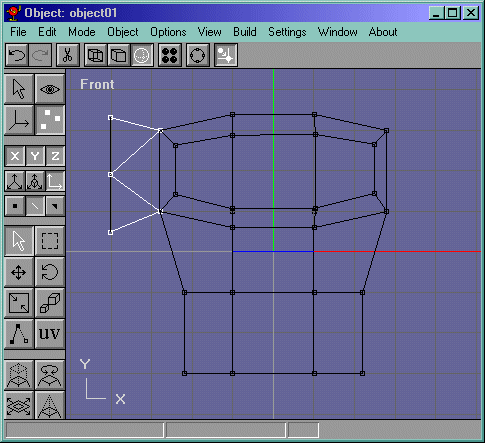
Figure 16
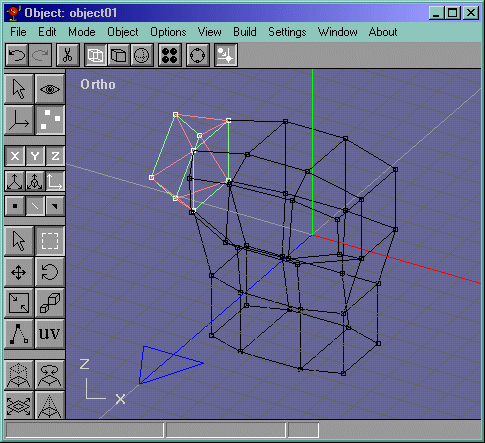
Now go into the front view and move the vertices around to your liking. Now select that face and extrude it like in Figure 17. Now keep on extruding and scaling and moving. Now it should look like Figure 18. Notice the vertex highlighted. It's position was changed compared to previous pictures and in previous positions.
Figure 17
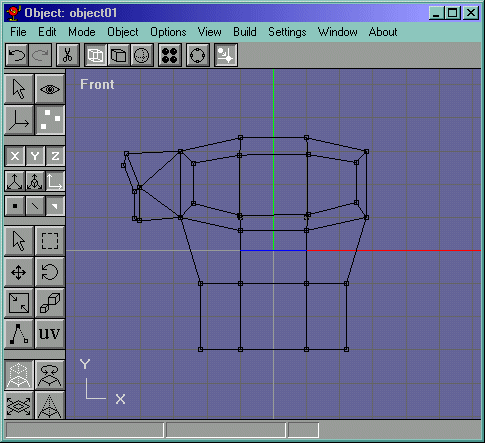
Figure 18
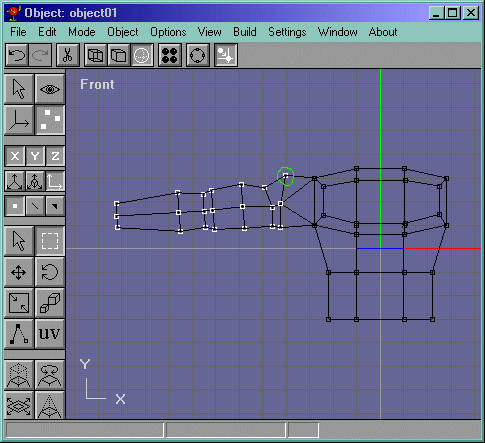
Select the vertices of the arm in the front view, then go into the side view and scale them a bit so that they arent so flat. (scale un-uniformally) It should look like Figure 19
Figure 19
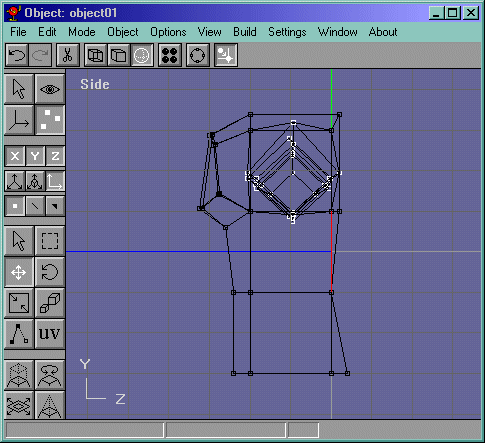
Ok, now I look around the body and notice something ugly...the arm to chest connection as shown in Figure 20.
Figure 20