| Step Four A brief moment later, up pops the Announcements screen, which looks like this: |
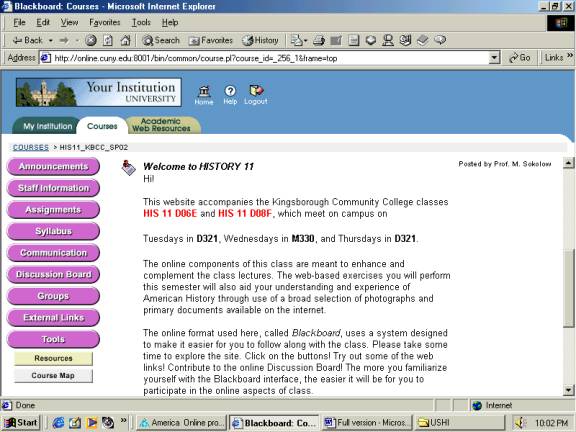 |
| This is the first screen of your internet class, and from here and on it is easy to find your way around. Important Announcements will always appear on this first screen, including the basic course intro that is already posted. On the left side are Navigation buttons that always stay onscreen, so you can click them at any time to get around. The best place to begin is with the Syllabus area, which familiarizes you with the class structure and requirements, and includes a Daily Schedule with links to Assignments and Assignment guidelines. Once you are comfortable with the site, you should consider changing your Password very soon. To do this: 1. Click the lower-left button tools 2. When the next screen comes up, click personal information. 3. On the next screen the second option says change password. 4. Clicking that link will take you to a screen where you will type in your new password two times � type it once, then click the keyboard TAB key, then type it again. Make sure it is a password you will remember easily! |
 |
 |
 |