


If you have XP Service Pack 2, the firewall is easy to find. Go to the new Security Center (Start > Control Panel > Security Center):
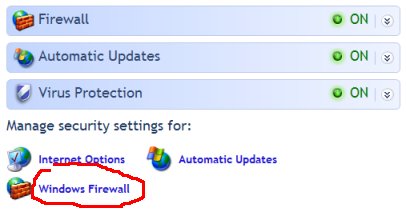
If you don't have Service Pack 2, it's harder to find. For a step-through tutorial, click here.
Third-Party Firewalls
Third-Party Firewalls are said to be more secure than the Windows firewall, and there are some good free ones for home users.
These firewalls are highly recommended, and there are free versions for home use.
Zone Alarm is a doddle to install- you just have to select the internet connection you use. Pop-up dialogues give plenty of information and are easy to understand. The recommended 'install it and forget it' firewall.
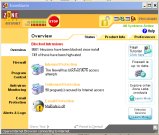
Zonelabs' Zone Alarm
Sunbelt Personal Firewall: A powerful firewall, but a little less user-friendly, at least in advanced mode: pop-up dialogues give less information and can be confusing. The firewall in simple mode is very easy to set up, but doesn't control outbound internet connections.
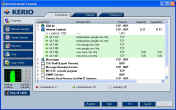
Sunbelt Software's Sunbelt Personal Firewall
Comodo Free Firewall: A relative newcomer to the market, the first versions of this firewall were not user-friendly: using the firewall required of network terminology. The latest version is much more user friendly, and has performed very well in "leak" tests which test how effective a firewall is at blocking outgoing connections by malware.
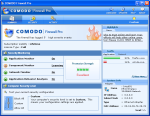
Comodo's Free Firewall
Choose and install one only, and disable XP's built-in firewall if you are running a third-party firewall.
'Everything you need to know about selecting and installing a firewall for your PC.' PC World Magazine
Installation.
All three firewalls allow users to decide which applications can connect out to the internet, and which applications can receive connections from the internet, should such a request arrive at the computer.
As a general rule, trusted applications should be allowed to connect to the internet. Zone Alarm has an option to scan the computer for known trusted applications during installation, allowing rules to be created automatically for these applications to access the internet. Comodo has an option to perform a similar scan.
Outgoing connection alerts are quite straight forward- the pop-up asks if an application can access/connect to the internet. Research the application name before granting permission if you do not recognise it
Again as a general rule, attempts to connect to the computer from the internet should be denied unless the application attempting to receive the connection needs to do so to function.
The terminology differs between firewalls for incoming connections: Sunbelt gives an incoming connection alert, where Zone Alarm and Comodo talk about an application wanting to act as a server. Research any application attempting to receive a connection from the internet (act as a server) very carefully, and only allow such access if you understand why you need to grant it. Two common examples of applications which need to accept connections from the internet are instant messaging programs when receiving files, and peer-to-peer file sharing programs asking for server rights.
Incoming connection alerts, or alerts that an application wants to act as a server, depending on the firewall, can generally be denied. As a rule of thumb, investigate why the request is happening, and deny if no good reason is found to accept it- permission can always be changed later on.
Firewalls also allow control of internal communication within the computer. On a single computer, Zone Alarm will alert that an application is trying to access the trusted zone; Comodo will alert that an application wants to act as a server with the network address of the local machine- 127.0.0.1. These connections can be allowed safely. An example of an application which requires this sort of 'internal connection' is Mozilla Firefox.
Zone Alarm
The Zone Alarm firewall is the most user-friendly. All you will have to do is install and tell the program which applications you trust to use the internet when they attempt to do so. The pop-ups which ask the user whether to allow or deny access give easy-to-understand information about the program which should make a decision easy. (For detailed instructions, see the PC World article above.)
Getting Started with Zone Alarm zonelabs.com
Sunbelt Firewall
The Sunbelt firewall has more advanced features for experienced firewall users. When installing, it offers you a choice between experienced user and simple mode. Experienced user mode, like Zone Alarm, allows control over which programs have access to the internet, but is not as user friendly. Unlike Zone Alarm, experienced user mode requires the user to know something about, or be willing to investigate how firewalls work, and which programs need to connect to, or accept connections from the internet.
A guide to setting up Sunbelt in advanced mode.
(For users who don't want see any pop-ups or decide which programs to allow access to the internet, sunbelt in simple mode is very user friendly. It doesn't provide outbound blocking in this mode, but completely inexperienced users might click 'yes' to allow an inappropriate connection anyway.)
Comodo Firewall
The Comodo firewall requires users to approve or deny internet connections, and gives the option of creating a permanent rule. As with Zone Alarm, incoming connection requests generate a pop-up asking if an application is to be allowed to act as a server. (Note: additional rules may have to be set up for P2P program, for example, eMule. See here)
The Comodo forum- answers for installation problems.
If your firewall program tells you a hacker has attacked your computer, you can use this site to find where in the world the attack came from: