Guild vault # 1 is shared with all guild members. All guild members may add and take from guild vault # 1. It is considered a community chest.
Guild vault # 2 will contain "Mythical Items" from the labyrinth expansion & Respec stones from the dragon raids the guild completes. We will house all myths and respec stones here for the guild members to use. It will also contain the named weapons from the labyrinth and artifact completed scrolls that pertain to the the classes of the guild. Once again any guild member will be allowed to add items to this vault, however only GM's will have the authority to remove and disperse the items to members within the guild.
Guild vault # 3 will contain aurulite shards and all materials used by the guilds LGM crafters. It is in essence strictly a storage unit for high level crafting items and aurulite pieces. Any member of the guild can view this vault for the purpose of the aurulite. If a new member wishes to utilize the aurulite for armor or weapons, please contact a LGM crafter to have them remove the items for you.
These rules are in place for a reason. It is to ensure that no member of the guild abuses the vaults and uses guild property for personal gain.
Guild Ventrilo Information:
Hostname/IP: virginia3.ventriloservers.biz || Port: 3896 || Password: protected (ASK IN GAME FOR PASS)
Ventrilo rules are simple, respect others. If you have a problem with someone in ventrilo contact an admin to resolve it. Issues will be handled
in private in an unused channel. Profanity is allowed but keep it in the mild range. Remember it is very easy to offend others with language if your
not paying attention to what comes out of your mouth. It is a respect issue. You should know when you have crossed a line. Please try to refrain from crossing them.
There is an 18+ channel setup for adult only conversations. This is not to descriminate or exclude any of the younger members. This is also a respect issue that the adults have. We as adults feel as tho some of the adult conversations are not for children or young adults. Most of us are parents ourselves and we feel as parents that we would not want our children exposed to profanity or explicit behavior, so we choose to speak as adults in private. This is out of respect for the younger players AND the parents of the younger players.
As such all "Guild Sanctioned" events and raids will be conducted in an open/public ventrilo channel, with all members able to attend and speak over ventrilo. That being said anyone who doesn't listen to the raid leaders instructions, or respect guild leadership while in ventrilo will be asked to leave. If the member refuses to leave, an admin will remove them.
That is all there is for guild rules, this guild was built on a foundation for fun, being theme related and designed as an experiment to see if it could even be done, we try to keep the rules as light as possible. Everyone should know right from wrong. Stay towards the right, and everyone can have fun.
Ventrilo Setup Tutorial:
The following is a short step-by-step tutorial to help you get the Ventrilo client software setup and ready to go. Before you begin please make sure that you have the following information from someone who is hosting a Ventrilo server that you can connect to.
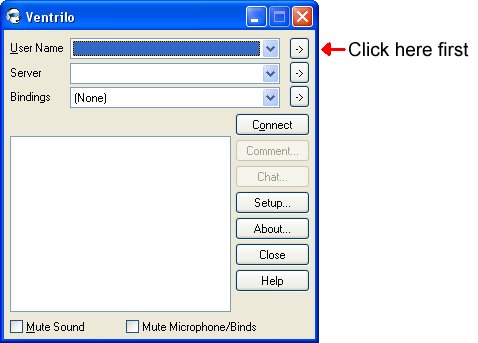
Step 1: Setup a user logon name by clicking the button as shown in the following image.
The Setup User window will now open.
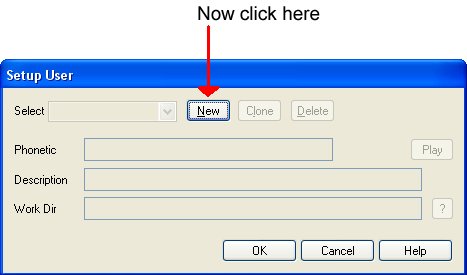
Now click the New button. This lets you create a logon name of your choice. It can be anything you would like it to be such as your real name or a nick name. After you give it a name it will return you to this window. The other fields in this window are for more advance users, but for this tutorial we'll just leave them blank. Go ahead and click the OK button and the program will return you to the main window.
Step 2: Create a server definition.
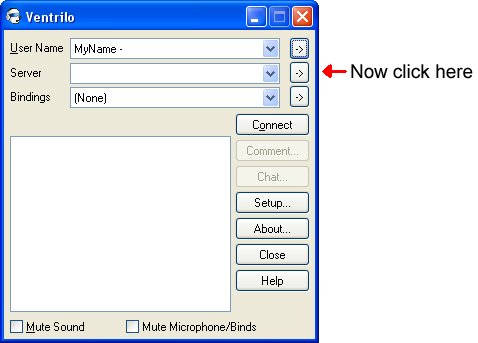
The Connection Editor will now open.
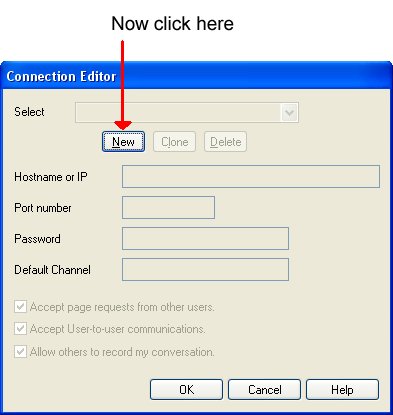
Now click the New button. This lets you create a name that will be associated with the server you are about to define. It can be anything you would like it to be such as "My friends server" or "My teams server". The name is entirely up to you.
After you give it a name all of the other input fields in this window will be enabled. As mentioned earlier you will need to fill in these fields with the information given to you by someone who has setup their own private server or has rented a server from one of our licensed professional hosting companies. Fill in the fields and click the OK button when done.
Step 3: Click the connect button.
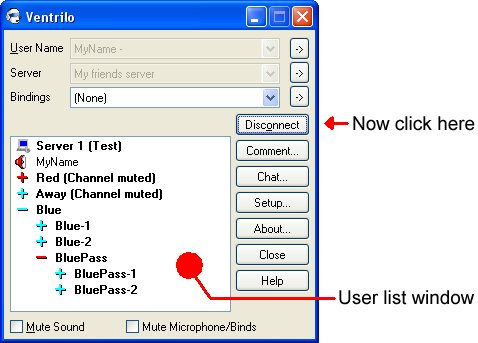
If you created a valid server definition then the program should connect to the server and you will a bunch of channel names and possibly other users who are currently connected to the same server. You user name should show up somewhere in the user list window as well.
NOTE: If you click the connect button and it just seems to sit there for 15 to 30 seconds then you either entered the wrong information when you defined the server or the server you are trying to connect to is currently offline. In either event you should contact the person who gave you the information for the server and request their assistance.
Step 4: Chose transmit style.
That's all there is to getting the client up and running. However, you need to decide how you would like to transmit. Ventrilo supports two different transmission styles:
1) The first and default mode is called "Voice Activation". In this mode the program will monitor your sound cards selected input device and when the signal strength reaches a certain level the program will start transmitting.
2) The second mode is called "Push-to-Talk" or PTT for short. In this mode you must tell the program to transmit by holding down a specific key on your keyboard or button on your mouse. You can also define a button on a game controller if you like.
To change the transmit mode please follow these instructions.
1: Click Setup from main window.
2: The default is voice activation mode. If you would prefer PTT mode then check the option called "Use Push-To-Talk hotkey".
3: If you chose PTT mode then you must also tell the program what key / button to use in the "Hotkey" window.
The program has many options for controlling the hardware and it's functions. These are sometimes very important depending on your Operating System, hardware drivers and other applications installed. The following items are highly recommended for an optimal configuration.
In Setup-Voice select the following options.
1: Enable the "Use DirectSound for Output device" option. This will make your Output Device the "Default DirectSound device". If you have more then one sound card you will need to select which device you want all voice communication to be sent to.
2: Enable the "Use DirectSound for Input device" option. This will make your Input Device the "Default DirectSound device". If you have more then one sound card you will need to select which device to monitor when you are transmitting.
3: Select a Mixer / Mux / Line. You should select the same device as your "Input Device" in the option above it. There should only be one Mux option. The Line option will allow you to select what portion of the sound cards hardware to monitor. Under normal conditions this should be called "Microphone" but you might need to manually select it.
4: When you select a Mixer / Mux / Line the program will enable the Line Volume slider. You should slide this up about half way to start with. It is the primary control that tells your sound card how to control the signal strength coming from your Microphone or input device.
If you would like to know more about all of the different options on the Setup window then please click the Help button. The documentation is very extensive and should answer all of your questions about what each of these items does and what to watch out for.
The Ventrilo client also has many user selectable customization options. For example, if you would prefer to see the program in it's new ToolBar mode then simply right click in the main window, select View and then select ToolBar mode. If you would like to know more about any of the menu options then please click the Help button from the main window.
Ventrilo Latest Version Windows - Version 3.0.1 <--- Click to download.
Known Vista Issues -
Push to Talk Issue (vista) <--- Click to view.
Mic Issue (vista) <--- Click to view.
Quirks??? lolz (vista) <--- Click to view.
FIL UI