Home

Visibility is very important for this site. If you like it please link to http://trader.snowseed.com/index.html or use our online form to add your reciprocal link.
Learn more about reciprocal links


Trader

(C) S Projects.

All information and software on this site is provided on the AS IS basis. The author should not be held responsible for any results of reading or applying this information or software.

About Trader

About Neural Networks Module

Installation

Stock pane

Using Neural Networks

About Trader

Trader is a day trading simulator and long term trading simulator "all in one" program that allows you to perform the technical investment analysis using the historical intraday data or historical day end data, and to create a trading system using one of the indicators: technical indicator macd also known as moving average convergence divergence indicator or point figure charting technique.

The program includes stop signals and some other ways to improve the performance of the technical analysis of stock trend.

Using Neural Networks for stock trading

Important: The NN algorythms are not necessarily capable of predicting stock prices. It took me quite some time to find a winning net configuration and there is NO GUARANTEE that it can be done consistently with different stocks. Learn more about Neural Networks before making your choices here.

Neural Networks are powerful tools that can be used to predict stock price. The Trader trading simulator comes with the Cortex feedforward backpropagation Neural Networks system together with both MACD and Point and Figure trading methods (available only in the day end trading mode and not in intraday "real time" simulation. This may change in future).

The way it works: first, we use the Cortex Neural Network to create a prediction (say for 1 day) for the stock price. Then we use MACD or Point and Figure methods to generate trading signals for "future" price, therefore avoiding the signal delay that both of these methods have.

For more details on using the Cortex module with Trader see the Using Neural Networks section of this manual.

For more information on Cortex Neural Networks Software see the Cortex tutorial.

For more information on Backpropagation Neural Networks see the Introduction to Neural Networks.

Installation

Let's talk for a moment about the directory structure that the Trader expects (it will be created automatically during the installation).

When you unzip the archive that you have downloaded from the Web site, you need to store files in some "main directory". Let's say you call it "sp_software".

Then the subdirectories that Trader creates, will belong to one of the following categories:

1. BIN. This is a directory (folder) for executable files.

2. Trader. This directory and its subdirectories are for files that have to do with Trader and nothing else. Like for example, the trader\nn directory will contain neural networks for particular stocks that you created.

3. Other programs. The NeuralNet subdirectory is for neural networks files, it may or may not be there.
stock_dl and its subdirectories are for files that
Stock Downloader retrieved from the Internet, like stock quotes. The IBM.TXT that I am using in this tutorial as an example, is stored in this directory.

You can change some directories, but not all of them. It is always better to use the default subdirectories created during the installation.

Stock pane.

Here you can add stock symbols to the list on the right, which is the general reference list, and then move the symbols to the list on the left, which is the list of "currently selected" selected stocks. For some operations you can only select one stock in a time.

"Load all" button downloads symbols for all stocks that have files in the stock_dl\data\day_end folder (if the "day end" is checked) or in the stock_dl\data\intraday folder (if the "day end" is not checked).

Start time and Finish time is the trading session hours (for the intraday trading), and Interval is the step (one minute or more) between data.

Check the Day End Mode checkbox to work with day end data.

The 15 minutes delay checkbox is used by the intraday trading. If you are testing data, you can specify, that the actual trade signal must be delayed for the 15 minutes. Say, you have a buy signal for 11.00 and a sell for 12.00. If the box is checked, the 11.15 and 12.15 data will be used to calculate the profit. Do not check this box if Trader works directly with Stock Downloader, as in this case quotes are already delayed by the Yahoo.

The date range is selected automatically when you click on one or more of the stock symbols in the left list.

MACD and Point and Figure panes

The Trader comes with two "filters" or two indicators. One is based on the MACD and another one on the Point and Figure techniques.

In both cases there are additional enchancements, like reversed signals, variable cell size and so on.

The day start and day end gap can be used to prevent the program from generating trade signals for the beginning and end of the day, when the prive is very volatile.

Use "reverse signals" to generate "sell" instead of "buy" and vice versa. It is an attempt to actually PREDICT the price and extreme caution should be used. Test your trading system first.

Use "use shorts" to make profit when the stock goes down.

The next section has to do with trade specifics - how much money do you put in the beginning, and so on.

The Deviation from line makes sure that profit is equally distributed between transactions (transactions are on the logarithmic line). For example, you might want to ignore a system that generates 100 percent profit in one trade (by accident) and is loosing money in another twenty trades. This is when you can use the "Deviation from" option.

If you want to ignore the "deviation from line" option, set it to more than 0.2.

Clicking "Test" calculates the up-to-date profit.

Clicking "Chart" draws the profit, signals and chart.

Pressing "Optimize" runs the filter optimization program. The best solutions for each number of trades are listed in the "Num. of trades" listbox.

Trader pane.

Select the filter for which you want to generate signals. Click "Start Day End" to generate signals for TODAY for selected stock symbols. If no window pops up, then there was no signals.

Click "Start intraday" to start intraday signal generation. The way it works, the Stock downloader downloads stock quotes once a minute, and every minute broadcasts the message. The Trader picks this message and is drawing charts for new data and generates signals.

Using Neural Networks

This is a step by step example of how to use the Cortex Neural Networks module with the MACD and Point and Figure tools.

A known flaw of MACD and Point and Figure indicators is the fact that they are late. The stock price moves, and only then they are producing their advices.

What we are going to do is to use the Neural Network to predict the stock price and then to use the MACD or Point and Figure tools to produce buy or sell signals.

Run Trader. On the "Stocks" pane, click "load all". The program comes with some sample stock files, and if you need, you can always use the Stock Downloader free program to get quotes from the Internet.

Select "ibm" and click the arrow to move it to the left list box. Click on the IBM in the left list box, so that the Trader can calculate date range for it. Click "Chart" if you want to see the graphic.

Click MACD tab.

Uncheck "Reverse signals", and if necessary, specify your own information in the fields. For example, I put $29 as a broker comission - you might want to change that to whatever YOUR broker is charging you.

Check "Use NN" and click the "Edit NN". The Neural Network window appears. Browse the "Data file" and select the ibm.txt.

Click "Select fields" and for the "Inputs" select Open, High, Low, Close and Volume. For the "Outputs" select "Close".

Click on the "Lag file". It will create file with the same name as your "Data file", but with the .LAG extention.

Click "Select fields" again - this time we are going to select fields from the .lag file. Select for "Inputs": Open-1...Open-4, High-1...High-4... and so on for all fields. We are using 1 to 9 days delayed inputs to predict non-delayed Close. Then when we use non-delayed inputs, we will get PREDICTED Close for 1 day into future. We will not use Volume for this example.

For "Outputs" select Close.

On the next tabs: select 2 as number of neurons in the second layer, select 450 as number of records, and click "Run" to start teaching the neural net. You may check the corresponding boxes at the "Learning" tab, to see the errors as they are changing.

When the error is small enough, click "Stop", go to "Output" tab, click "Apply" and select ibm.apl file by clicking the "..." button. Then click "Select fields" and select "No" for input and Close and NN:Close for output. Click "Chart".

By ploting the Close and predicted Close together, you can see how good the approximation is. If you are not satisfied, return to the "Learning" tab and click "Run" to continue teaching the net.

When you are satisfied, click "Save" at the toolbar. The neural network should be saved to the trader\nn directory.

For more details on using the Neural Networks window, read the Cortex tutorial.

Close the Neural Net window. Click "Apply NN" to replace the day end Close with whatever we predicted (to get Close data back, click the first tab and then click MACD tab again - the stock quotes will be reloaded). Click "Optimize" to find the best parameteds for MACD indicator (see above).

Finally, when you want to use the Neural Network with the Trader TOMORROW, you need to provide it with the new data. To do it, use the Stock Downloader program. Keep in mind, that Yahoo stock server does not update stock quotes immediately - there can be a delay between the end of a trading day and the moment the last day's price becomes available.

If you want to re-train your Neural Network on the new data (one more day, one more week...) you can RE-generate lag file by clicking the button in the Neural Net Window. It will save you from the need to re-enter inputs and outputs again. Remember that the Data file for this operation must be IBM.TXT and not IBM.LAG.

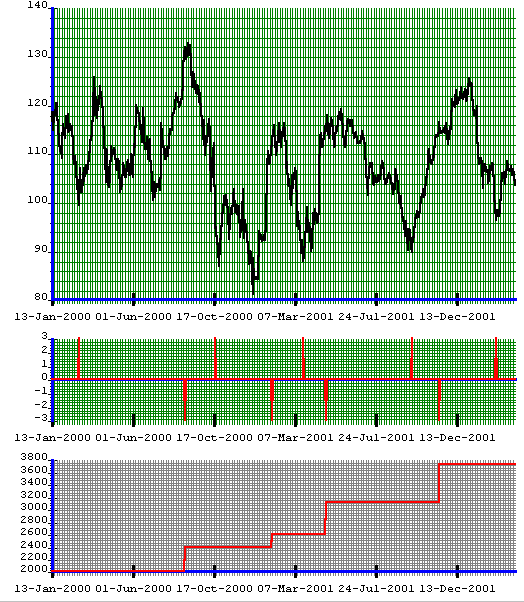
The following chart was produced by Trader for IBM stock WITHOUT the use of Neural Networks. The initial amount was $2000, the comission was $29 per trade and the slipage was 3%. The total profit was 87% - we went from $2000 to $3735.
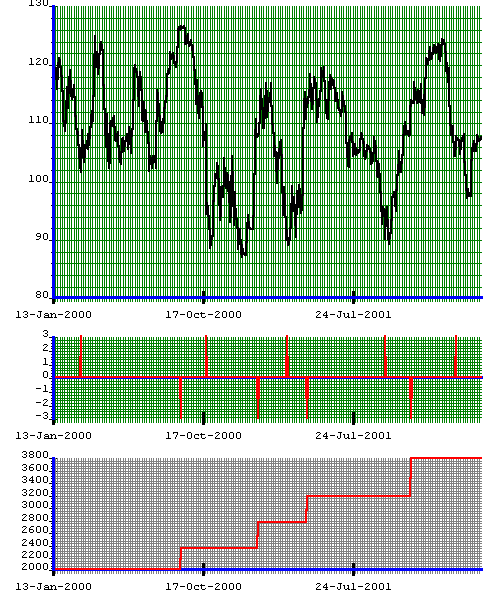
The next chart was produced by Trader for IBM stock WITH the use of Neural Networks. The initial amount was $2000, the comission was $29 per trade and the slipage was 3% (same as before). The total profit was 89.7%.

Important: The NN algorythms are not necessarily capable of predicting stock prices. It took me quite some time to find a winning net configuration and there is NO GUARANTEE that it can be done consistently.
Download FREE version
Download Full version


Japanese Candlestick Charting Techniques Technical Analysis of the Financial Markets How Charts Can Help You in the Stock Market Beyond Candlesticks : More Japanese Charting Techniques Revealed

Trading for a Living: Psychology, Trading Tactics, Money Management
The Disciplined Trader: Developing Winning Attitudes
Encyclopedia of Chart Patterns
Point and Figure Charting
The Encyclopedia of Technical Market Indicators
Rocket Science for Traders: Digital Signal Processing Applications
Tradings Systems That Work: Building and Evaluating Effective Trading Systems
The Encyclopedia of Trading Strategies
The Master Swing Trader
The Ultimate Trading Guide
Expert Trading Systems: Modeling Financial Markets with Kernel Regression

Visibility is very important for this site. If you like it please link to http://trader.snowseed.com/index.html or use our online form to add your reciprocal link.
Learn more about reciprocal links

NLP, Hypnosis, Power Building a small profitable site Habit Management
Free E.mail Autoresponder Tree-like flow charts Tools for webmaster
Stock Trading Neural Networks

Old locations:

Building a small profitable Web site Tree-like flow charts NLP, Hypnosis, Power
Shareware for Stock Trading Neural Networks

Home 1

Hosted by www.Geocities.ws