|
Lets open a new image
200x 200 with a black background.
Now click on the preset
shapes tool.
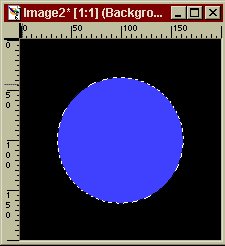
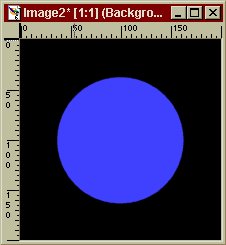
Now put your cursor
somewhere in the middle of your blank image, and draw a
circle.
Now used your magic wand
Now lets make some
copies of the image to work on. Press CTRL + D on your
keyboard.
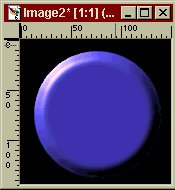
Instant button! Now all
you need to do is add text.
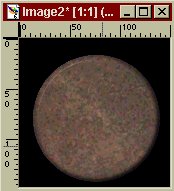
Lets try something a bit different, save this image to your hard drive (or use your own) then open it in PSP.
Duplicate your original
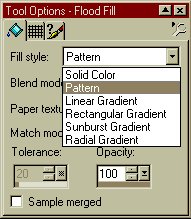
circle again. Now click on flood fill Choose pattern from the dropdown menu on the control palette.
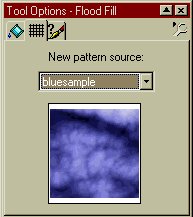
Then on the pattern tab, use the dropdown menu to select your background image.
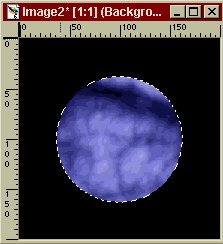
Now click anywhere in your circle. You should have something that looks like this:
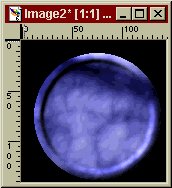
No go to image effects inner bevel and you have a slightly different look again!
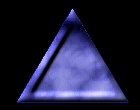
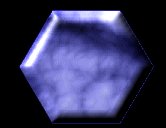
Here are some I made using different shapes:
So buttons are really
easy to make. Assignment:
Do the lesson again, but use a different color or background. Make
as many buttons as you like, try adding some text to them. Upload
them to a page in your web directory, Then it is time for your exam!
An extraBit of fun....=) This Page © Area52 University 2003 |


 and choose
a shape
and choose
a shape 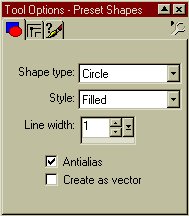
 to
select the circle.
to
select the circle.