|
Part 2 Ready to add some text? OK,
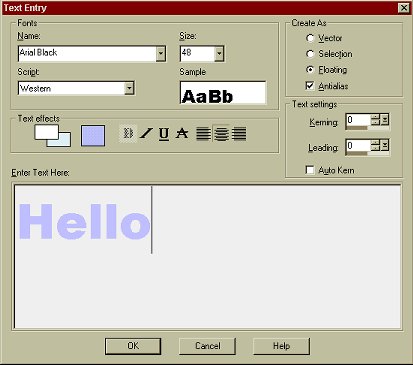
click on the Text icon : A dialogue box will open that looks like this:
In this box you can choose what font you want to use, what size you want your text to be etc. For this example we just want basic text, so I've used the font called "Arial Black" with a size of "48". Make sure that in the "Create As" part of the text entry box, you have Floating and Antialias checked. Now pick a color by clicking on the large color swatch in the "text effects" section. Ive used a blue, but you can use whatever color you like. Now type some text in the text box. I've just used "hello" Now click on OK.
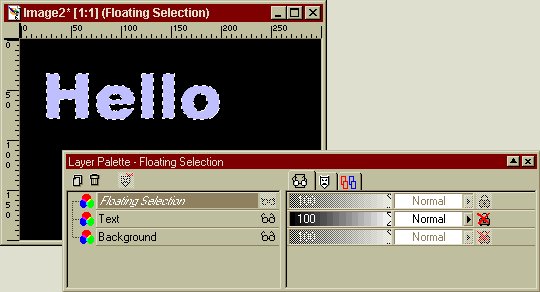
Your text should look something like the example above, as should your layer palette. The text has little marching ants around it, as it is selected, and floating. You should be able to move the text around on the image to place it where you want, by clicking on the text and holding the mouse key down. Move the text so it is somewhere in the middle of your graphic. Be careful not to click on any of the black area as PSP6 will think you want to add more text. Do NOT deselect your text. We need to see those ants marching for a bit longer. Now for the cool stuff! This Page © Area52
University 2003 |