|
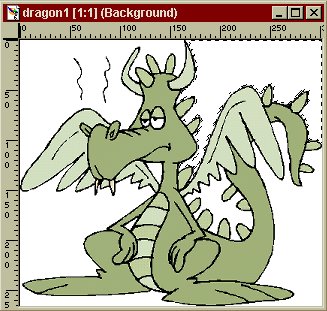
Part 5 Now what we are going to do is select the dragon and copy it onto the image with the black background, and then make some changes. The first thing we need to do, is select the dragon.
An easy way to this is to select all the white around the dragon, and
then "Invert" the selection. So click on the Magic Wand tool in
your Tool Palette. Now click the white space on your dragon image at the top right. Your image should look like this:
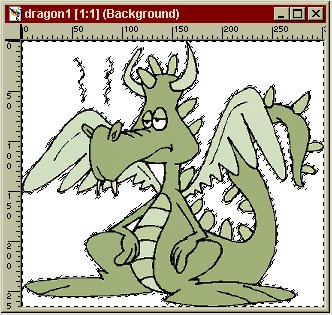
See the marching ants in the corner? Now we need to select the rest of the white. Simply clicking on other areas of white, won't work. You will need to hold down the "Shift" Key on your keyboard as you click. Keep holding down the "Shift" Key and clicking on the white background, until each area is surrounded by marching ants. It should look like this:
Now, we could just flood fill the selected area with
black, to make the background black. But that won't teach you how to
copy and paste will it? So, now that you have selected the white, its
time to select the dragon. Click on "Invert" on your Tool Bar.
It looks like this: Hey cool! Now your Dragon is selected!
Now Click on "Copy" on your Tool Bar. Now Make sure your blank image with the black background is selected. You can select it by clicking on the title bar. Now we are going to paste the dragon onto the black background.
Congratulations! You have
learnt how to Select, copy and paste!
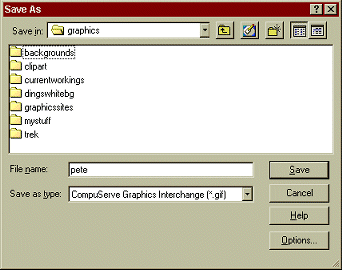
Lets save it in GIF format. Click on Save and voila! You have saved your image. Assignment:
Upload your saved "pete.gif" Then go on to Lesson #2 This page © Area52 University 2003 |


 or go to "Selections" then "Invert".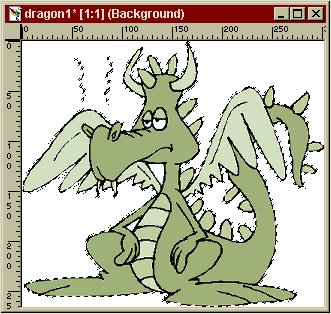
 or go to "Edit" then "copy" on your menu bar.
 "Paste as New Selection" or go to "Edit" then
"Paste" then "As new Selection" Your dragon should
have appeared in the black image. Move him around with your mouse until
he is in a good spot, then click. You'll notice that there is
still a bit of white around him, that's ok, we will learn how to get rid
of that in another lesson. Your Dragon will still have marching ants
around him. Right click somewhere on the image, and they will disappear!
"Paste as New Selection" or go to "Edit" then
"Paste" then "As new Selection" Your dragon should
have appeared in the black image. Move him around with your mouse until
he is in a good spot, then click. You'll notice that there is
still a bit of white around him, that's ok, we will learn how to get rid
of that in another lesson. Your Dragon will still have marching ants
around him. Right click somewhere on the image, and they will disappear!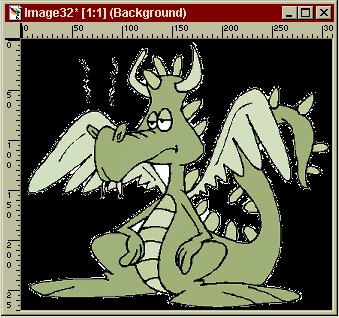
 or go to "File" then "save as" lets call the image
"pete".
or go to "File" then "save as" lets call the image
"pete".