Step 3c - Using DVD2One to shrink the movie
Overview: This shows how to use DVD2One to shrink the movie.
Programs required:
DVD2One
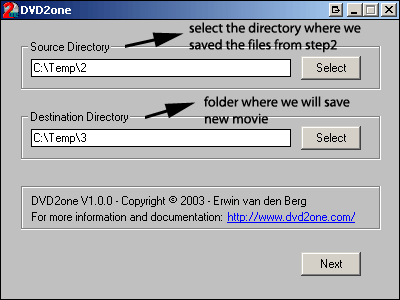
1. Open DVD2One. Once you get to the main menu, click the Select Button to choose where the movie files are located we are shrinking (in my example, the C:\Temp\2) and select where you want to save the new movie files (for my example, C:\Temp\3). Then hit the Next button.
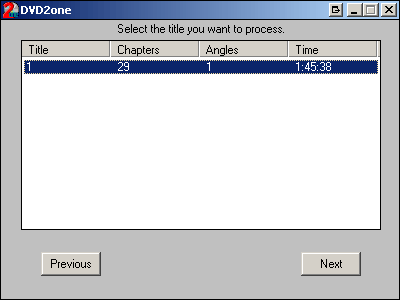
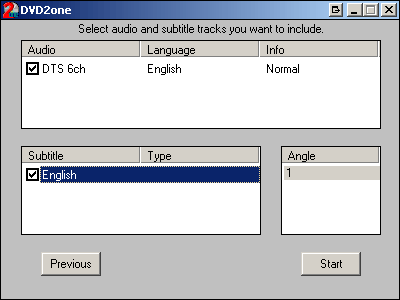
3. Now a new popup window will appear, click the audio streams and subtitles we want (we could use DVD2One to remove extra audio and subtitles, you can figure that out on your own). Then Click Start.
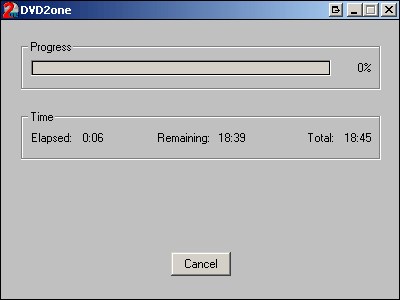
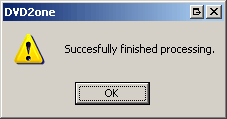
5. Once it finishes, it will popup a message confirming it completed successfully.
We can now test the new movie by playing it in PowerDVD or WinDVD (open movie from harddrive, go to the folder where we saved the new movie (in my example, C:\Temp\3) and open the VIDEO_TS.ifo file). If it plays and you have all of the chapters, we can go to the final step. Step 5 - Burning the movie to DVD (Using Nero Burn or Stomp Recordnow Mazx v4.5)