 |
| If you click on this icon, this window appears: |
|
| continued from previous page...... |
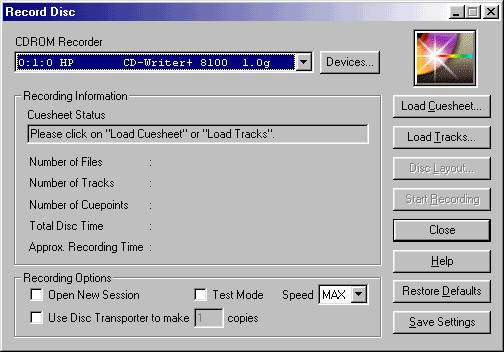 |
| All that is required here is for the Cuesheet to be loaded. This is done by clicking "Load Cuesheet....." and locating the directory specified, when making the image. You need to ask yourself �was the Cuesheet was found in the same directory as the .BIN file�. If so then proceed. Open up the Cuesheet you will see that the window will now contain information regarding to: � Number of Files � Number of Tracks � Number of Cuepoints � Total Disc Time � Approx Recording Time The Approx Recording Time will either be increased or decreased by what burning Speed the software is set to. To change the speed click the combo box and choose desired speed. I burn on 4x most times. It�s now time to take out the game from the CD-Writer tray and replace with a blank CD-R. All that is left to do is to click "Start Recording" |
| When the image is being burned on to a CD I leave my PC well alone, I may sit next to it and keep an eye on its progress. What I don�t do is open any applications etc. Not even Mine Sweeper. One little glitch could ruin what was going to be a perfectly good backup. This is my superstition, but have read about it once before. What I do not do is write the title of the game anywhere on the CD or its covers etc. If you have printed out a cover you scanned in or got from the net, don�t insert it into the CD case until the game has burned and been tested. I have no idea what it is, but it�s like saying �well this CD will be � when it may not be�. Just a little thing I would mention!! Once the game has been burned and CDRWin has bought up a window saying �Operation Successful� now its time to test it. Hope this tutorial helped you out...... later...darkflare Enjoy! |
 |