|
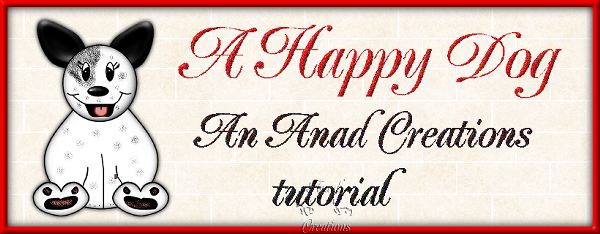
Spotty the dog AKA Tickturd! Save your work often. I assume you have a good working knowledge of PSP.
Tools used: PSP 7 (This also works in PSP 8 with very minor modifications.)
1. Open new Transparent Image 500 X 500. You can always resize your finished product later.
2. Add New Raster layer name it head.
3. Using your Preset Shapes Tool Make your head with the following settings:
Shape: Ellipse
Foreground: Black
Background: White
AntiAlias checked
Line width 2
Draw a fairly large circle for the head.
4. Select all; Float. Go to Effects - 3D Effects - Cutout with these settings: (Settings won't change throughout the tutorial.)
Vertical 0
Horizontal 0
Opacity 100
Blur 17.5
Color Black
Deselect.
5. Add new Raster layer and name it Ears. Using the Draw tool, with both the Foreground and Background colors black, set to Freehand, and line width doesn't matter. Draw your dogs left ear however you want them too look. (Round, point sticking up or laying down, etc.)
6. Select all Float. Defloat. Inner Bevel with these settings:
Bevel PieShape
Width 14
Smoothness 7
Depth 4
Ambience -30
Shininess 20
Color White
Angle 315
Intensity 50
Elevation 50
7. Move this layer below the head layer either by going to Objects - Arrange - Move down or by going to the layer palette and moving it down yourself.
8. Now go to layer palette and right click duplicate this ear. Go to Image - Mirror. Place ears how you want them to look.
9. Add New Raster Layer and name it Body.
10. Using your preset tools again with the same settings (Foreground Black and Background white). Use the teardrop shape and draw a body big or narrow depending on how you want your dog to look.
PAGE 2

|