
|
|
|
|
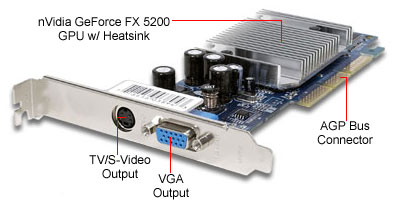
VIDEO CARD For those of you who are unfamiliar as to what a Video Card is, before you can troubleshoot any video card errors you will need to know a few basic components, and how these components are connected to your personal computer (PC). This tutorial is meant to teach you about the basics of your PC. Ok,............for example; it only makes sense, that you would need a basic understanding of motherboards before you open up your system unit and snatch out your video card or the wrong card for that matter. We would not want to damage our PC would we? Of course not! And no I don't intend to have you bored here reading a lot of gibberish, so we will have a little fun while we learn. Now as I stated before, this tutorial is meant for a novice to be able to know what a video card is and how to remove or install one in the event that your PC at home, begins to display the same symptoms. You will know how to find out if it is your video card that is bad and how to uninstall it and install a new one. Now,................ at the end of this tutorial you will have to take a quiz and do an activity,........... on your own time of course. However, I should warn you that I have the power of the force, and I will know if you cheat!!! Trust me, you views about PC's will change. So,......... lets get to it. GETTING STARTED!! First things first. The external devices on your PC are called "Peripherals". These include;
(LCD Monitor) or Liquid Crystal Display
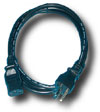
Ok,.............. now we could also include speakers and a microphone but I don't need to show you that. We all know what those are right? Cool!! So,........ these are your Peripherals. Remember this *Hint Hint*. You will see it again. So remember, when you hear technicians mention Peripherals, these are the components that they are referring too. Now on to connections and cords. CONNECTIONS AND CORDS There are many different types of connections that are utilized by your PC. There are 4 types of connectors and ports that I want you to learn. 1) The power cable. It plugs into the back of the System Unit. Oh yeah, let me digress just for a minute. The term "System Unit" actually refers to the encasement that the motherboard and all other components are mounted in. The actual CPU "Central Processing Unit" is a very small chip that is mounted to the motherboard. So keep in mind that the computer is actually a chip and not the entire unit. Here is a picture of the power cord.
2) Mouse and Keyboard connections. Today they use what is called a PS2 connector. Now I need to digress once more for the sake a sanity. Please don't get all out of control when I say this. We all know about the birds and the bees right? Ok,............. so we need to clarify some points here. Some ports and connectors will be classified is male or female. You do need to understand this as you will see it in stores and at home. Actually you will see it everywhere you go. PS2 ports are always female and PS2 connectors are always male. The port is what the connector plugs into. Now don't get mad at me, I am not the one who made the connectors. But here is something interesting,......... Serial Ports which can also be found on the back of you system unit are always male and serial connectors are always female. Yes, some mice actually use serial connectors. However this is not too often. Before moving on any further, go back and look at the picture of the mouse. No seriously, stop reading and go back to look? That mouse actually has a female serial connector at the end of the cord. Now go back and look at the keyboard picture? Look man stop playing!!!!!! I told you that you would have task to do. Ok,............the keyboard in the picture is using a PS2 connector. Later you will need to tell me whether it is male or female. I won't forget to ask you. Ok here are some pictures! Is it PS2 or Serial? If you don't know you need to go back and reread this part again. It will be on the quiz. Oh yeah, I almost forgot to tell you. A serial port or connector has 9 pins. Task #2. When you get a chance, turn off your CPU. Look at the back of your system unit. Find your serial port or connector and count the number of pins or holes inside it. Remember about male and female. I won't remind you again. If it is nine pins or holes it is a serial port or connector. If you count 25 holes it is a parallel port or a printer connector. 4) Now,.......... you need to ask yourself why we are on number 4 already? Well we covered #3 in #2. I will give you a chance to figure that one out on your own. If you missed it what do you do? That's right,...... go back. I will quiz you on pin counts also. Now on to the Video card port. It looks similar to a serial port but their are a couple distinct differences. a) It has 3 rows of holes instead of 2 b) It accepts 15 pins instead of 9. Yes that's right folks, the video card connector has 15 pins and the video card port has 15 holes. Which is Male and which is Female? Well this is all that I would like for you to know about Ports or connectors because this is basics. MOTHERBOARDS Hey,....... Hey,... stop whining!!! We are halfway done. We are close to the video card now. There are only two types of motherboard that I need you to remember. The Old and the New. The Older motherboards are called AT Motherboards. They were very different from the motherboards we use today. The AT Motherboard had only one connection on the back of the system unit and that was a 5 pin din keyboard connector. Imagine only having to connect your keyboard. The motherboard was huge. Hey, one really cool point here that I have to make. Remember this,............ the more advanced technology gets, the smaller devices will get. Anyway back to the AT Motherboard, it was huge and it had several expansions slots for Network Identification Cards and Video Cards. It was designed for expansion and upgrading. Here is a picture of one.
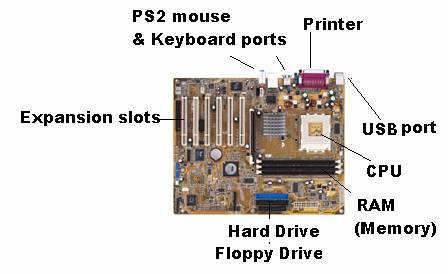
The ATX motherboard is the motherboard that we are using today. Notice how small it is.
Notice that it has fewer expansion slots for video cards but it also has several more connections that I have highlighted for you. It's a more compact motherboard. Well now that was fun! See, that wasn't so bad. Now that you have a basic understanding of Peripherals, connections, ports, and motherboards, it is safe to discuss the the video card in more detail. If you are not clear about what we have been over, you need to go back and review. Move ahead to the Video Card Details!
|
|
Send mail to
[email protected] with
questions or comments about this web site.
|

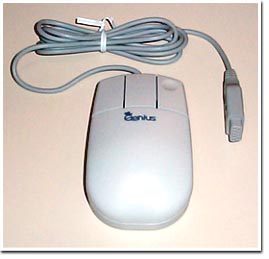 The Mouse
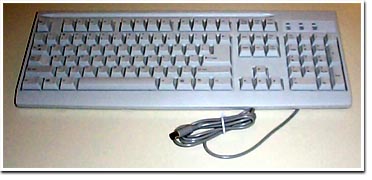 Keyboard
 (CRT Monitor) or Caythord Ray Tube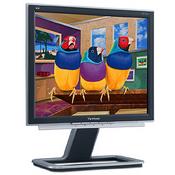
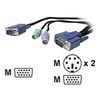 Now,....... the two
cables in the middle are what type of connector? No I am talking about the green
and purple ones!!!! Geez! See the M beside the pictures? That means what? Yep
that's right, Male connectors.
Now,....... the two
cables in the middle are what type of connector? No I am talking about the green
and purple ones!!!! Geez! See the M beside the pictures? That means what? Yep
that's right, Male connectors.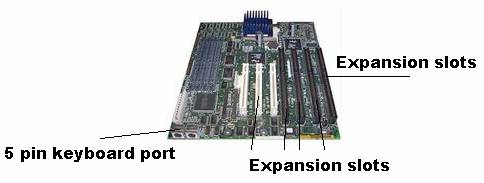 Notice the large about of expansion slots and the 5 pin keyboard port. WOW, the
AT motherboard was huge. Anyway, you should know that your video card will be
found in one of these expansion slots.
Notice the large about of expansion slots and the 5 pin keyboard port. WOW, the
AT motherboard was huge. Anyway, you should know that your video card will be
found in one of these expansion slots.