Chapter 10
Tasty Recipes
"If you understand what you're doing, you're not learning
anything."
-- A. L.
[I wrote this as part of the notes that I left behind at the University of Hawaii, and it hints at, in my opinion, some of the power that resides in a properly equipped Unix-style system as a network monitoriing and analysis engine.]
It was not my intention, in writing this chapter, to develop a set of procedures to help you acquire that well-earned ISO9000 certification. On the contrary, I hoped to document a set of representative scenarios, that, once understood, will leave some of my experience behind for you to use in whatever new and old ways pop up. This chapter is about tools that I have used on a daily basis, and how they fit together. Out of my 9 years with the UHCC/ITS, I have used the full set for about 5 or 6 years. After reading this chapter, you may find that one of the recipes does something you need. That would be good, and more of the value lies in your adventures in cooking something new up on your own. Hopefully, one or more of the following recipes will take you down the right dark alley.
Tools:
Unix is just
plain essential. This isn’t bigotry or anti-Microsoft propaganda. The ability
to chain simple tasks together to complete complicated ones is invaluable.
There isn’t any paradigm besides the command line that allows for it. Learn the
following commands, backwards and forwards: grep (and egrep, fgrep), cut, paste, uniq, sort, vi, date, wc, head, tail (and become familiar with sed and awk).
TCPDUMP is very, very versatile program that allows you to examine packets on the wire, and that’s any kind of wire that you can attach to a Unix machine. It have used it to monitor Ethernet and FDDI for years.
Find and read the Unix man page for an introduction.
In 1992, we payed $15,000 for a Network General Sniffer, which was a pretty useful piece of hardware, except that it was not able to use its special Ethernet adapter as a NIC, to do, say file transfers to run through logs or capture files on a more powerful machine. When the time came to consider how we were going to monitor the FDDI, I looked around and found tcpdump. The name is a bit of a misnomer at this point in tcpdump’s life – the program is by no means limited to “dumping TCP”. You can capture headers only, or full packets, or any portion of a packet, based upon no filter, address or network, port number, any bit, character, or string in the IP/TCP/UDP/ICMP/MAC/ARP headers or in the payload. It’s fabulous. It’s customary, besides being a good idea, to “sanitize” tcpdump capture files before distributing them to colleagues outside your immediate group. There are various sanitizing programs at: http://ita.ee.lbl.gov/index.html . LBL is also the original home of tcpdump itself. You can also now get tcpdump for Win32; find a package called “winpcap” which is a port of the “libpcap” libraries that later versions of tcpdump use under Unix. There’s also a pretty good GUI-based sniffer called Ethereal, which is based on tcpdump’s functionality, available for Unixy-OSes and for Windows.
PBMPlus, or NETPBM originally by Jef Poskanzer is a set of command-line image processing tools. It has been expanded and refined endlessly by the masses, and you can do pretty much any kind of image processing you need, in a script which is started by a cron job, for instance. Do that with PhotoShop. Best of all, without much in the way of learning curve, you can convert any image format to any other image format. I used PBMPlus and Perl utilities to build pictures of the USA with color-coded dots representing other universities, the colors determined by their ping round trip time, and with GNUPlot to build an MRTG-like traffic grapher, back in the early 90’s.
GNUPLOT is one of several useful Unix-based, command-line plotting programs, and a bit of a pain to compile sometimes, but it offers a relatively sophisticated, fast way to see a set of numbers graphically. You can set it up to run in a script, and make GIF or JPG files as part of a web page. Sometimes, you’ll want to pull numbers into Excel or what-not, but if you want unattended plotting, or just a quick look at a data set, GNUPLOT is cool.
CMU SNMP or UCD SNMP is another Unix-based, command line package that you’ve probably wished for. Actually, the package has had several names over the years, as different groups at different organizations picked it up and worked with it. It usually includes snmpwalk, snmpget, and snmpset, among other things, but without the other things, the aforementioned 3 commands allow you to monitor and control any SNMP device. Another useful tool is SNMX, which allows you to browse around within a MIB and look at the organization and values of the objects. To obtain a high level, working knowledge of SNMP and MIBs requires hallucinogens.
PERL is an interpreted programming language that can do almost anything, yet relieves you of most of the structure and other headaches of most compiled languages. It is free for all computing platforms, ports from one to the next relatively well, and manages system resources invisibly, for the most part. I have used it for many tasks, such as changing the nameserver name in >100 DNS zone files, ingesting and storing snapshots of the routing tables from 40 different routers, a network “discover” program, the auto-timeout mechanism for a modem pool and many many more, some of which will be described in this chapter. It is also the underlying language for a whole lot of useful packages, such as MRTG (multi-router traffic grapher), and relaytest (which tests mail servers to see if they are “spammable”). See http://www.perl.com
and for PERL for Windows, http://www.activestate.com .
Recipe #1
The Best Standard
Invocation of tcpdump
Synopsis: tcpdump –ln <filter expression>
You really should go read the man page, which is a very good way to “tour” the features of tcpdump. On the other hand, unless you are fire-testing a DNS server, you are better off always using the ‘n’ switch. It prevents tcpdump from attempting to resolve all of the names of the IP addresses that it finds in packets, as well as the port numbers. This slows the output down by something like 100-fold, uses more CPU, and hammers your DNS server, not to mention increasing the traffic, which then creates more name-lookups.
The ‘l’ switch makes tcpdump line-buffer its output, which is appropriate when you want to direct the output to another program. Both the ‘n’ and the ‘l’ are harmless when capturing to a file. Another advantage of the ‘n’ switch is that when you use it, the interface that you are using to monitor doesn’t need a working address/mask, and the machine you’re monitoring from doesn’t need a valid routing table. These are useful parameters if you’re connecting to an unknown network to identify it, or moving the same machine from one network to the next to do base-lining.
Recipe #2
Obtaining a Summary
of TCP activity
Synopsis: tcpdump –ln ‘tcp[13] & 2 !=0’
The above expression will show you all tcp packets with the SYN bit set. This will yield 2 packets per successful session opened, one in each direction. Adding “and port 25” to the end will show you the open of each email message on the wire. If you wanted to look at packets in one direction or the other, that is, from the client versus from the server, you could pay attention to the ACK bit:
tcpdump -ln 'tcp[13] & 18 = 18' and port 25
Which shows you all responses from email servers that are accepting mail. Using this method, you can build a list of all of the active servers on a network. Using a different port number, like port 80 for Web servers, can produce similar results for other services.
Recipe #3
Reaching above Layer 4
The above example would allow you to get info about all servers operating on the well-known port for a service, but not on non-standard ports. What if you wanted to identify all of the web servers, no matter what port they are on? Well, you could look into the TCP payload for the HTTP GET command:
tcpdump -ln -s 384 'tcp[0x20:4] = 0x47455420' or
'tcp[0x14:4] = 0x47455420'
NOTE: In case you’re not a C programmer, a number with a leading “0x” means that the number is in hexadecimal.
Although it may appear a little arcane, the above recipe is pretty easy to explain. In a TCP/HTTP stream, the GET command is sent by the client (web browser) to the web server, to ask for a specific page or some element within a page. After our standard invoke, the next element above is the “-s 384”, which tells tcpdump to capture up to 384 bytes, if they are available. The default number of bytes captured (snaplength) varies among operating systems and real/virtual interfaces, and is usually some number that will cover the layer 3 and 4 headers, and a few bytes of payload. To simply detect the GET command, the 384 bytes shown here is a significant overkill, and it may be useful to look beyond. OK, so next is a series of string matches. The first is:
'tcp[0x20:4] = 0x47455420'
Where:
tcp[0x20:4] is “a string of 4 bytes, starting at the 32nd (0x20 is 32 in Hex) byte of the TCP packet”
and
0x47455420 is a hex representation of the ASCII for “GET”.
The second string match expression differs only in its offset (0x14, or 20 decimal). There are two different offsets at which the GET command may appear because the length of the TCP header changes with the presence of TCP options (as does the IP header with IP options). There may very well be other possible offsets, and I have not seen them occur. If you are looking for servers, the occasional odd client isn’t going to derail the effort. Most of the packets with TCP options set seem to come from Windows 95 machines.
Recipe #4
Surveying Web Clients, HTTP Referrers, Operating Systems and etc. in use on your network.
If you capture the packets from the above tcpdump invocation to a file, you will discover that you have a way to sample quite a number of interesting data points.
The tcpdump invocation:
tcpdump -ln -s 384 –c 10000 –w gets.cap 'tcp[0x14:4] = 0x47455420'
places a series of 10,000 384-byte packet noses into a file. Typically, you can then use tcpdump to read the file, but you can also use the Unix strings command. Here’s a sample of the output:
net{root}14: strings gets.cap
¡²ÃÔ
üå£@
«7ÐÏ
PDkÜRÄ$\
GET
/images/promotouts/pt_maisel_cfootball_tan.gif HTTP/1.1
Accept: */*
Referer:
http://sportsillustrated.cnn.com/football/college/
Accept-Language: en-us,zh-cn;q=0.5
Accept-Encoding: gzip, deflate
User-Agent: Mozilla/4.0 (compatible;
MSIE 5.01; Windows 95)
Host: sportsillustrated.cnn.com
Connection: Keep-Alive
Co9Ú
%uªª
Ã>~_
"8/ú
GET
/cgi/gamecast/mlb/index.asp?season=2000&date=20001003&hteam=oak&live=true
HT
TP/1.0
Referer:
http://baseball.espn.go.com/mlb/scoreboard
Connection: Keep-Alive
User-Agent: Mozilla/4.5 [en] (Win95; I)
Pragma: no-cache
Host: scores.espn.go.com
Accept: image/gif, image/x-xbitmap, image/jpeg, image/pjpeg, image/png, *9U
Which shows, besides the fact that our users are sports fans, many juicy details about the nature of the web “hits” traversing the network, like what clients are in use, how they were referred, what OS the client machine is running, etc. Also notice that it shows no particularly sensitive info, like for example, the IP address of the machine or the user’s identity. Try using the pipe (|) symbol to send the above output to the grep command, and show only the “User-Agent” lines:
# strings gets.cap | grep User-Agent
User-Agent: Mozilla/4.0 (compatible;
MSIE 5.01; Windows 95)
User-Agent:
Mozilla/4.5 [en] (Win95; I)
User-Agent:
Mozilla/4.75 [en] (Win98; U)
User-Agent: Mozilla/4.0 (compatible;
MSIE 5.5; Windows 95)
User-Agent:
Mozilla/4.75 [en] (Win98; U)
User-Agent:
Mozilla/4.01 [en] (Win95; I)
User-Agent: Mozilla/4.0 (compatible;
MSIE 5.01; Windows 95)
User-Agent:
Mozilla/4.08 [en] (Win95; U ;Nav)
User-Agent: Mozilla/4.0 (compatible;
MSIE 5.5; Windows 98)
(…)
Q: How many of the “User-Agent” lines contain the string “95”?
Answer:
# strings gets.cap | grep User-Agent | grep "95" |
wc –l
2371
Q: How many of the “User-Agent” lines contain the string “98”?
Answer:
# strings gets.cap | grep User-Agent | grep "98" |
wc –l
3066
Q: How many of the “User-Agent” lines contain the string “98”?
Answer:
# strings gets.cap | grep User-Agent | egrep -v
"95|98" | wc –l
3584
Q: What are the non Win9x Agents?
Answer:
strings gets.cap | grep User-Agent | egrep -v "98|95
" | more
User-Agent: Mozilla/4.08 [en] (WinNT; I ;Nav)
User-Agent: Mozilla/4.72 (Macintosh; I; PPC)
User-Agent: Mozilla/4.08 [en] (WinNT; I
;Nav)
User-Agent: Mozilla/4.08 [en] (WinNT; I
;Nav)
User-Agent: Moz9Ú
User-Agent: Mozilla/4.08 [en] (WinNT; U
;Nav)
User-Agent: Mozilla/4.08 [en] (WinNT; U
;Nav)
User-Agent: Mozilla/4.08 [en] (WinNT; I
;Nav)
User-Agent: Mozilla/4.72 (Macintosh; I; PPC)
User-Agent: Mozilla/4.0 (compatible; MSIE 4.5; Mac9Ú
User-Agent: Mozilla/4.08 [en] (WinNT; U
;Nav)
User-Agent: Mozilla/4.0 (compatible; MSIE 5.0; Windows NT;
DigExt)
In this sample, you can see a couple of lines that are truncated, which means that the snaplength that we used to capture the GETs from the wire was too small to capture the whole payload. This can be corrected by increasing the snaplength (we used “–s 384”). A snaplength of 1600 should capture full packets, since the vast majority of client machines are on Ethernet, and the typical Ethernet frame + payload is 1514 bytes or less. On the other hand, if you want to capture over significant intervals, you will want to keep the snaplength as low as possible, and filter down to only the packets you really want, in order to preserve storage space.
The use of egrep, versus grep in the last 2 “answers” above was the result of trial and error. I tried grep, but it didn’t give a sane response. I usually use egrep for everything, because some man page at some point in my life told me it was faster than grep. Although the function of such commands is usually very similar between implementations, you will find minor (or even major) differences in the way that the “standard” Unix commands work on different platforms. There is usually also an fgrep command.
The above use of tcpdump, strings, wc, and grep shows a little bit about how you can chain commands together in Unix and look at program output in some powerful ways, without doing any programming. The form of the information is somewhat heterogeneous and even annoying, with more than one string to identify Windows 95, for example, and a complete analysis calls for some algorithmic tools. On the other hand, you can develop some impressions, learn some things, hazard some guesses pretty quickly with the typical built-in Unix commands.
Recipe #5
Building a quick histogram of mail server volume
Capture a sample of packets from port 25, with the ACK and SYN bits set:
tcpdump -ln -w smtp-srv.cap –c 1000 'tcp[13] & 18 =18'
and src port 25
When the above command completes, type:
tcpdump -ln -r smtp-srv.cap | cut -d' ' -f2 | sort | uniq -c
| sort -rn | more
In this command chain, tcpdump reads the file captured previously, and outputs stuff in the following format to STDOUT:
07:56:27.339132 192.168.94.25.25 > 192.168.179.55.1032: S
186300014:186300014(0) ack 635099 win 10192 <mss 1456> (DF)
So that the “cut –d’ ‘ –f2” cuts each line of tcpdump output into fields, separated by spaces, and extracts the second field (the source address/port). The cut output goes next to sort, which simply rearranges the list so that all identical lines are grouped together. The uniq –c command reduces all identical lines to an single instance of each line preceded by the number of times it was found. The sort –rn command sorts the uniq output numerically and in reverse order, so that the largest number will be at the top. All of this yields something like:
179 192.168.94.25.25
150
192.168.201.22.25
117
192.168.201.23.25
85
192.168.201.24.25
83
192.168.201.21.25
18 192.168.94.12.25
15 192.168.43.20.25
8 192.168.24.35.25
7
192.168.137.189.25
7 192.168.128.8.25
7 192.168.103.2.25
6 192.168.22.11.25
5 140.90.27.59.25
5 192.168.61.59.25
5 192.168.60.1.25
5 192.168.17.8.25
4
165.248.10.146.25
4 192.168.94.11.25
4 192.168.4.175.25
4
192.168.242.32.25
4
192.168.193.69.25
4 12.36.100.2.25
(…)
Which is a reduction of the capture sample, showing the number of messages accepted by SMTP at each IP address in the list during the capture interval. This is a snapshot, but a longer range study could easily be scripted, based upon this example. If the string of commands is more than you can “chew in one bite”, try each stage and look at the output, and then fiddle with it – try re-writing the command chain to count the client machines.
Recipe #6
Building list of all mail servers on a network
Using the same method to detect SMTP servers as we did in the last recipe, we can build a catalog of active SMTP servers. Detecting set ACK and SYN bits, along with a source port of 25 (the well-known port for SMTP), gives us a list of IP addresses that are accepting connections. You could apply this same method to any other well-known, or not-so-well-known port, or to all TCP packets with SYN and ACK set, to identify servers in general, and identify the services afterwards.
Our first PERL program:
#!/usr/bin/perl
# usage: tcpdump -tt -ln 'tcp[13] & 18 = 18' and src
port 25 and \(src net 192.168 or src net 172.16 or src net 10.18\) |
smtp-inventory.pl
$| = 1;
#Section 1
if (!open (SERVERS,"<smtp-servers")) {die
"Can't open SERVERS file for reading";
}
while (<SERVERS>)
{
chop;
$rec{$_}=1;
}
close SERVERS;
#Section 2
if (!open (NEWSERVERS,">>smtp-servers"))
{die "Can't open NEWSERVERS file for Append";}
select NEWSERVERS;
$| = 1;
select STDOUT;
while (<>)
{
($timestamp,$src,$trsh,$dst) = split (/ /,$_);
$src =~ s/\.25$//g;
if (!defined ($rec{$src}))
{
#print "NEW ",$src,"\n";
$rec{$src} =1;
print NEWSERVERS $src,"\n";
} #if defined
} #while
close NEWSERVERS;
If you are not relatively familiar with PERL, the following walk-through may be a bit arduous, but hopefully, in the end, rewarding.
Note, first of all, that any text following a pound sign (#) is a comment, which is ignored by the PERL interpreter. The exception, as you may know, is the “#!” (called she-bang) which tells most Unix shells that the following file is to be run through the command named after the “#!”. She-bang allows us to write PERL or other interpreted language programs or scripts, and run them by name from the command line. For she-bang to work, it must start in the absolute first character of the file.
After the she-bang, there’s a comment line which is simply a memory aid for Self on how to run this program, and then there’s a $| = 1, which sets the size of the program’s output buffer to one line.
Next, after the comment “Section 1”, comes Section 1. The program attempts to open a file called “smtp-servers” for input, and if the open fails, the program dies. The “smtp-servers” file, if it exists, is a simple list of servers found by a previous invocation of this program. If there is no such file, simply cd to the directory where the program file is, and do a ”touch smtp-servers”, which will create an empty file with that name. Once a file exists, the program will open it, run through the contents of the file, and make entries in an associative array or hash, called “$rec{}” (it’s really called “%rec” but each of the elements is referred to as “$rec{}”). Specifically, it sets a $rec{} entry with a key equal to the IP address of some server to a value of 1, which is only to make the element exist. You could set the value to anything, this program doesn’t care. A server either exists, or doesn’t. That’s all we want to know. The end of Section 1 closes the file.
So, the remainder of Section 1 just goes through the file, and includes any server entries that it finds there in the hash, so that we know what has been found prior to now.
Section 2 of the program opens the file, this time for appending, so that any new servers discovered will be added to the end of the file. The select command is used to set the output buffer size for file handle NEWSERVERS to one, so that we can monitor the output of the program in real time, by doing a tail –f on the smtp-servers file, while the program is running. Afterwards, STDOUT is re-selected, so that any informational messages will go to the terminal running the program, not to the file. Next, the ”while(<>)” construct tells the program to eat STDIN lines, which should be coming from the tcpdump invoke in front of the pipe that feeds this program. Each line is split into several pieces, the source address/port is culled out, the “.25” port number is deleted from the end, yielding just the IP address of the server observed. IF the server has been observed before (and therefore has an entry in $rec{}) it is no ignored. If the currently-observed server has not been observed previously, a mark is made on the $rec{} hash, and the IP address is printed to a file. Note that $_ is the line returned by (<>).
As far as user interfaces and elegant programming goes, this program is just an unpolished, base-level plaything, that can be tweaked to obtain different views of email messages “transacted”. You could easily change the value of each hash entry to mean something, like incrementing each you see a server, or turn it around to observe SYN and no ACK, or FIN and ACK, to show the activities of clients.
Recipe #7
Plotting Network Activity from tcpdump Output
With tcpdump, you can examine groups of packets, filtered on almost any attribute, and save them to disk, or pipe the output to another program, etc. Often, when you are simply exploring, or don’t know precisely what you’re looking for, you will want to capture everything to a file, and slice it different ways to see what there is to see.
A few years ago(*), I wanted to see how multimedia (audio and video) traffic fit in with the other traffic on the network. The following 3 graphs were generated with tcpdump, PERL, and GNUPlot.
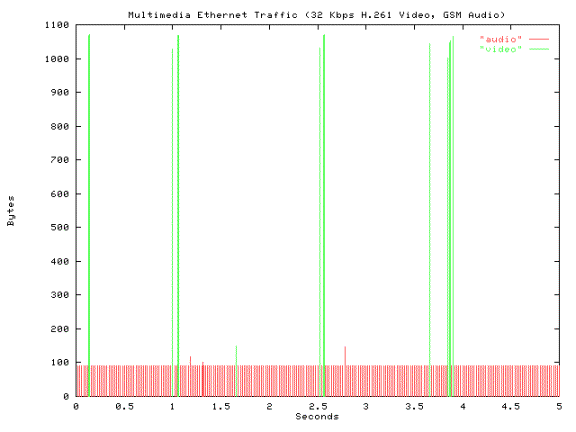
This first graph is the easiest to generate. Running tcpdump with the ‘–tt’ and ‘-len’ switches gives you two useful things: Unix time stamps on each line, and Ethernet frame info (specifically the frame length). A Unix timestamp is the number of seconds counted since the first second of January 1st , 1970, inclusive. Just so:
# tcpdump -len -tt -c 1
tcpdump: listening on bf0
970775103.587155
0:0:93:0:14:b6 0:0:c:12:69:ed 572: 192.168.28.139.8900
> 207.12.8.206.1898: . 217292721:217293232(511) ack 160535370 win 9112 (DF)
Cutting out the timestamp and the frame size, and plotting frame size in X along the time in Y, you get the picture above. The different colors are two different streams, each filtered out of a tcpdump capture file on separate runs of tcpdump. It shows the discrete packet bursts, and illustrates how the lower bandwidth stream, in this case, the audio (red) is chopping up the collision domain on the Ethernet and possibly affecting the other traffic on the net more profoundly than the video (green) which is using much larger, less frequent packets. You can just about generate this graph without writing a program, even though I used a PERL script to groom the data into a GNUPlot-friendly format.
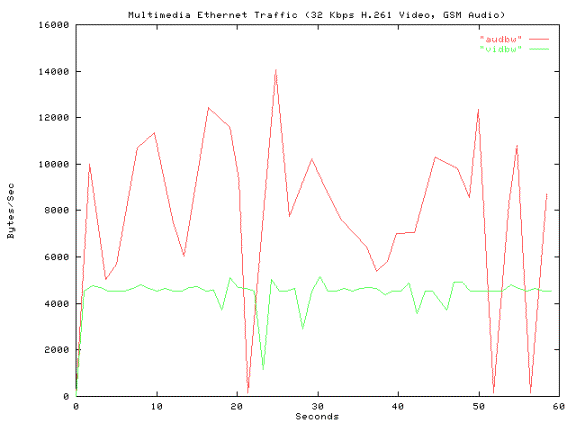
Above is an example of what you get when you sum the packet lengths over periodic time-slices, and graph the results. It’s different from the previous graph, in that it shows averaged bytes per second, over a longer interval, and no packet attributes included. The following script expects output from:
tcpdump –tt –len
The script:
#!/usr/local/bin/perl
$x = <STDIN>;
($stamp, $d, $s, $p, $elen) = split (/ /,$x);
$basetime = $stamp;
while (<stdin>)
{
($stamp, $d, $s, $p, $elen) = split (/ /,$_);
chop $elen;
$timestamp = $stamp - $basetime;
$interval = $stamp -$lasttime;
if ($interval >= 1){
$lasttime = $stamp;
print "$timestamp\t",$bytes * 8,"\n";
$bytes = 0;
$bytes += $elen;
}
else {$bytes += $elen;}
}
#======================== end
This script is pretty simple. First, eat one line and split it into “words” using spaces as delimiters. The split command eats what you tell it to, ignores the rest, so we only get the timestamp, mac addresses and the frame length. Use the time from this first line as a zero reference. Start into a while loop that takes each line, splits it up like before. The loop also checks to see whether a second has elapsed since we last set our reference time, if it hasn’t, full speed ahead, add the current ether length to the bucket, eat more lines. If it has been a second, print the timestamp and total, set a new time reference, empty the bucket.
Notable syntactic points: chop $elen gets rid of the annoying little colon stuck on the end of the ether length field. chop removes the last character of a string, and is usually used to remove line-feeds from file input. If you’re not brainwashed toward C-language notation, “x += 1” is the same as “x = x +1”.
The output will look like:
# tcpdump -len -tt | ./pktplot.pl
tcpdump: listening on bf0
8.90493392944336e-05
0
1.10041606426239 2140312
2.24594104290009 1774096
3.24603807926178 2144592
4.33524405956268 1654520
5.56306409835815 1685320
6.56369006633759 2601416
7.88983607292175 1570432
9.00224304199219 2128448
10.0732370615005 1526544
11.1640250682831 2440040
12.235750079155 2239400
13.3620780706406 1155216
14.4196391105652 2247392
15.4288671016693 1970264
16.4828799962997 1950624
17.6093291044235 1838800
18.7198190689087 2296816
^C
7357 packets received by filter
0 packets dropped by kernel
Which is the sort of thing that GNUPlot just loves. Tab-separated ASCII numbers in a file. Mmmm-mm.