NB The Backup computer option is not available in the Windows Vista Home Basic or Home Premium editions.
Restoring files
Should you lose any data or encounter problems with your computer then you can restore your backups and correct any issues that you are experiencing.
1. Depending on the backup you made, click either the Restore files or Restore computer buttons (Fig. 1).
2. You will now be asked which backup you want to install, place a dot in Files from an older backup and click the Next button.
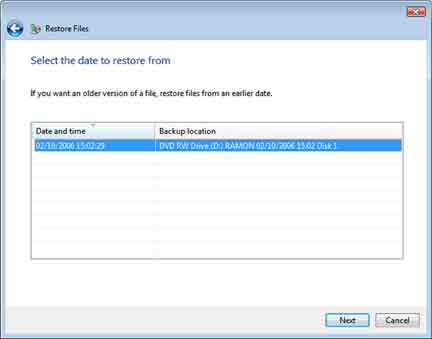
3. The following window will show you all the available backups. Choose the backup that you want to restore from and click Next (Fig. 3).
4. Now select the Add files or Add folders button to begin looking for the data that you want to restore.On the Add folder to restore window, click on the up arrow to the right of Folders in the left-hand side of the window.
5. You will now see the contents of the backup on the left-hand side of the window. Add the files and olders you want to restore and when ready, click the Next button.
6. Now choose the location where you want to place the restored files and click on the Start restore button.
7. Your files will now be restored from the backup.