cm4p
Home | Download |
ChangeLog
Welcome to cm4p (Correspondence manager for Palm OS®) homepage. cm4p is a Palm OS® application to store, manage & easily retrieve all your incoming and outgoing correspondence.
Index
Installation & first run
Program startup
Main menu
What does these 'Tables' are?
Configuring tables
Browsing correspondence's
database
Searching correspondence's
database
Exporting filtered
reference
numbers
Removing the evaluation lock
(for demonstration purposes only)
cm4p was entirely written on a PalmIIIx unit using the PocketC compiler
and the CControls
user interface library.
Any comment is appreciated; please feel free to send it to my e-mail.
|
|
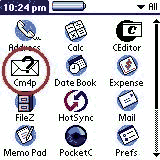
The program is distribuited as a ZIP file containing program files. To install simply expand the .ZIP into a temporary directory and install PocketC.prc, cm4p.pdb and Cm4p.prc on your Palm using your preferred procedure. To run the program simply tap the cm4p icon, shown on the left. The program will automatically create the databases needed from the application to run. Please note that all user databases are automatically saved on your PC when you HotSync. |
|
|
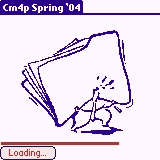
Depending on the hardware capabilities of your Palm, cm4p automatically switch to run in monochrome or in color mode. A brief splash-screen like this one is shown while the program loads in memory some internal tables and starts the execution. A completion bar at bottom of form reminds you to wait a little time. |
|
|
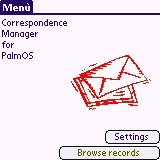
This is Cm4P main menu'. Here you'll find two buttons,
"Settings" and "Browse records". |
|
|
Tables are useful to simplify searching within
Correspondence's database; each table represents a property of letters
and correspondence. I think that main common properties of
correspondence are Sender, Document Type and Logical
Folders. |
|
|
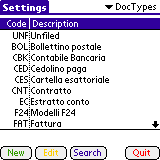
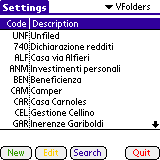
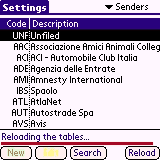
cm4p uses tables to store all standard properties of
your correspondence. Things as"usual senders", "common document types"
(love letters,
faxes, statements of account, bills and so on) and "logical folders"
are
stored into three tables that you can set up as shown here. |
|
|
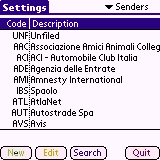
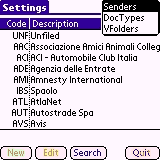
A drop-down control on top of form allow to switch between tables. Please note that the content of each table is saved when you switch to another table. When inserting a new record you will be prompted to set both code (max three characters) and description. When editing an element you will be prompted to edit only the description. Please remember that table's elements can't be deleted. |
|
|
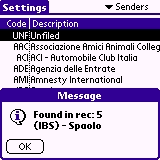
The Search function can be useful when a lot of elements are stored in a table and you're searching for description substring. In this case the Search function can show the elements that meets your searching requirements. Founded elements are shown with their ordinal number and with a brief description (in this example we were searching for the string "paolo"; please note that the search acts only on the description field and is case-insensitive). |
|
|
Tapping Quit causes the sorting of elements of each table. Elements are sorted alphabetically considering each element code; an "UNF (Unfiled)" element is added and set to the first row of each table after the sort. At the end of the sort process all tables are reloaded in memory. The Quit button's caption changes during sorting, reindexing and reloading and a completion bar at bottom of form reminds you to wait a little time. |
|
|
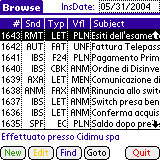
This is cm4p's main form. It's splitted in four
'zones':
insertion date at top of form, main browse and notes in the middle and
action buttons at bottom of form. |
|
|
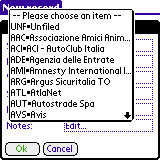
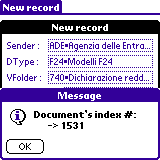
When you need to add a new record simply tap onto the "New" button. This form will appear: you will be prompted to set-up all properties of the document. Please note that some fields (Sender,DocumentType and Virtual Folder) are set using drop-down controls listing the values of the tables set at configuration time; the drop-down shows both code and description in a compressed form. Some other fields, such as Subject and Notes, are instead normal string fields that you can edit and change. A standard 'Palm' date selector pops up when you tap onto Doc's Date field. |
|
|
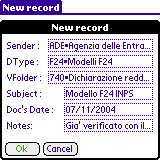
When all document's properties are set the form should look
like this one. |
|
|
Tapping 'Ok' causes the insertion of the record. Please
note that any time you add or modify a record the backup-tag indicator
of the database
is changed, so that your work will be saved on your PC at next
Hotsync. |
|
|
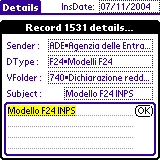
Tapping 'Edit' in the main browse causes this form to appear.
It's very much alike the insertion form and with it you can edit all
record's properties
(except the progressive reference number and the insertion date, that
will
remain unchanged). |
|
|
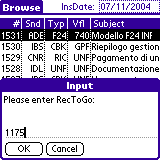
The 'GoTo' function allows to retrieve records using their reference number as index. Simply type the reference number in this dialog to obtain a detailed view of that record, as in 'Edit' form. This function maybe useful to verify lists of reference numbers obtained with the 'Search' -> 'Export' functions, as detailed hereafter. |
|
|
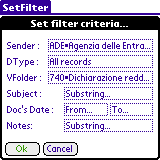
Since records are stored with their properties, at search-time
you will simply tell the application what to search for to obtain a
list of the
reference numbers matching your request. |
|
|
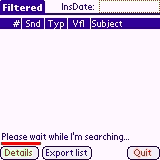
While searching within the database the program shows a completion bar. Please note that depending on the number of records and parameters given to the filter the searching process could take a lot of time. |
|
|
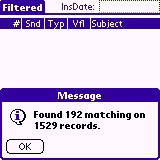
At the end of the search process the program tells the number of matching records founded. When tapping 'Ok' the program shows a browse containing only the matching records. |
|
|
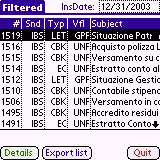
The filtered table contains only the records that matched the
given filter; in this example I choose to show only the records with "IBS"
as Sender (it's my Bank). |
|
|
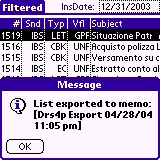
Tapping 'Export list' causes the export of a memo file
containing the list of records matching the given filter. |
|
|
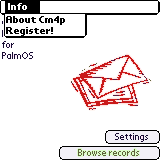
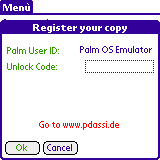
cm4p implements a menu' system that you can use to get
informations on the program and remove the evaluation lock. |
|
|
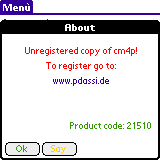
Tapping About you will be prompted with this form. It
will remind you to register or, if you have become an appreciated user,
it will
thank you. |
|
|
cm4p was distribuited as shareware and comes to freeware on May
2005. Feel free to use it as long as you need. |
|
|