Using Microsoft Word
to Build Your Webpage
Last updated 7/10/2000
This webpage is designed to supplement the course Webpages for Teachers. In the course we will go through most of the procedures here to complete a webpage and upload it to Geocities. Though I have chosen Geocities for this course there are many other web hosting sites available with different and varied options.
Recall that HTML is the computer language that is used to make a webpage. If you would like to see what it looks like, click view, source. MS Word can be used as a webpage generator that works very much like word processing. There are some options that you cannot use in web pages, but much of what you know can be directly transferred to webpage production. Word automatically converts the document you see in front of you to HTML so that it can be viewed as a webpage.
Some conventions will be used in this tutorial:
 terms found in italics usually mean to click or select that menu item
Mac users try to get used to using both mouse buttons
 click always means left click -- click the left mouse button
(that's the "Mac" one)
right-click means click the right mouse button
Remember left-clicks take action; right-clicks give you choices
|
|

Text | Images | Backgrounds | Horizontal Lines | Hyperlinks
E-mail Links | Bookmarks | Lists | Tables | Uploading
Make a Folder to Organize & Store Your Work
It is a good idea to create a directory (folder) for yourself as you begin each new web page. On our own computer with no security or networking issues you can make a new folder on your desktop for convenience. Here at school you need to make a directory on the hard drive (the c: drive). Because of the way Word manages webpages, it is a very good idea to make a new directory/folder within your folder for each new webpage you create. Save all your copied graphics to that folder for that particular page; Word automatically does this for all "copied/pasted" graphics. This makes identifying all the graphics for your page much easier when it is time to upload the page.
To make a folder for yourself on the c: drive
|
To make a folder for webpage number 1:
|
On day 2 of the course we will make a 'page2' directory in your folder for your second webpage.
Open MS Word and Convert to "Webpage Mode"
|
Typing Text
Type text just as you would in any Word document. Spacing is treated differently on a webpage. You do not have as many options easily available as you do in word processing.
Let the program do the word wrapping for you except for special cases. This is important as people view your web page at different widths sometimes. Any unnecessary carriage returns break up the text in unplanned ways.
A carriage return is used to start a new paragraph or make a wide break in the text like the ones between these paragraphs. Sometimes you may wish to break a line with a narrower spacing -- this is called a line break. (Line breaks can be used in word processing also. They are used in numbered lists, bulleted lists, and in tables to go to another line without another number, bullet, etc.) To make a line break hold the shift key down while you press the enter/return key -- shift-enter(return). Look at the examples below.
This line is
broken with a carriage return (enter).
This line is
broken with a line break (shift-enter).
For the most part type text just as you usually do in Word. You have most of the same features available. Copy and paste, and the format painter are among the handiest.
|
Placing Images
Placing images is straight forward in Word, but must be treated slightly differently when you want them to show up properly on a webpage. In Word you can copy/paste from any source like the Internet. This method causes some problems in webpages, however. So, we WILL NOT use the copy/paste method to produce a webpage image. We will always save each image to our hard drive and then insert the image from there. It is still a simple process with a little practice, and yields much better results. (To see the differences between copy/paste and the save/insert method for placing graphics go to http://geocities.com/ckish2000/wordimagetest.html)
Remember that there are some copyright issues when copying from the Internet, even though it is a very widespread practice.
You can also insert an image from your own computer files or your clipart sources. Almost any image you see on the Internet can be saved to your computer as a file to be used at some other time.
To save an image from another webpage(and most other documents):
|
To use the Insert command
|
Notice that there are many other things that you have the option of inserting like sound, video, scanned images, etc. Those are options to experiment with but are beyond the scope of this course. Ask me about some of those options, as time permits.
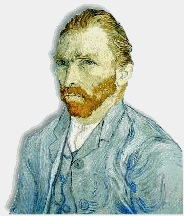
You can have text appear when you hold the mouse over any image. This can be very useful. Use this option to identify the image, ask a question, expand on the image, give viewers something more to think about, etc. Hold your mouse over the image at the right to see an example.(on-line verion only)
To add mouse-over text:
|
Background Images
The yellow background of this page is really just a small image square that is repeated hundreds or even thousands of times. You can see this on some webpages because the edges of the image do not always match smoothly. You can use actual images/pictures as background with a bit of care with your choice.
NOTE
: The right-click menu on any webpage background area includes a Save Background As… choice. Use this option to save any background you really like (keeping in mind of course issues of copyright).To add background textures and images
|
IMPORTANT NOTE:
When you upload your page to Geocities, any image that you have inserted into your page will have to be uploaded individually. Remember, a web page is text with "cyber-x's" that command the web browser where to place the images -- those images look like they are an integral part of the page, but they are not. Any image you do not upload separately will not show up on your completed page over the Internet. When word saves the document as HTML (a webpage) it automatically numbers the images to place them. Remember that the background, text boxes, fancy bullets, drawings, etc. are all saved as graphics in this case and have to be treated as graphics. You will eventually develop your own procedure for doing this efficiently. Some pointers for doing this are found at Some pointers for uploading the completed page.
Horizontal Lines
The horizontal lines above and below are placed from the Insert menu.(on-line version)
They can also be cut and pasted into place.
Actually the bottom line was copied and moved using the ctrl-click method
and then center justified.
To insert a horizontal line
|
Hyperlinks are created fairly easily in Word. Hyperlinks are what makes webpages interactive. These "hot" words or images are "pointers" to other addresses on the web or on your page.
Text, and any image on a page can be hyperlinked. Click on the examples below.|
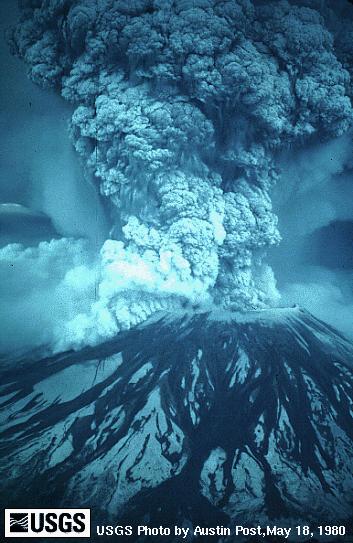
This is an example of a link to the webpage course page. Did you notice that the image at the top of the page is also linked (test it!) to its source -- a possible solution to the citing sources issue. |
|
|
To create a hyperlink:
Practice hyperlinking by making a link on your page to the school district's homepage: http://saratogaschools.org
|
"E-mail me" links
You have probably seen e-mail links on many webpages. On many systems, if you click the link, your e-mail program automatically starts with the person's address already filled in. This link is created just like any hyperlink except for the 'http://' beginning. This link,
e-mail Chuck Kish, is an e-mail link. Try it out if you wish -- you can cancel/quit and not really send me an e-mail if you wish. Remember any graphic can be a live link. Many websites use button and icon graphics for these types of links and many others.To create an "e-mail me" hyperlink:
Practice e-mail hyperlinking by making an "e-mail me" link on your page.
|
Bookmarks
Another use of hyperlinks is to mark parts of your page for quick jumps. These are called "bookmarks" --not to be confused with web browsing bookmarks. The spot to link to those is in the Insert Hyperlink box -- it is the lower address window. To use this, though, you first need to have placed the bookmark. This is very handy on long pages or where a page has a list of items you want to get to quickly. On these types of pages I usually place the first bookmark at the very top, call it top, and then have links to the "top of page". Sometimes if there is a "contents" like area of a page I bookmark it as "
menu" and have links to it from the rest of the page -- this page is an example of that. (Time saver: create the "menu" link once, copy it once, and then go through the page pasting it wherever you want one.)
To insert a bookmark:
Add a bookmark to the top of your webpage.
|
To link to a bookmark
, follow the create hyperlink procedures but choose the name of the bookmark in the Named location in file box with the Browse button.|
Type 'top of page' somewhere on your page and link it to the bookmark on the top of your page. |
Bulleted and Numbered Lists
Information can often be displayed in an organized way using lists. Bulleted and numbered lists work the same in Word as both a word processor or web page editor.
To make a numbered or bulleted list on your webpage either:
OR
Edit the buttons or numbering by either:
OR using Format, Bullets and Numbering... |
Working With Tables
To work with tables use the Table menu at the top of the Word window.
The "dummy" table below was created in a Word document and copy/pasted into this webpage. This means you don't have to recreate data you already have for use on a webpage.
|
HEADING 1 |
HEADING 2 |
HEADING 3 |
HEADING 4 |
|
data |
data |
data |
data |
|
data |
data |
data |
data |
|
data |
data |
data |
data |
The table can be positioned anywhere you wish. To do this right click anywhere in the table and then click Table Properties.
Making new tables on a webpage is as easy as creating them in any Word word-processing document.
To create a new table:
Add a table to your webpage.
|
|
Below is a table without borders. |
|
A caution: any table that is wider than a typical page forces a viewer to scroll left and right. Unless there is good reason to do so, avoid wide tables. Pages are typically designed to scroll downward. |
|
|
To insert a picture like at the left you must have it saved to your folder. To do this:
|
|||
|
The procedure above works just as well for animated gifs(on-line version)like the one to the right. |
|
|||
|
|
Clip art also works |
|||
Below is a copy of the same table but
with the borders showing so you can see
how it is used for layout.
|
|
To insert a picture like above you must have it saved to your folder. To do this: |
|||
(These cells are only used |
for spacing purposes.) |
|||
The procedure above works just as well for animated gifs like the one to the right. |
|
|||
(These cells are only used |
for spacing purposes) |
|||
|
Clip art also works |
|||
Uploading your page to Geocities
If you saved all your work for a particular webpage in one folder you can simply upload every file in that folder to Geocities. If you have not done this or if you have changed items on the page considerably during your work on the page there may be several files you do not need to upload. Though not a good practice, if you still have plenty of server space available you can still upload everything. If you want to check to be sure you upload only the files you need, you can determine which files they are by using the "Things to do before uploading" followed by the "Troubleshooting your page" procedures. The troubleshooting procedures will come in useful no matter which files you upload.
Things to do before uploading:
|
To upload to Geocities:
Automatically convert filenames to lowercase Automatically change ".htm" extensions to ".html" |
Troubleshooting your page:
|
Copyright Charles Kish
July 1, 2000 (updated 10/28/2000)
All Rights Reserved