Tool Reference
Click on a tool to get its description!
![]()
|
Vegeman
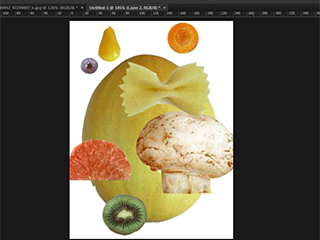
In this activity we will be using vegetables and parts of vegetables to create a head.
Sample Output

Steps
- Open Photoshop.
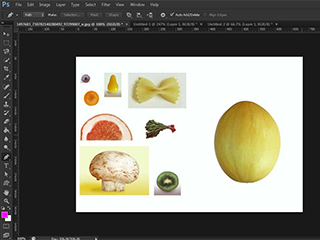
- We will practice using selection tools on the image. First, we will use the Magnetic Lasso on the head.
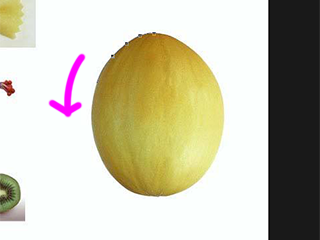 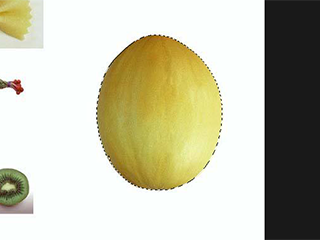
- Press Ctrl+J to duplicate the selection on a new layer.
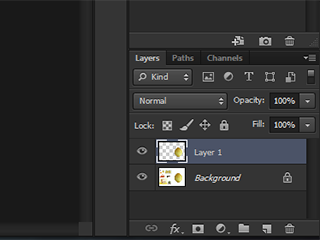
- Try using the Marquee Tool next to select the eyeballs. We will use the Elliptical Marquee Tool.
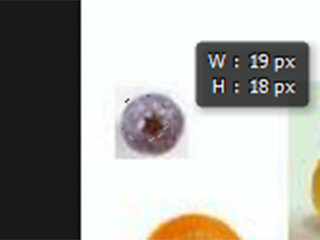 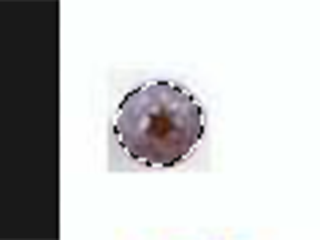
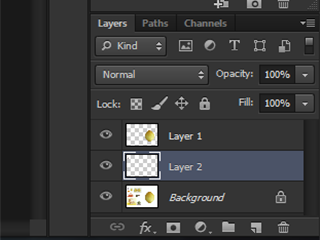
- Press Ctrl+J to duplicate the selection on a new layer. Make sure the Background layer is selected!
- Let's try the Magic Wand for the eye. First, use the Rectangular Marquee Tool around it.
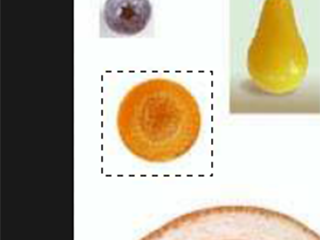
- Then we use the Magic Wand set to subtraction to remove the white part of the selection. To set it to subtraction, select the third symbol on the toolbar, which looks like a square subtracting from a square. Then click on the white area surrounding the eye.
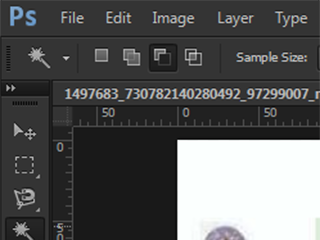 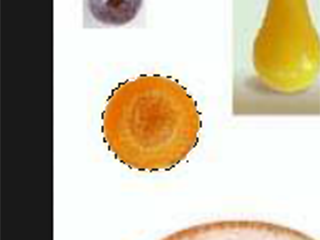
- Press Ctrl+J to duplicate the selection on a new layer.
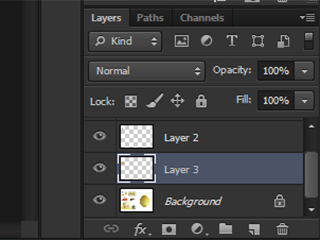
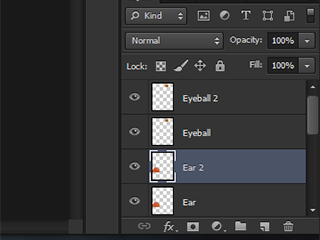
- Repeat for each part of the face.
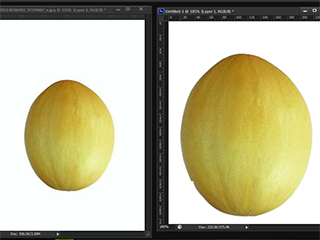
- Place the layers on your new canvas. You can do this by dragging the layer from one image into another image.
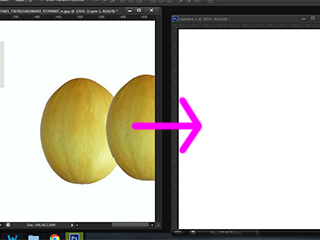  
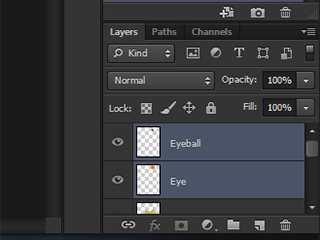
- Merge (Ctrl+E) the eye and eyeball together by selecting both layers and selecting Merge.
 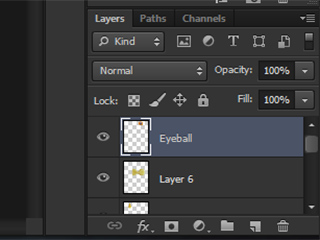
- Duplicate (Ctrl+J) the combined layer of the eye and eyeball, along with the ear and eyebrows.
- Transform (Ctrl+T) each layer into its proper position. You can enlarge by dragging on the corner. You can rotate by clicking outside the corner and dragging. When you are done, press Enter.
|








