Tool Reference
Click on a tool to get its description!
![]()
|
Kitchen
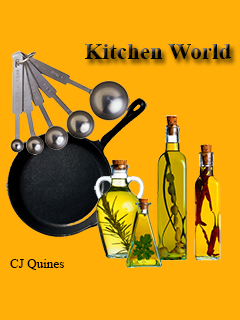
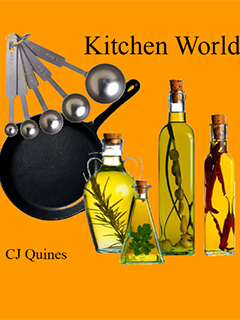
In this activity we will be using a pan, measuring spoons and bottles of oil to create a poster.
Sample Output
Steps
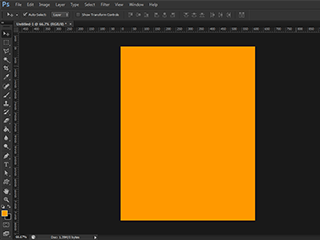
- Open Photoshop and create a new document with size 8.5 in by 11 in. Make your foreground color as #FF9900, and use the Paint Bucket Tool and click on the background.
- Open each source image. With the Magic Wand, set the Contiguous to unchecked for the pot, checked for the spoons and the oil. Set the Tolerance to 50. Click the white background.
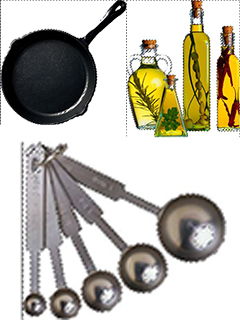
- Press Ctrl+Shift+I to invert the selection, selecing only the parts to be used. Drag the selection into your new document, and Transform (Ctrl+T) each layer into its proper position.
- Select the Text tool. Click on an empty spot in the upper-left and type 'Kitchen World' using Times New Roman.
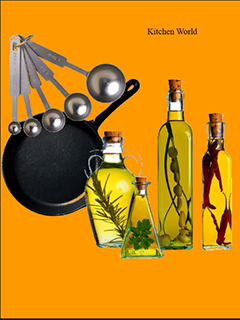
- Transform the layer of 'Kitchen World' into its correct size.

- Click on an empty spot in the lower-right and type your name. Transform it into its correct size.
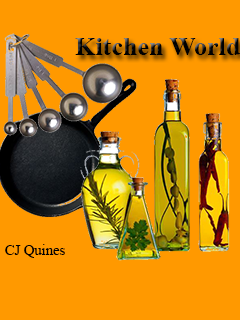
- We're going to use Layer Effects. In the Layers panel, look at the bottom. With the 'Kitchen World' layer selected, click at the fx button and select Drop Shadow.
- Check the Bevel and Emboss in the Layer Effects. You need not change any settings of both.
|








