 xxx
xxx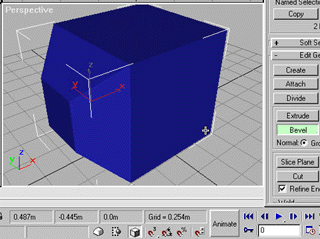
Now in this screen grab I have done my bevel operation on one face. I have had to scroll down the "Sub Object" panel from its default position to reveal the magical button. The "bevel" process is two stage, to begin you click on the bevel button, then either enter numeric values in the fields provided or move your cursor over the selected face until it changes to a funny looking squashed box shape. Now if you click and drag on the face it will extrude first, Then if you let off the mouse button you will be able to control the actual bevel part of the operation with mouse movement. Note the "Cut" tool is also lurking down here!
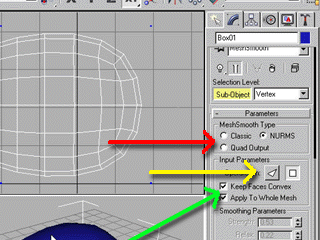
I can't spare the time to go too much further into the basic tools but here's some tips for using the "Cut" tooI. To give yourself any chance of success I would reccommend that you get to know the "Snaps" menu. You woll find snaps under the little Magnet symbol on the bottom of the screen. To select the snap level you can click and hold to see the options. We need 3D snaps. With this selected, right click on the same button to get the menu. Untick grid point snaps and tick edge snaps. The close button is the way to exit and save your selection. Now when you move your cursor around you will see the edges of the mesh light up blue as the cursor passes over. Now you can use the cut tool with some precision. Go into "Modify", "Sub Object" and select either triangle polygon selection or quad poly selection. Scroll down the panel until you find the "Cut" tool and select it. When you move back into the viewport you will notice that the cursor changes to a compact crosshair over each selected face, this indicates that you can begin a cut here. The trick with cutting is that it won't always work the first time. The rules for whether it will or not will become apparent to you with experience. The only way to do it if it wont work is to reverse the order or change the location of the cut until it works. It is possible to make some unwanted geometry by mistake like floating vertexes so if your cut goes wrong, de-activate the cut tool and "Ctrl+Z" to undo the failed operation. Above all, retain a sense of humour and persist, it's the only way to learn!!
I sincerely hope that this gives you beginners a bit of a hand with the cration of your creatures. As I have said to the many who have come to me for assistance, there is no substitute for a good tutorial reference book when learning MAX. It is such a complex piece of software that wading in on a wing and a prayer will inevitably have you wandering out again dazed, confused and disheartened. To really get a handle on it, get yourself the educational version of the program (if you are in college or school) and you will have all of the best reference material in one hit. Otherwise there are some really first class, third party manuals out there, get to a bookstore and get the one that you can pick up on the fastest. Finally, if working in 3D is something you really find that you like, put your best into it. Show some dedication and enthusiasm and it will really pay off in the future. The tools we have now are really only in their formative period and the future demand for CG will be huge. Every year that goes by sees increased competition for educated and talented people, you can be one of them! The numbers of people getting involved are increasing too, so the better you hone your skills and importantly the better you know your strengths, the better your chances of getting paid to do something that you really find enjoyable and satisfying. As before, feel free to email me if you really get stuck on the tutorial. Better than this though, get a manual and learn your way out, that will really stick with you!!!!
Cheers!
Ben Roberts.