Audiograbber and how to get it to do what you want.
For most people, the main reason for using a CD-Ripper like Audiograbber, is to make MP3's. You have some CD's with music, and you want to make them into mp3's. But how is it done?
First, download a good ripper. I recommend Audiograbber (from here on, called AG), because it is not also the best ripper, but the easiest to use, OR the even more easy-to-use-ripper named AudioCatalyst. Run the Setup.exe file, and click OK whenever it asks you to (Well, if you do not even know how to download a file and install it, I don't think you should continue reading this text). You may download this file as well, it is a file with all necessary files included, like the codec and aspi-manager - cdrippers_extras.zip
Or this file, that is a very good freeware aspi manager.
Next step is to actually run the program, you will find it under the startmenu. It may complain about a file called "Scsi1hlp.vxd" and that it is of a different version than what it should be. It this is the case, download the file, and replace your existing scsi1hlp.vxd. It is located in your windows-folder, under system, iosubsys (probably C:\windows\system\iosubsys). After this, restart your computer and AG. "But I don't have a SCSI-CD, I have an IDE." you might say. Well, it doesn't matter! This file is needed for both kinds of drives. After the replacement of the file, your computer will run just like before, it is nothing to worry about. The older file needed does the same stuff the newer does. Note: This file is only needed if you want to do mscdex-ripping. Most drives can do ASPI-ripping and don't need this file anyhow.
The first time you start AG, you will have to make some important settings. Start by clicking on the button "Settings".
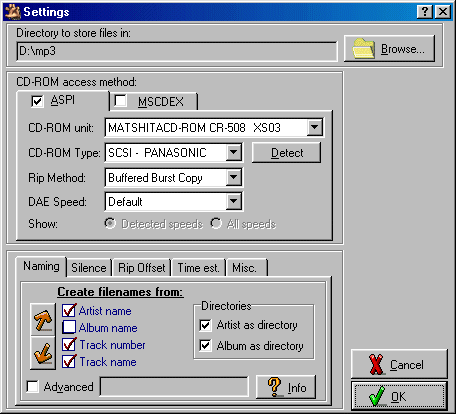
At the top, you choose where your mp3/wavefiles will be stored at.
Next is to choose the rip- and accessmethod. This may be the hardest part, since there is no "Best alternative"! If there were, the other alternatives would not be included, would they? But why is it so hard to know what to choose? Well, it depends so much on how your CD-Rom works. For most drives, ASPI works best. Try the defaultsettings for your drive, and if it doesn't work, try some other method. A good tip is to check what kind of CD-Rom you have, in the "CD-Rom unit"-field, then go to AG's CD-reportpage, and see what others say about it!
A new neat feature is the naming! Using drag and drop/arrows, you can get your outputfile named as you want!
There are some other fine settings here you may want to alter, like the skip leading and trailing silence, but that is up to yourself to find out. They will not affect the main purpose of ripping in this example.
So, now we have clicked OK. Enter the next button from AG's main window, the Normalization-settings.
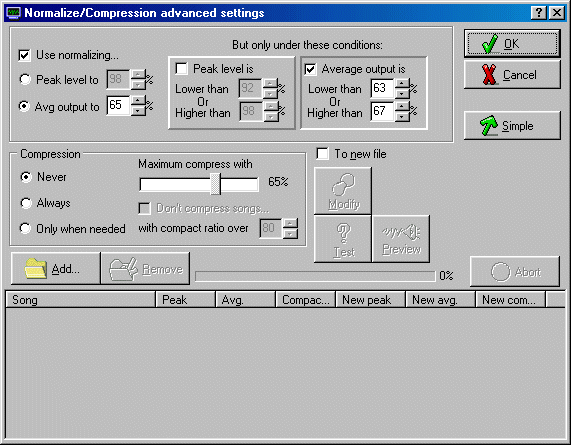
This feature is actually very advanced. I prefer to use the advanced normalization, that makes all songs have the same average sound level. This will make all your songs sound equally loud, and you will not have to adjust your amplifier when listening to different albums. Read more in the AG help file if you want to know more about this.
The last initial settings are the MP3-settings.
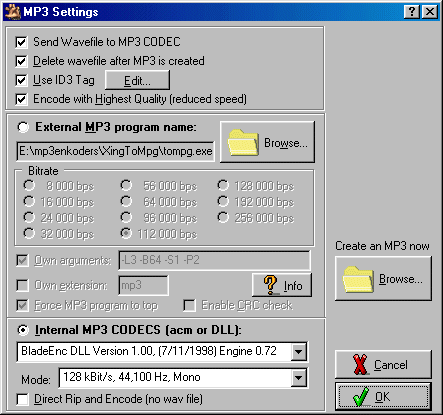
I don't think the first options are that hard to figure out what they do. But, the following may cause you some problems if you don't understand them!
There are two ways to make mp3's in AG. The first one is the external mp3 program. AG does not compress the cd-tracks itself into mp3files, but is a good shell for external encoders. One of the programs supported here is Xing ToMpg. You may find it on the Internet on several websites as well as a lot others. A freeware encoder called Blade Enc can be found here. Select the path to where it is at on your computer, and then the bitrates. Most common bitrate is 128 000 bps.
An easier way to encode files is to use the Internal Codec, Fraunhofer or Blade Enc DLL. If Fraunhofer is correctly installed, AG will find it itself. If it does not show up automatically, it is not in your system. There are two versiones of the Fraunhofer codec, one limited freeware (advanced), and one full version (professional). The limited is no good, it does only support 56kbps. Blade Enc DLL is also freeware as the external Blade Enc, and you just put it in the AG folder and restart AG to find it.
You can also check the Direct rip and encode-box if you do not want to make an initial wavefile. If you check this, you can't use the normalization.
A really fast way to compress the files is to use Xing X3enc. Check the Rip-page for more info about the encoders!
If you downloaded AudioCatalyst, you do not have to worry about installing encoders an so on, just to select desired bitrate.
Do your mp3-settings and then click OK.
Now we are all set, and have inserted our Audio-CD into the drive.
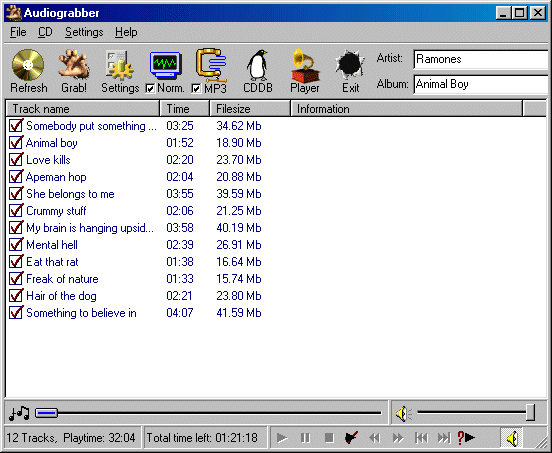
If you don't want to enter your CD's tracknames yourself, press the penguin (CDDB), and AG will search the Internet and fill it in for you in just a couple of seconds.
As you can see, AG can also be used as a CD-player. No need for the Microsoft-shipped CD-player anymore!
Check all tracks you want to rip, and then press the Grab-button! (OK, if you have the free version, not all the tracks have a checkbox next to it, so you can't grab all the tracks you may want. Restarting AG gives you new checkboxes. This is a really easy problem to fix; buy the ripper!)
These are the basic steps of ripping a CD. If everything works the way it is supposed to now (if you have done all you needed to, and your drive supports ripping), all you have to do now is to wait for your computer to finish. If you use Blade Enc, it will take an hour or so on a basic computer. Do not disturb it while reading from the CD! It may not rip if you do. After all selected tracks are ripped and compressed, you will find your mp3's in your mp3-folder.
Things that may go wrong.
The wavefiles sound very bad.Try another accessmethod, and/or ripmethod. If nothing works, your CD-Rom may not be supporting Digital Extraction. Buy another CD-Rom. Check the AG's CD-Rom-reportpage for good drives.
The wavefiles don't get compressed into mp3's.
You have not selected any external/internal mp3-codec, OR you have not checked the "send to mp3-codec". If you are using L3Enc as compressor, make sure you do not use any foldernames with spaces in it, or other strange symbols. Try the root-folder (C:\) if you think this is the case.
You have drag-and-dropped a wavefil onto AG that is not valid. Resample it using Cool Edit e.g. as stereo, 44Khz and try again.
No tracks are shown in the tracks window.
So what are you complaining about? You did not buy the program and now the copy protection has taken over...
AG does not find my CD-Rom.
OK, if you are running Win NT, you will have to install an ASPI-manager. If you do not know how to do this, then why are you running NT?
If you are running Win95, then maybe you have a SCSI-CD that is not installed correctly?
I keep getting speed-problems.
Your computers processor/hard drives etc are too slow for the ripspeed. Try to reduce the ripspeed in the settings, DAEspeed field. If it doesn't work, do not use the burstcopy, try another ripmethod, a synchronized.
Often, it doesn't really matter if you get speed problems or not. But if the wavefile gets bad, you get like clicks and pops in it, try changing your settings. If your CD is good enough, it will rip fine anyway. Speed problems are just warnings, they don't have to be errors.
I get ASPI-errors.
AG can not access your CD-Rom. Does it support Digital Audio Extraction? Maybe you have selected the accessmethod incorrectly?
I am a lame user who still don't understand anything!
Ask someone else to create mp3's for you. Or, mail me lots of info about your system, and what went wrong and I will try to help you. But PLEASE, read this page carefully before mailing!
Comments regarding this page (more questions e.g) can be mailed to [email protected]
Updated 990413