A lot can be said with just text. HTML allows you to display images as well as text. This combination communicates powerfully.
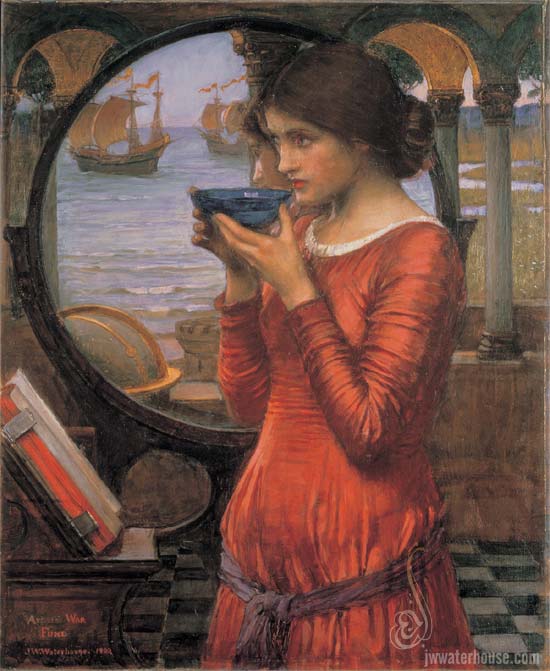
Another way would be to reverse it, or in this example, using standard typesetters' text, spread the text out so that both sides are more-or-less even. You can use the same text if don't know what to write.
Lorem ipsum dolor sit amet, consectetuer adipiscing elit. Nam pharetra massa sit amet arcu. Nam in ligula a sem mattis accumsan. In hac habitasse platea dictumst. In a tellus. Sed porttitor suscipit orci. Nulla faucibus rhoncus enim. Vivamus dapibus urna non tortor. Aenean porttitor felis quis leo. Praesent sit amet libero. Etiam neque odio, dictum ac, euismod nec, faucibus porta, metus.
General Ways to Change Text
We've seen how to align text and images differently. The text itself can also be changed in many ways. First, take size: The size of our text can be enlarged using the <big>Our text here!</big> tags. Text can also be shrunk with the <small>Our text here!</small> tags.
Second, take fixed- versus variable-width fonts. The text we usually see is variable-width, but the <tt>Our text here!</tt> tags make text fixed-width. See the difference?!
Third, take emphasis & strength If we need to gain the reader's attention just add the<em>Our text here!</em> tags; or add the <strong>Our text here!</strong> tags for greater notice. There are other simple ways to present text. I refer you to your local library to find them. Try: HTML, the Definitive Guide by Chuck Musciano & Bill Kennedy.
Detailed Ways to Change Text
Using simple HTML tags, there is a way to change text's color & apperance. The style attribute is that way. An attribute is the text assigning a value to a property between the "<" and the ">". For example, here the "align" attribute says this paragraph will be centered: <p align="center" >
Now that that's settled, there are many ways to change text through the style attribute. We'll look at the easiest to see: font-family & color.
Colors can be displayed by their names: olive, magenta, emerald, blue, green, red, &c. Examples are <span style="color:red">Our text.</span> or <span style="color:lightblue">Our text here.</span>.
To please the eye, many font families have been designed. The text of this lesson is in "". Your text can be plain, like "Helvetica", or jocular, like "Comic Sans MS". You can list a backup font, in case the first is not installed on your browser, like so: <p style="Comic Sans MS,Helvetica,Courier">Our text here.</p>
© Al Whitener 2007. All rights reserved.