Gist: Clarifying how to use the B&R Codes feature under the PASS Utilities Menu to update codes for the program offices (this may be necessary when there a re-organization or just a single organization added).
Referenced PASS Buttons
The buttons below are presented here for referential use by the reader. These buttons are located on the PASS windows described below.
|
Button
|
Description
|

|
New Record |

|
Next Record |
Utilities Menu Data Changes
| B & R
Codes
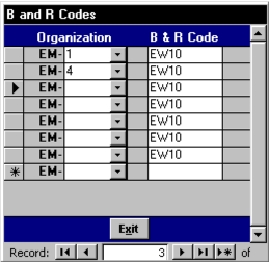
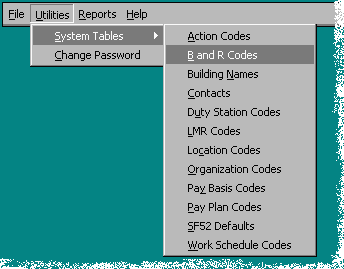
Due to EM's reorganization, the B & R Code table may now be incorrect (that is except for those who have already updated the table). This will not be readily apparent until you try to create an action. The B & R Code data is updated using the B & R Code Update Window. This window can be activated through the B & R Codes menu item located under the Utilities menu. An example of the Utilities menu is displayed to the right. Since most of the old organization codes are obsolete, the organization, Routing Symbols, column will be missing some entries (displayed below is an example of the B & R Code Update Window with errant data. |
 |
|
|
To change a record, select (or type) the routing symbol in the white space next to the EM-. Since the B & R Code will most likely remain the same, you will not need to edit this field. If you need to add a new record, click the New Record button and fill in the routing symbol and the B & R Code. If you need to delete a record, click the Record Selector next to the record then press the [Delete] key. You will only need to enter data for the top level offices (EM-1, EM-5, EM-6, EM-7, EM-10, EM-20, EM-30, EM-40, and EM-50). For this to work properly, the Organization Codes table needs to have been updated. |
Go to (Prior) PASS Application Update information page
Go to EM home page
This page last updated on January 12, 2000.