

Gist: Clarifying how to use the Organization Codes feature under the PASS Utilities Menu to update organizations (this may be necessary when there a re-organization or just a single organization added).
Referenced PASS Buttons
The buttons below are presented here for referential use by the reader. These buttons are located on the PASS windows described below.
|
Button
|
Description
|

|
New Record |

|
Edit Current Record |

|
Save Changes |

|
Cancel Changes |

|
Record Navigation (First, Prior, Next, Last) |

|
Find Record |

|
Delete Current Record only use this for records created in error--do not delete an OBSOLETE Organization. |

|
Exit Window |
Utilities Menu Data Changes
Organization Codes
|
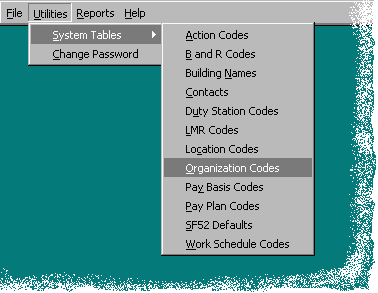
EM's reorganization became official in November 1999. The EM the databases needed to wait until the data was updated in DOEInfo to update EM's systems (this occurred on December 27, 1999). The PASS application databases were updated in accordance with the new Organization structure. This involved changing the status of some organizations to OBSELETE and adding new organizations with the status of CURRENT. The Organization data is updated using the View/Modify Organization Window. This window is activated through the Organization Codes menu item located under the Utilities menu. An example of the Utilities menu is displayed to the right. |
 |
Below is the View/Modify Organization Window the window displays several data fields. Only edit Organization records where the Status is CURRENT. The only fields requiring entries are: Organization Code, Routing Symbol, Actual Office Title, Status, Top Level Organization, DAS Organization, and Organization Head. Filling the Organization Assistant and Organization Secretary is a plus. Do not enter any data for Div. Level and Branch Level, this refers to an earlier organization structure.
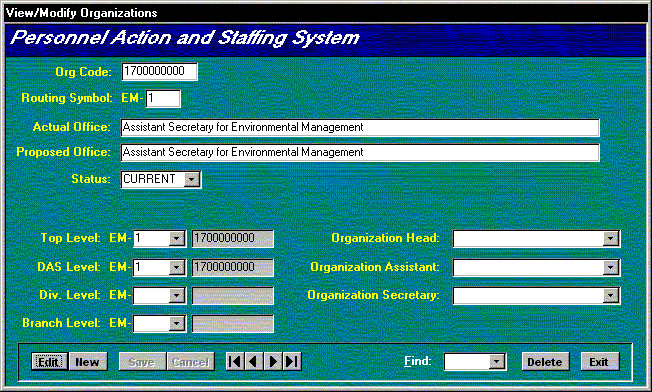
To change a record, select a record to edit, this is done by using the record selectors or the Find button (or type in a routing symbol, include the EM-). Since all of the new (CURRENT) organizations should have been loaded, you will need only edit the required data. If you need to add a new record, click the New Record button and fill in the Organization code and other required data (see above). If a program office (i.e., EM-10) needs to have the Top Level Organization and or DAS Organization updated, first correct the Top Level Organization and save the record, then exit the View/Modify Organization Window then restart the View/Modify Organization Window and finish editing the record. If the program office is not properly defined the other offices in that program office will not be able to select it as the DAS Organization.
Only the records with status of CURRENT need to be edited, the OBSOLETE records should be OK since they will only be needed for historical purposes.
Go to (Next) PASS Application Update information page
Go to EM home page
This page last updated on January 20, 2000.