

Commitment Tracking System (CTS) IV Version 1.6
February 5, 2000
Number: 00002
(Draft)Gist: Clarifying what constitutes a good password and directions on changing your user password for EM databases.
Creating a Good Password
GOOD Password Characteristics
A password is intended to protect a system or a database from misuse, therefore there are some common practices that should be followed:
BAD Password Characteristics
As there are good password characteristics, there are some common password practices which need to be avoided, these include:
Protect Your Password
Do you leave passwords written down around your office or workstation? This is a dangerous practice, you should never leave your password written down in your work area. You would not leave your house key under your welcome mat or your PIN taped to the back of your ATM card, so please take similar precautions in the office.
You have been entrusted with rights to EM data systems; therefore, you have also been entrusted with protecting EM's data, your data. Data security is your responsibility as stated on the LAN account request form you signed.
Referenced CIS Password Utility Buttons
The buttons below are presented here for referential use by the reader. These buttons are located on the CIS PASSWORD UTILITY window described in section which follows.
|
Button
|
Description
|

|
The OK button accepts the entered information and updates the user's password. |

|
The Cancel button disregards entries and closes the window. |
Changing your Computer Information System (CIS) Password
|
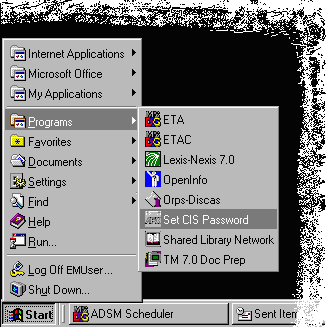
Changing your CIS password will affect your access to all applications on the production database server. You will need to use the new password to get into all of the database applications that you log into using your LAN account as your user ID. Locating the CIS Password Utility Click on the Start menu button on your desktop, the Start menu will then appear above the button. Then select the Programs menu item, the Programs submenu will appear to the right. Now, click on the Set CIS Password menu item, the CIS PASSWORD UTILITY login window will now appear. (An example of the Start menu is displayed on the right.) |
|
|
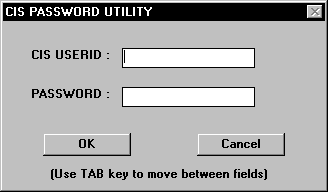
Using the CIS Password Utility Logging In The CIS PASSWORD UTILITY login window (see image to the left) has two entry fields, CIS USERID and PASSWORD. All letters entered in these fields need to be entered as capital letters. In the CIS USERID field, type your EM LAN account (user id) then press the [Tab]. In the PASSWORD field, type your current password then click the OK button. If the information entered is correct, the MODIFY PASSWORD SCREEN will appear. Otherwise if there is an error with the LAN ID and password you entered, a message window will alert you of the error and the CIS PASSWORD UTILITY login window will then close (you will need to go back to the Start menu to try again). If you are not ready to change your password at this time, simply click the Cancel button, this will close CIS PASSWORD UTILITY window with out making any changes. |
|
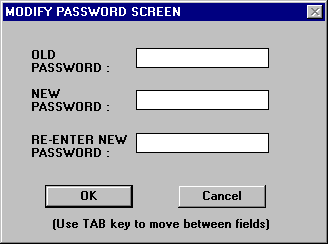
Changing Your Password The MODIFY PASSWORD SCREEN (see image to the right) has three entry fields, OLD PASSWORD, NEW PASSWORD, and RE-ENTER NEW PASSWORD. All letters entered in these fields need to be entered as capital letters. In the OLD PASSWORD field, type your current CIS password then press the [Tab] key. In the NEW PASSWORD field, type your new password (please follow the good password guidance above) then press the [Tab] key. In the RE-ENTER NEW PASSWORD field, re-type your new password (this is used to validate the change) then click the OK button. You will be alerted that the new the password has been accepted and the window will be closed. If there were a problem, you will be allerted of that and you will have the opportunity to correct the error. If you are not ready to change your password at this time, simply click the Cancel button, this will close MODIFY PASSWORD SCREEN with out making any changes. |
|
Go to (Prior) CTS IV Application Update information page
Go to (Next) CTS IV Application Update information page (Federal Records Disposition)
Go to EM home page
This page last updated on January 23, 2001.