Internet
Explorer Security Zones
by Scott Schnoll
Copyright © 1998-2001 -All Rights Reserved
One of the many dangers of the Internet is that serious threats can propagate quickly. The rapid adoption of Internet-based technologies has brought with it a number of security challenges, such as the risk of downloading infected or dangerous code from malicious web sites. Microsoft started enabling web browser security with Internet Explorer 3. With version 3, administrators and end-users could disable potentially harmful content, but doing so also eliminated the power and functionality of ActiveX, Java, Dynamic HTML, scripting, and the like. Microsoft addressed these limitations in version 4.
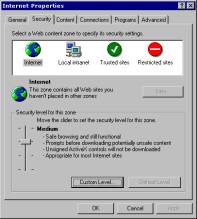
Internet Explorer 4 ushered in a concept called Security Zones. This Chapter will discuss what Security Zones are, how to configure them, and what they can and cannot do for you. Within Internet Explorer's Security Zones, web sites are categorized into one of five zones: Internet, Local Intranet, Trusted Sites, Restricted Sites, and Local Machine. As you can guess from their names, each zone is responsible for a distinct type of content. Each zone can be configured with a unique security level: High, Medium, Medium-Low, Low or Custom. The number of possible configurations presents an option for securing every type of web page, whether it is on your PC, on your intranet, or on the Internet.
Security Zones are configured using the Internet applet in the Control Panel. This dialog box can also be visited through Internet Explorer by selecting Tools then Internet Options. The Security tab will display Security Zone information.
Internet Zone
This is one zone to which you cannot add sites. By default, all web sites that are not added to the Local Intranet zone, the Trusted Sites zone or the Restricted Sites zone, are placed into the Internet zone. The default security setting for the Internet zone is medium. This setting will protect you at most web sites; however, it is still possible for a malicious web site to access sensitive data on your system, or to cause harm to your system or network. For example, a setting of medium could make Internet Explorer vulnerable to frame spoofing or site spoofing. You might think you have just purchased the latest ''Widget'' software from ''www.wonderwidgets.com'' when instead, you've actually just transmitted your credit card information to a malicious web site.
One other important thing to keep in mind is that there are new vulnerabilities being discovered all of the time. Most end up being theoretical exploits; that is, the potential for maliciousness is there but no actual real-world instances have been reported to have occurred. But as long as the possibility remains, you need to take steps to protect yourself. Even if you don't download software from a web site, elements of a web page on that site may be executable code that is downloaded behind the scenes, and run on your computer. This poses enough of a security risk that you'll want to control what sites remain in the Internet zone, and what level of security you use for this zone.
Local Intranet Zone
The Local Intranet zone contains local domain names, as well as the addresses of any proxy server exceptions you may have configured. In order for security in this zone to be effective, the Local Intranet zone should be set up in conjunction with a proxy server and a firewall. All sites in the Local Intranet zone should be inside the firewall, and all proxy servers should be configured to deny external DNS name resolution for this zone. Configuring this zone properly requires detailed knowledge of your network configuration, including proxy servers and firewalls. Even when properly configured, however, some versions of Internet Explorer may inadvertently place Internet sites into the Local Intranet zone.
Internet Explorer uses a specific set of criteria to determine whether an address you enter or a link you click is a local (e.g., intranet) site or a World Wide Web site. There are different ways to address a web site: (1) by a fully qualified domain name (e.g., http://www.nwnetworks.com), (2) by a host name (e.g., http://NorthwestNetworks), (3) by an IP address (e.g., http://216.65.128.112), or (4) by a number like http://3628171376, to name a few. Converting an IP address to a number such as the one in the 4th URL, is performed using the following formula:
W(256³) + X(256²) + Y(256) + Z
where w.x.y.z is the IP address.
All four URLs will take you to Northwest Networks, but unlike the first three ''which Internet Explorer correctly recognizes as being in the Internet zone'' URL number 4 (http://3628171376) causes some versions of Internet Explorer to place the site in the Local intranet zone. Apparently this has to do with the fact that there are no dots in the URL. If Internet Explorer 4 or 4.01 for Windows and Unix encounter an address without any dots, it assumes the page is on an intranet and it applies the Local Intranet zone settings.
By default, both the Internet zone and the Local Intranet zone are set to medium security, so ordinarily this isn't a problem. But say, for example, that you've configured your Local Intranet zone to use low security. This means that a site that normally would use medium security could now end up with a low security setting. This is a major security hole which can expose system data, as well as user names and passwords. One rogue applet could take out the system, and possibly other systems if the target machine is on a network.
Fortunately, Microsoft released a patch for this problem “ which was called the ''Dotless IP Address Security Issue'' and Internet Explorer 5 isn't susceptible to this vulnerability. Nonetheless, you might want to consider this vulnerability, and the potential for the discovery of similar vulnerabilities in the future, when considering your security settings for the Local Intranet zone.
You can add sites to the Local Intranet zone, and you can configure which sites are treated as local sites. If you select the Local Intranet zone and click the Sites button, you will be presented with three options for selecting which sites are deemed Local Intranet sites:
|
Setting |
Description |
|
Include all local (intranet) sites not listed in other zones |
Specifies that all sites that appear to be local (e.g., http://local or file://webdoc.doc) are to be considered in the local intranet. |
|
Include all sites that bypass the proxy server |
Specifies that all sites configured to bypass an internal proxy server are to be considered within the local intranet. This setting is used to distinguish intranet from Internet content for purposes of zones only. If the proxy server is configured differently, this option should not be used, and alternative methods should be used to designate intranet zone membership. If you don't use a proxy server, this setting has no effect. |
|
Include all network paths (UNCs) |
Specifies that UNC (Universal Naming Convention) paths are treated as local sites. UNC paths (e.g., \\server\share\webdoc.htm) are commonly used for network files that are included in the Local Intranet zone. Clear this option if you don't want one or more network paths included in the Local Intranet zone. |
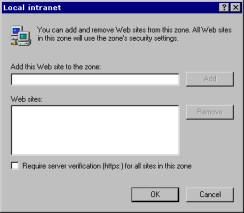
To add a site to the Local Intranet zone, click the Advanced button, enter the URL and click Add. You can also specify whether or not you want to use HTTPS (Hypertext Transfer Protocol Secure) for server verification.
Trusted Sites Zone
As the name implies, the Trusted Sites zone is intended for use with those sites which you trust not to damage your system or steal your information. By default, it is set to low security. There isn't a lot more than can be said about the Trusted Sites zone, except to say that you should use this zone sparingly and carefully. You might even consider applying a customized level of security, as opposed to using the default low security. Even if you completely trust the content and code on a web site, it is still a good idea to protect yourself by disabling features you may not need or use. Trusted web sites can always add content that is stored on other, non-trusted sites. In addition, it is entirely possible that an unintentional mistake in the coding of an applet or the writing of scripts could produce undesirable effects. Certainly this won't be as destructive as a malicious script or a rogue applet, but it could produce several annoyances, including a system crash.
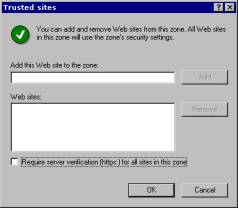
To add a site to the Trusted Sites zone, click the Sites button and Add the desired site. Like sites in the Local Intranet zone, you can also specify that HTTPS be used for these sites.
Restricted Sites Zone
You can liken this zone to a jail. When used properly, the Restricted Sites zone provide a mechanism for containing web sites that may cause damage to or steal information from your system or your network. Obviously the best protection would be to simply not visit the sites, but you may find some exceptions. There may be web sites out there who plain text content you wish to view without the concern of silent executable code being delivered to your computer.
It never hurts to double-check your configuration. Indeed, as indicated in Microsoft Knowledge Base article Q217260, a trailing space at the end of an URL that you added to the Restricted Sites zone could cause Internet Explorer to apply different zone settings (e.g., Local Intranet or Trusted) to the site. This could open the door for malicious content.
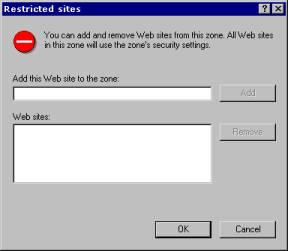
Like the Local Intranet and Trusted Sites zones, you can add sites to the Restricted Site zone by clicking Sites, entering an URL and clicking Add. Unlike the other two zones, you cannot specify whether or not restricted sites are required to use HTTPS.
Local Machine Zone
There is a fifth security zone that is not accessible from the Security tab in Control Panel | Internet Options. This fifth zone ''called the Local Machine zone, or My Computer'' is only available for Windows systems. In addition, it can only be configured by editing the registry, or by using the Internet Explorer Administration Kit (see Chapter 15). The Local Machine zone includes all of the content on the local computer, except for data that is stored in the Temporary Internet Files web cache, or classes that have been specifically signed with local machine privileges. This zone is very much like the Trusted Sites zone. Security is extremely minimal, or not present at all. Unless otherwise configured by an administrator, network connections can also fall into this zone.
In theory, even when properly configured, malicious content could make its way into the Local Machine zone. For example, an employee may be browsing a restricted site. On one of the pages, there could be a malicious script that looks for and transmits password files to a malicious web site. As a restricted site, the script is still part of the downloaded web page, but it won't due to the security restrictions that are in place. But say that the employee decides to save the page to their hard drive for later inspection. They do this by clicking File and Save As, which saves the page ''including the malicious script'' to their hard drive. Later they open the page on their hard drive. Because they are accessing a file on their local system instead of via a World Wide Web URL, the Local Machine zone will be applied. Because security for this zone is extremely low or nonexistent, the malicious script could execute and cause damage or silently transmit data. While I am not aware of any real-world instances of this, it is entirely possible and therefore needs to be considered as one of the many security issues related to browsing the web.
When adding sites to the Trusted Sites or Restricted Sites zone, you can use the convenience of wildcards. A wildcard is a character ''in this case an asterisk (*)'' that you can use to represent other characters. You might find this helpful in adding multiple transport protocols (e.g., HTTP, FTP, etc.) for one site. For example, entering http://www.safesite.com to your Restricted Sites zone will protect you from content that uses the HTTP protocol, but it won't protect you from content that uses the FTP protocol (e.g., ftp://www.safesite.com). To add all transport protocols, you can use a wildcard in the URL so that it looks like this: *://www.safesite.com. The asterisk is translated to mean 'anything.' New transport protocols will be added to future versions of Internet Explorer, and you won't have to go back to configure the new protocols for the sites you've added to your security zones. You may have noticed that not all web sites use 'www' as part of their URL. Wildcards are useful in these cases, as well. For example, you can use http://*.safesite.com, which will include http://safesite.com, http://www.safesite.com, http://home.safesite.com, etc. Moreover, you can use a combination of wildcards to add all transport protocols and all URL variations by using the format *://*.safesite.com.
The Choice is Yours
As previously mentioned, you can choose from four security levels: high, low, medium and custom. High, low and medium have certain options preset to enable, disable or prompt. When you deviate from one of these predefined combination of options, you are using a custom level. The default settings for each level within Internet Explorer 5 are listed in the following tables. Note that some of these settings do not apply to UNIX or 16-bit versions of Internet Explorer:
§ UNIX versions
ActiveX controls and plug-ins
Font download
Software channel permissions
Launching applications and files
Installation of desktop items
§ 16-bit versions
User authentication
Font download
Software channel permissions
Installation of desktop items
Active scripting
Launching applications and files from an IFrame
|
High
Security – Default for Restricted Sites Zone |
|
|
Option |
Setting |
|
|
|
|
ActiveX Controls and
Plug-ins |
|
|
Download signed ActiveX controls |
Disable |
|
Download unsigned ActiveX controls |
Disable |
|
Initialize and script ActiveX controls not marked as safe |
Disable |
|
Run ActiveX controls and plug-ins |
Disable |
|
Script ActiveX controls marked safe for scripting |
Enable |
|
|
|
|
Cookies |
|
|
Allow cookies that are stored on your computer |
Disable |
|
Allow per-session cookies (not stored) |
Disable |
|
|
|
|
Downloads |
|
|
Download files |
Disable |
|
Download fonts |
Disable |
|
|
|
|
Java |
|
|
Java permissions |
High Safety |
|
|
|
|
Miscellaneous |
|
|
Access data sources across domains |
Disable |
|
Drag and drop or copy and paste files |
Prompt |
|
Installation of desktop items |
Disable |
|
Launching programs and files in an IFRAME |
Disable |
|
Navigate sub-frames across domains |
Disable |
|
Software channel permissions |
High Safety |
|
Submit nonencrypted form data |
Prompt |
|
Userdata persistence |
Disable |
|
|
|
|
Scripting |
|
|
Active scripting |
Enable |
|
Allow paste operations via script |
Disable |
|
Scripting of Java applets |
Disable |
|
|
|
|
User Authentication |
|
|
Logon |
Prompt for username and password |
|
Medium
Security – Default for Internet Zone |
|
|
Option |
Setting |
|
|
|
|
ActiveX Controls and
Plug-ins |
|
|
Download signed ActiveX controls |
Prompt |
|
Download unsigned ActiveX controls |
Disable |
|
Initialize and script ActiveX controls not marked as safe |
Disable |
|
Run ActiveX controls and plug-ins |
Enable |
|
Script ActiveX controls marked safe for scripting |
Enable |
|
|
|
|
Cookies |
|
|
Allow cookies that are stored on your computer |
Enable |
|
Allow per-session cookies (not stored) |
Enable |
|
|
|
|
Downloads |
|
|
Download files |
Enable |
|
Download fonts |
Enable |
|
|
|
|
Java |
|
|
Java permissions |
High Safety |
|
|
|
|
Miscellaneous |
|
|
Access data sources across domains |
Disable |
|
Drag and drop or copy and paste files |
Enable |
|
Installation of desktop items |
Prompt |
|
Launching programs and files in an IFRAME |
Prompt |
|
Navigate sub-frames across domains |
Enable |
|
Software channel permissions |
Medium Safety |
|
Submit nonencrypted form data |
Prompt |
|
Userdata persistence |
Enable |
|
|
|
|
Scripting |
|
|
Active scripting |
Enable |
|
Allow paste operations via script |
Enable |
|
Scripting of Java applets |
Enable |
|
|
|
|
User Authentication |
|
|
Logon |
Automatic logon only in Intranet zone |
|
Medium-Low
Security – Default for Local Intranet Zone |
|
|
Option |
Setting |
|
|
|
|
ActiveX Controls and
Plug-ins |
|
|
Download signed ActiveX controls |
Prompt |
|
Download unsigned ActiveX controls |
Disable |
|
Initialize and script ActiveX controls not marked as safe |
Disable |
|
Run ActiveX controls and plug-ins |
Enable |
|
Script ActiveX controls marked safe for scripting |
Enable |
|
|
|
|
Cookies |
|
|
Allow cookies that are stored on your computer |
Enable |
|
Allow per-session cookies (not stored) |
Enable |
|
|
|
|
Downloads |
|
|
Download files |
Enable |
|
Download fonts |
Enable |
|
|
|
|
Java |
|
|
Java permissions |
Medium Safety |
|
|
|
|
Miscellaneous |
|
|
Access data sources across domains |
Prompt |
|
Drag and drop or copy and paste files |
Enable |
|
Installation of desktop items |
Prompt |
|
Launching programs and files in an IFRAME |
Prompt |
|
Navigate sub-frames across domains |
Enable |
|
Software channel permissions |
Medium Safety |
|
Submit nonencrypted form data |
Enable |
|
Userdata persistence |
Enable |
|
|
|
|
Scripting |
|
|
Active scripting |
Enable |
|
Allow paste operations via script |
Enable |
|
Scripting of Java applets |
Enable |
|
|
|
|
User Authentication |
|
|
Logon |
Automatic logon only in Intranet zone |
|
Low
Security – Default for Trusted Sites Zone |
|
|
Option |
Setting |
|
|
|
|
ActiveX Controls and
Plug-ins |
|
|
Download signed ActiveX controls |
Enable |
|
Download unsigned ActiveX controls |
Prompt |
|
Initialize and script ActiveX controls not marked as safe |
Prompt |
|
Run ActiveX controls and plug-ins |
Enable |
|
Script ActiveX controls marked safe for scripting |
Enable |
|
|
|
|
Cookies |
|
|
Allow cookies that are stored on your computer |
Enable |
|
Allow per-session cookies (not stored) |
Enable |
|
|
|
|
Downloads |
|
|
Download files |
Enable |
|
Download fonts |
Enable |
|
|
|
|
Java |
|
|
Java permissions |
Low Safety |
|
|
|
|
Miscellaneous |
|
|
Access data sources across domains |
Enable |
|
Drag and drop or copy and paste files |
Enable |
|
Installation of desktop items |
Enable |
|
Launching programs and files in an IFRAME |
Enable |
|
Navigate sub-frames across domains |
Enable |
|
Software channel permissions |
Low Safety |
|
Submit nonencrypted form data |
Enable |
|
Userdata persistence |
Enable |
|
|
|
|
Scripting |
|
|
Active scripting |
Enable |
|
Allow paste operations via script |
Enable |
|
Scripting of Java applets |
Enable |
|
|
|
|
User Authentication |
|
|
Logon |
Automatic logon with current username and password |
There are a number of options available when configuring Security Zones. Because the configured options can adversely affect your ability to view web content or run web applications, it is important to have a solid understanding of what each option controls. Knowing how to control what web sites can do and what they cannot do is integral to safe browsing. Clearly, on the Internet, what you don't know can hurt you.
By now you know that ActiveX controls, Java and other dynamic Internet technologies are very powerful, but very dangerous. Choosing whether or not to enable this kind of content is often related to the factor of trust you have in the web site that provides the content. You might, for example, choose to run all dynamic content on your company's intranet, but you might disable it completely while on the Internet. Ultimately, the security settings you use are up to you. If you're like me, your settings may be constantly evolving.
When you configure Security Zones, it is important to take certain things into account. For example,
§ The URL determines the security zone. Keep in mind that some sites use framesets. Because individual frames determine the security context, one site may span multiple zones.
§ A trusted site can host malicious content. For example, say you assign http://www.safesite.com to the Trusted Sites zone. Afterwards, the site adds an executable that is located on another, untrusted, web site. Internet Explorer will download the executable within the security context of the www.safesite.com page.
§ Before changing security zones, consider the existing security context of applets, executables, and pages. When you changing a web page from high security to low security you’re removing the restrictions on that content.
It is fairly straightforward to configure Security Zones. You simply select the desired zone and drag the slider bar to the desired security level for that zone. Or if you prefer, you can get fairly granular, as well. Within Internet Explorer 5, there are seven different categories of settings that you can configure within each Security Zone:
|
ActiveX Controls and Plug-Ins Cookies Downloads Java Miscellaneous Scripting User Authentication |
ActiveX Controls and Plug-Ins allows you to control whether or not signed or unsigned controls are downloaded and executed. Within this category are five options that you can configure:
|
Download Signed ActiveX Controls Download Unsigned ActiveX Controls Initialize and Script ActiveX Controls Not Marked as Safe Run ActiveX Controls and Plug-ins Script ActiveX Controls Marked Safe for Scripting |
Each options can be set to one of three values: enable ''which turns the option on; disable '' which turns the option off; and prompt '' which displays a dialog box asking you whether or not you want to run the control, on a per-control basis. Within Internet Explorer 5, Run ActiveX Controls and Plug-ins also has an additional setting for Administrator approved, which allows corporate administrators to allow specific ActiveX controls to be run, while locking out all others.
Cookies allows you to turn browser cookies on and off. Internet Explorer 5 allows per-zone cookie control. Prior versions used a global cookie setting. Within this category you have two options to choose from:
|
Allow Cookies that are stored on your computer Allow per-session cookies that are not stored |
Once again you can choose from enable, disable, and prompt. As you learned in Chapter 3, cookies are small, harmless files that web sites use to record and track your visit to their site, as well as maintain session information. Keep in mind that if you turn off cookies, some web sites may not function properly.
Downloads controls whether or not files or font are downloaded. Font downloads can be set to enable, disable, or prompt, but file downloads can only turned on (enabled) or off (disabled).
Under Java, you only have one option ''Java permissions'' but you have five settings to choose from: Custom, Disable Java, High Safety, Low Safety and Medium Safety. Choosing Custom allows you to get extremely granular in your control of Java permissions. When a Java applet runs, it typically requests permission to access things on your system, such as folders, files, printers, system information, and your network connections. If the Java applet doesn't need a higher level of permission that what you have set, then it will run without requesting permissions. If it needs more permissions that you have configured, you will be presented with a dialog box requesting the additional privileges necessary for the applet to run properly.
If you choose a Custom setting for Java permissions, a new button called Java Custom Settings will appear.
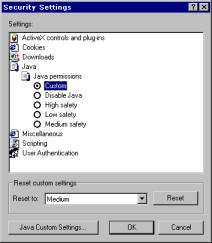
The Java Custom Settings button allows you to completely customize the security of your Java environment. There are several reasons you might want to do this. Java applets help solve some of the client/server problems in a network-concentric computing environment. Using Java applets, however, adds vulnerability. For example, an employee browsing an Internet web site for information might unknowingly load and execute a malicious applet without even being aware that the site contains such code. This silent and automatic distribution of executable code exposes both the employee's computer, and the network to which it is connected. Since the applet is imported into the user's web browser and runs locally, the malicious code could steal information, damage the system, or plant further malicious code. Since the malicious code is now behind the company's firewall, it can attack other machines on a corporate network. Moreover, these attacks are not stoppable by standard security measures. Companies aren't the only ones at risk. More and more consumers rely on home computers ''and lately home networks'' for personal correspondence, business and financial management, and entertainment. Left to chance, both the data and the integrity of these systems are at risk to surreptitiously transmitted malicious code. Controlling what Java applets can and cannot do is a necessary prerequisite for protecting your computer system and any network to which it is attached.
Within these settings are three sets of permissions:
|
Permissions Enabled for
Unsigned Content |
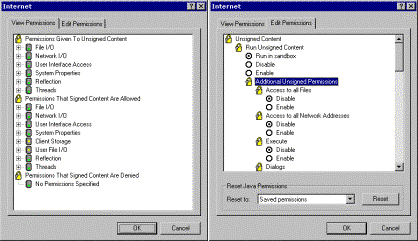 |
You can assign permissions to the following objects:
|
Object |
Setting |
Permissions Controls |
|
File I/O |
Access to all Files |
Read, write and delete access to files
|
|
Network I/O |
Access to all Network Addresses |
Access to network or network operations
|
|
User Interface Access |
Create dialog boxes |
Access to Abstract Windows Toolkit (a set of libraries that provide user input, graphics and window elements)
|
|
System Properties |
System Information |
Allows manipulation of system global properties (such as a username or home directory path, etc.)
|
|
Reflection |
Run in Sandbox |
Allows access to classes, interfaces and objects in the Java Virtual Machine
|
|
Threads |
Execute |
Allows the creation and manipulation of threads and thread groups
|
|
Client Storage |
Protected Scratch Space |
Allows access to client-side storage to be used as ''scratch-space'' when working |
|
Printing |
Printing |
Access to Printer APIs (and therefore, print devices) |
In the View Permissions dialog box, you'll see icons that look like traffic signals. The color of the light indicate the level of security in place. If the light is green, it means that security is high. If the light is red, security is low. A yellow light indicates medium security. If you write Java applications, or if you would like to control what Java applets can do on your system, you'll want to experiment with your security settings. When you're finished experimenting you can reset the security settings back to low, medium or high security.
The Miscellaneous category has several options you can configure:
|
Option |
Description |
|
Access data sources across domains |
Controls cross-domain data access. Cross-domain data access can open the door to various spoofing attacks. Introduced in version 5.
|
|
Drag and drop or copy and paste files |
Controls whether users can drag-and-drop files or copy and paste files.
|
|
Installation of desktop items |
Controls whether or not users can download and install Active Desktop content.
|
|
Launching programs and files in an IFrame |
Controls whether applications may be run and files may be downloaded from a floating frame (IFRAME).
|
|
Navigate sub-frames across different domains |
Prevents frame spoofing (e.g., inserting a malicious page within a frame in a legitimate web site). Introduced in version 5.
|
Software channel permissions |
Controls whether or not an email message it sent with notification of available software for download, and whether or not that software can be installed. |
|
Submit nonencrypted form data |
Controls whether data in HTML forms may be submitted. Only affects non-SSL form data. Forms sent with SSL encryption are always allowed.
|
|
Userdata persistence |
Enables objects to persist data, such as page state in user data. Used within an XML store. Introduced in version 5. |
Many of the Miscellaneous settings are the direct result of specific Internet Explorer security vulnerabilities that were reported to, and subsequently fixed by, Microsoft.
The Scripting category allows you to control active scripting, script access to java applets, and script access to the clipboard. These are important settings for several reasons. First, active scripting can expose the contents of files to malicious webmasters. Second, access to the Windows clipboard could expose personal data or passwords. Third, and most important, a script that has access to a java applet could cause extensive damage to both the system on which it is running and the network to which the system is attached. Within this category you have three options you can set to enable, disable or prompt:
|
Active Scripting Allow paste operations via script Scripting of Java applets |
There are some web sites that require authentication in order to access the site content. Many intranet sites also use authentication to control employee access to internal data. The User Authentication option allows you to control the transmission of authentication credentials (e.g., username and password) to web sites. You can choose one of four settings:
|
Setting |
Description |
|
Anonymous logon |
Disables HTTP authentication and uses guest access for CIFS (Common Internet File System).
|
|
Automatic logon only in Intranet zone |
Logs on automatic on all intranet sites and prompts for username and password for sites in all other zones. |
|
Automatic logon with username and password |
Configures Internet Explorer to attempt to logon using Windows NT Challenge Response (also known as NTLM authentication). If NTLM is supported by the server, the logon uses the user's network user name and password for logon. If NTLM is not supported, the user is prompted for a username and password.
|
|
Prompt for username and password |
Prompts once per session for username and password. Once successfully logged on, the credentials are silently used for the remainder of the session. |