

Requirements
To get Vaisnava Reminder successfully
working on your computer, you have to meet the following requirements:
The software may work on older computers, but was not tested.
^ TOPStarting Vaisnava Reminder
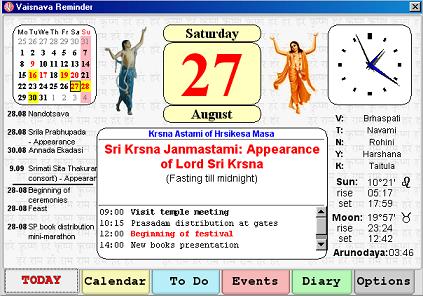
The picture above show you the main window which you get when
application starts. You can see there Lord Gauranga and Lord Nityananda
dancing, and to the left and right from Them there is current month
calendar and current watch. Betweeen Them there is current day and
current weekday. Normally it has white background but in the fasting
days it will be yellowish. If today is some vaisnava event, the number
will be shown red.
Below the calendar, to the left you may see up to four upcoming events,
and up to four upcoming tasks. Next to it in the center you see big pad
which shows current day tithi and masa (vaisnava month) and today's
events and tasks. If there is no events or tasks it will be empty
accordingly.
Below the watch, to the right there is panchang for current time.
V stand for var, T for tithi,
N for naksatra, Y for yoga,
K for karana. Just below the panchang you'll get an information
in which sign Sun and Moon are currently moving, and when they today
rise and set. There is also starting time of
arunodaya or brahma-muhurta for today.
Calendar tab

When you press Calendar tab, you see the above window. There is main
calendar shown, where fasting days highlighted yellow and days off pink.
Vaisnava events are shown with red numbers accordingly. Try clicking any
of day, and you'll get events and tasks information for it on the right
pads. Navigate through months by pressing Prev
and Next buttons.
If you double-click on any day with your left mouse button it will open
invitation to enter new task for that day, with right mouse button
you'll be invited to enter new event of according day.
To Do tab
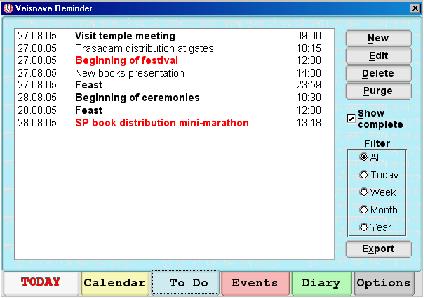
To Do opens you a list of your tasks. Buttons are intuitive - New creates new record, Edit opens record for editing, Delete erases record, Purge erases all complete tasks. Double-click with left mouse button on the record also opens it for editing, with right mouse button - inverts state of completion.
The list of records can be quite long, so there is a filter which helps to select records for defined periods of time - day, week, month, year. Need to see some records of complete tasks? Check box of Show complete.
Now if you want to print list of to-do tasks or to save it for web-page or your own archive press Export button. It will open your default web browser with output result, so you may print it or save it where needed.
^ TOPEvents tab

The Events tab window is very similar to previous To Do tab, but buttons are from another side. There is also a list of events records, both vaisnava built-in and your own custom. Note that you can only change or delete custom events.
Narrow your list of events with a filter (works same as in To Do tab). With Export button making a calendar for week, month or year won't be a problem.
^ TOPDiary tab
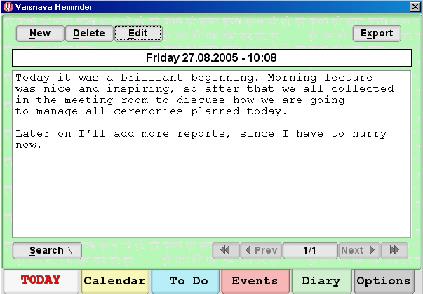
This is your own digital diary. When you press New button, it opens an editor and when you finished storing your memories, Save it and the program will automatically record your time and date and insert the record to according place. The number of records is only limited to your system memory. You can store a lot of them, but I suggest you periodically make Export of diary, and if you don't need old records, check box to delete them after export.
Navigate through records with Prev and Next buttons and use Search to find something specific in your diary.
Diary editor is rather simple, and there is no word wrapping or other enhanced functions yet.
^ TOPOptions tab
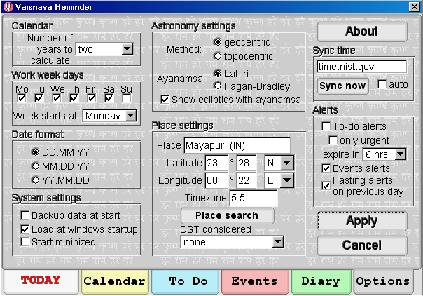
This tab opens your a window your Vaisnava Reminder preferences. Let
me make more detailed description:
In Calendar settings choose the number of
years to be calculated by calendar generator (I suggest you to set two
or three)
In Work week days check
week days which you're working so that other days will be highlighted as
days-off. Also choose your first day of week (I guess there are mainly
only Sunday or Monday are used. Curious if in any country is some other
day.)
In Date format
settings choose one which you're accustomed to.
In
System settings check if you want your data files to be backuped,
whether you want to load program when Windows starts and if you need
Vaisnava Reminder to start minimized.
In Astronomy settings you choose which
method of ephemeris calculatrion is used - geocentric or topocentric. In
geocentric method (which is used in VCAL for instance) everything
is calculated from imaginary point of view in the center of earth. So
for all places it would produce same Moon phase. That's not true in
reality - there is a slight difference defendent on your place of sight
on the earth surface. So topocentric
calculation fixes it. Also, there is a choice of
ayanamsas (currently only Lahiri and Fagan-Bradley) and option to
show Sun and Moon positions with ayanamsas
or not.
In Place settings select your current place
of residence either with Place search
directory or manually entering required fields. Note that you can't
choose latitude more that 70 degrees to north or south since errors
which may occur due to very rare sunrises & sunsets.
Don't forget to manually choose your DST
(daylight savings time) consideration - I put a rough algorithm for
major areas. For Brazil and Chile it is experimetral - I couldn't get a
clear data how DST is changed there, sorry.
In Sync time options you may synchronize
your local system time with Internet time servers. Choose the one which
is most close to you and enter it's name into input field. One of the
sources for time servers is
here. The latency time is not considered, so your clock will be off
by 0.1-0.2s usually. If you want to automate the sunchronization
process, check box Auto and the program will
do it silently every day. But first please check your time server.
In Alerts settings check whether you want
your alerts to be shown. You can choose all
To Do alerts or only
urgent. Alerts will not be shown if they
expire in specified time. Check your Events
alerts, and don't forget to check Fasting
alerts on previous day if you often forget that.
^ TOP
Tray commands
When you'll close Vaisnava Reminder window, it will be minimized to tray, if you double-click on the tray icon, the window will be shown back. With right clicking on tray icon you can also open main window, enter new to-do task or event, or exit the program.