Word - is the word processing program of the Microsoft Office suite that allows you to create documents and reports.
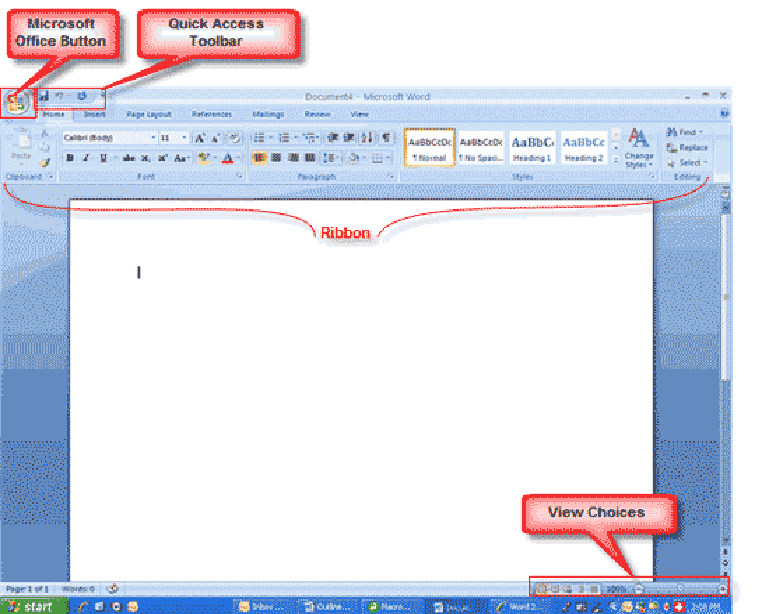
Menus When you begin to explore Word 2007 you will notice a new look to the menu bar. There are three features that you should remember as you work within Word 2007: the Microsoft Office Button, the Quick Access Toolbar, and the Ribbon. These three features contain many of the functions that were in the menu of previous versions of Word. The functions of these three features will be more fully explored below.
The Microsoft Office Button
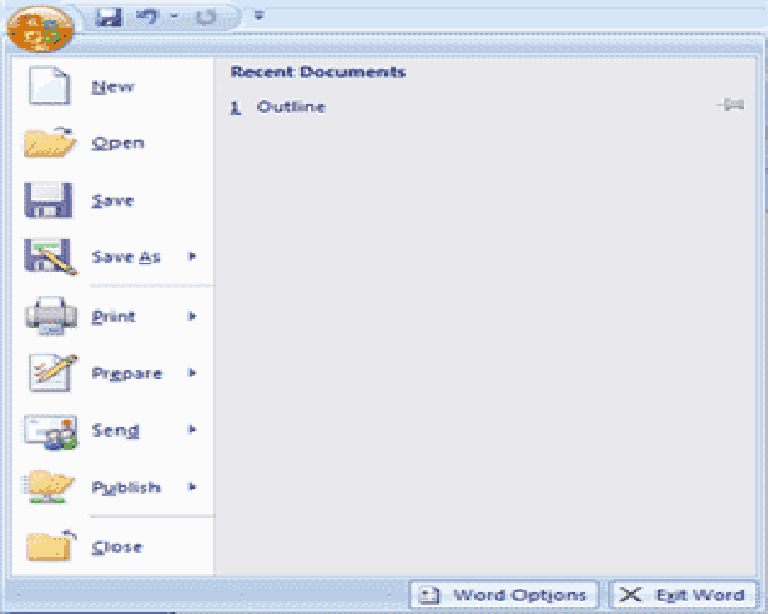
The Microsoft Office button performs many of the functions that were located in the File menu of older versions of Word. This button allows you to create a new document, open an existing document, save or save as, print, send (through email or fax), publish or close.
The Ribbon
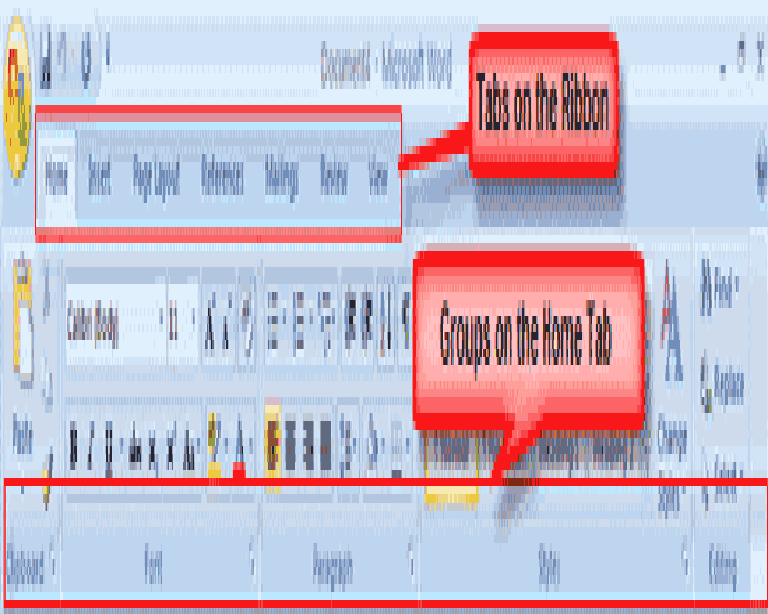
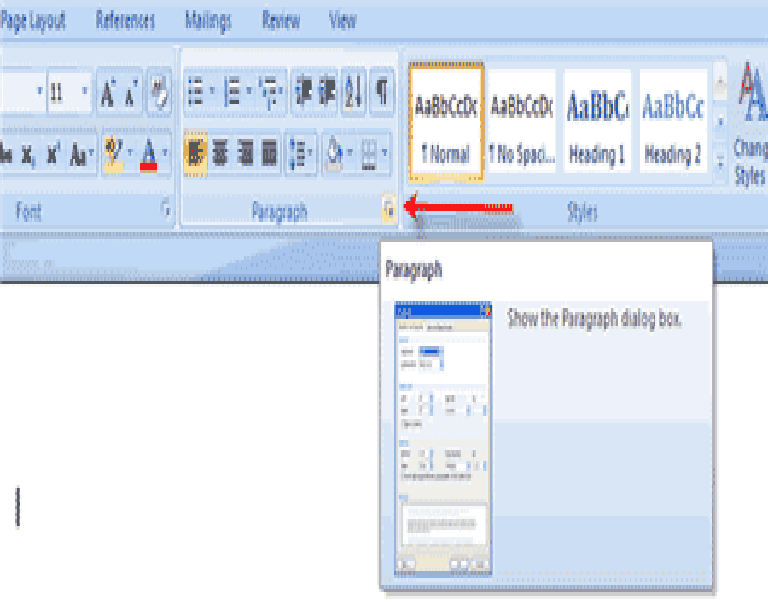
The Ribbon is the panel at the top portion of the document. It has seven tabs: Home, Insert, Page Layout, References, Mailings, Review, and View that contain many new and existing features of Word. Each tab is divided into groups. The groups are logical collections of features designed to perform functions that you will utilize in developing or editing your Word document. Commonly used features are displayed on the Ribbon, to view additional features within each group, click on the arrow at the bottom right of each group.
Quick Access Toolbar
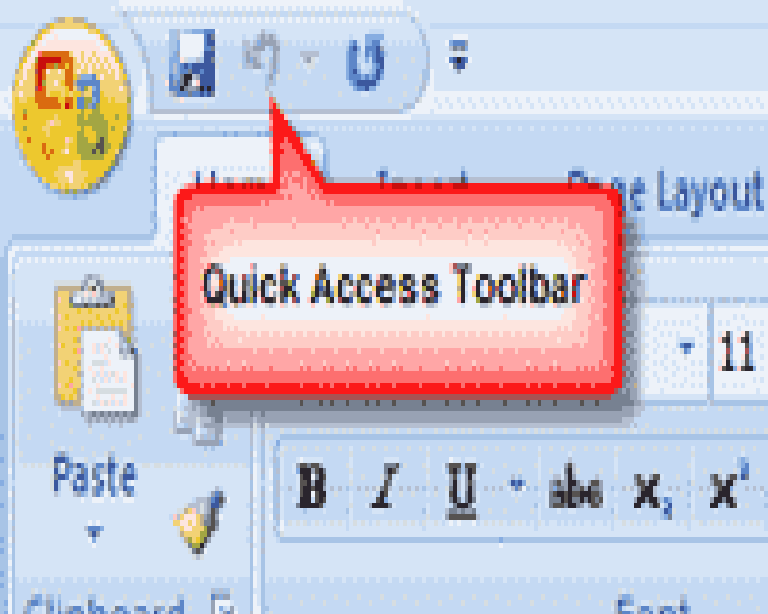
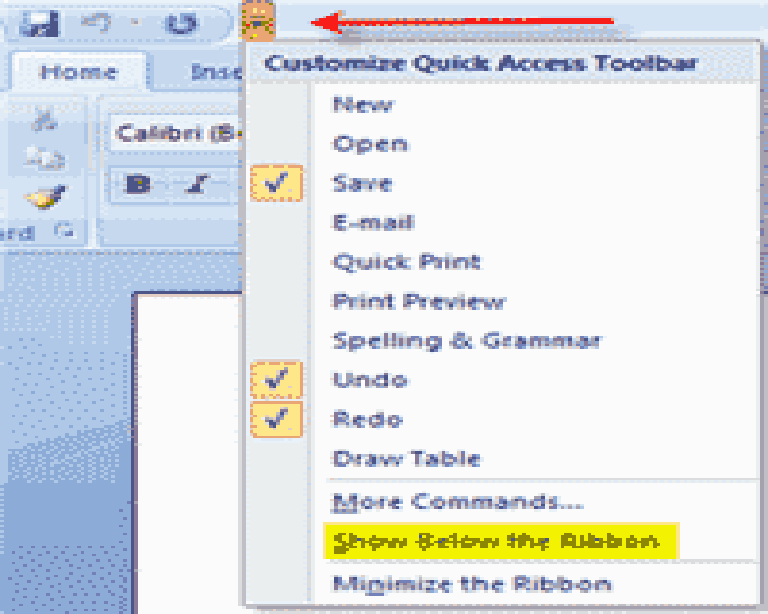
The quick access toolbar is a customizable toolbar that contains commands that you may want to use. You can place the quick access toolbar above or below the ribbon. To change the location of the quick access toolbar, click on the arrow at the end of the toolbar and click on Show Below the Ribbon.
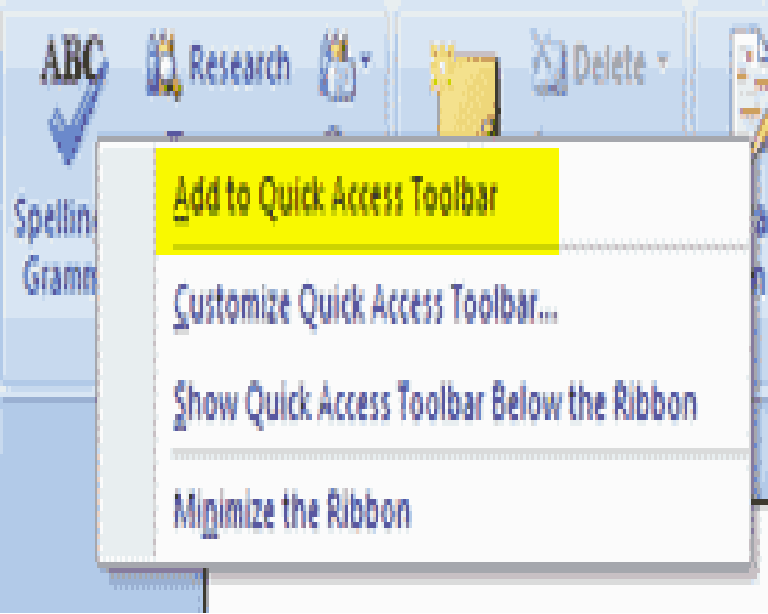
You can also add items to the quick access toolbar. Right click on any item in the Office Button or the Ribbon and click on Add to Quick Access Toolbar and a shortcut will be added to the Quick Access Toolbar.