In the directory $ALIAS_LOCATION/ODS/, there are a number of pre-compiled plug-ins and source code examples. These plug-ins and source code examples are provided to you on an "AS-IS" basis. You are free to make use of these plug-ins and source code examples, however Alias|Wavefront does not provide any support in connection with them.
ALIAS|WAVEFRONT MAKES NO WARRANTIES, EXPRESS, IMPLIED OR ARISING BY CUSTOM OR TRADE USAGE, AND TO THE EXTENT PERMITTED BY APPLICABLE LAW, SPECIFICALLY DISCLAIMS ANY IMPLIED WARRANTIES OF TITLE, NONINFRINGEMENT OR OF FITNESS FOR A PARTICULAR PURPOSE. TO THE EXTENT PERMITTED BY APPLICABLE LAW, (I) ALIAS|WAVEFRONT'S LIABILITY IN CONTRACT, TORT OR OTHERWISE ARISING OUT OF OR IN CONNECTION WITH THE PLUG-INS OR SOURCE CODE SHALL NOT EXCEED THE PURCHASE PRICE PAID BY CUSTOMER FOR THE PLUG-INS OR SOURCE CODE EXAMPLES, AND (II) IN NO EVENT SHALL ALIAS|WAVEFRONT BE LIABLE FOR ANY PUNITIVE DAMAGES OR LOST PROFITS OR OTHER SPECIAL, INDIRECT, INCIDENTAL, OR CONSEQUENTIAL DAMAGES, INCLUDING ANY DAMAGES RESULTING FROM LOSS OF BUSINESS ARISING OUT OF OR IN CONNECTION WITH THE PERFORMANCE OF THE PLUG-INS OR SOURCE CODE EXAMPLES, EVEN IF ALIAS|WAVEFRONT HAS BEEN ADVISED OF THE POSSIBILITY OF SUCH DAMAGES. CUSTOMER SHALL INDEMNIFY ALIAS|WAVEFRONT AND HOLD IT HARMLESS FROM AND AGAINST ANY LOSS, CLAIM OR DAMAGE TO ANY PERSON ARISING OUT OF CUSTOMER'S USE OF THE PLUG-INS OR SOURCE CODE EXAMPLES.
The defaults for OpenAlias are set up such that it is not necessary to do anything before using plug-ins. However, you may want to set up your OpenAlias environment with the configurable options in the Alias Preferences window. These items are both set to appropriate defaults so they do not need to be changed before using plug-ins in Alias. The configurable items are:
This colon-delimited path is used to search for plug-ins specified in the auto-load list and by the searching routines of the Plug-in Manager window.
.:$ALIAS_LOCATION/ODS/OpenAlias/plugins
which causes $ALIAS_WORKENV (or the directory Alias was launched from if $ALIAS_WORKENV is not set - Alias does an implicit change of directory to $ALIAS_WORKENV when it starts) to be searched first, followed by the directory containing the example plug-ins. Any number of directories can be listed with each searched in turn until a plug-in is found. Note that this default path is one of many that are searched for plug-ins as described in the "How OpenAlias Finds Files" section.
The Messages popup allows the selection of Full(verbose) or Brief messages. In Full or verbose message mode, detailed information will be written to the errlog file if there is an error during the loading or unloading of plug-ins.
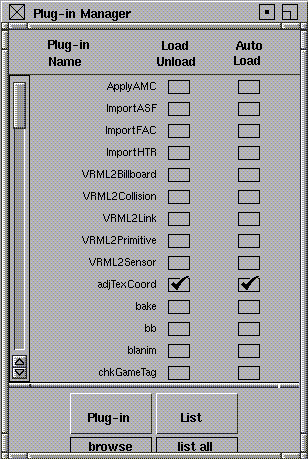
The Plug-in Manager window is invoked from the Alias Utilities menu. This window displays all plug-ins currently in the Alias plug-in search paths. Refer to the next section "How OpenAlias Finds Files" to see the list of paths searched. The Plug-in Manager window is pictured below.
The Plug-in Manager window consists of 3 columns and two popup buttons at the bottom. The columns list the plug-ins that are currently in the OpenAlias search paths and their load and auto-load status. A plug-in can be loaded by clicking on its associated Load/Unload check box. A check mark indicates that the plug-in has been loaded into Alias. Clicking on the check box of an already loaded plug-in will unload it. A plug-in can be made to auto-load (loaded when Alias starts) by clicking on its associated check box. If any of the operations on plug-ins for this window fail, information will be sent to the Alias prompt-line and the errlog. The .plugin suffix is not displayed in this window anymore.
The Plug-in button supports Browsing, Loading All and Unload All plug-ins. Plug-in Browsing allows a user to select an arbitrary plug-in to be loaded. The List button supports Listing All or Listing Loaded plug-ins. The Load All and Unload All operations can be terminated by pressing the Escape key.
Once selected, the plug-in is inserted into the Plug-in Manager list and is loaded. Auto-loading could be applied to this plug-in at this point. Plug-ins which are manually inserted by the Browse option take precedence over other plug-ins which may have the same name that are found in the search process.
The Plug-in Manager window searches the OpenAlias plug-in search paths every time it is opened. It is therefore sufficient, to close and open the window to have a new plug-in shown in the list.
The Plug-in Manager window writes out the auto-load list when it is closed.
Below is the list of the directories that are searched for various files. If you are having problems with the loading of files, try checking the following load orderings.
When locating plug-ins, icons, scheme files, etc., Alias will start searching at the beginning of the search list and continue until the first occurrence of the desired file is found. If the file is found, the first occurrence is used and any remaining instances are ignored.
A plug-in may consist of several files. The only file required is the C++ source which defines the functionality of the plug-in. Additional files include Scheme and icon files. The most common Scheme files a plug-in may use are a pair of files describing the option box. One Scheme file describes the layout of the option box and the second provides commands which initialize the default values of variables.
Icons for plug-ins can be created using "xpaint". The icons will be loaded from the path specified for the icon (see the AlFunctionHandle::setIconPath() method for information), in the path specified by the environment variable $ALIAS_BITMAP_LOCATION, or in the default Alias icon directory. You will need to create a medium sized icon (and save it with the extension `.M') and a small icon (and save it with the extension `.S'). Use the example icons in ODS/OpenAlias/plugins/medium and ODS/OpenAlias/plugins/small as a basis for new icons.