| Subjects | |
|
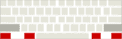
The following tables show the modifier key and mouse button variations that can be used within Alias to speed up your workflow. Note: these are defaults. If you modify the defaults, you can edit this HTML file to reflect your changes. |
tool |
modifier |
mouse button |
Orthographic window |
Perspective window |
|---|---|---|---|---|
| Camera Override tools | Shift & Alt
|
 |
No Effect | Tumble |
 |
Track | Track | ||
 |
Dolly | Dolly |
tool |
modifier |
mouse button |
Windows |
Action Window(Only applies to Action Window tools) |
|---|---|---|---|---|
| Marking Menus | Shift & Control
|
|
Left Mouse Menu - Pick
Pick Nothing, Pick CV's, Pick Object, Pick Template |
Left Mouse Menu - Pick
Pick Nothing, Pick Keyframes, Pick Curve, Pick Template |
|
Middle Mouse Menu - XForm
Move, Scale, Rotate, Non-Porportional Scale |
Middle Mouse Menu - Xform
Move, Scale Time, Scale Value, Randomize |
||
|
Middle Mouse Menu - Misc
Toggle Template, Toggle Shade, Track/Dolly/Tunble, Shelves |
Right Mouse Menu - Misc
Look At, Dolly, Track, Undo View, Redo View, Undo, Redo |
tool |
modifier |
mouse button |
Orthographic window |
Perspective window |
Cplane persp |
| General
Pick and Xform |
Shift
|
|
Toggle pick | Toggle pick | Toggle pick |
|
Exclusive pick
On nothing = pick nothing |
Exclusive pick
On nothing = pick nothing |
Exclusive pick
on nothing = pick nothing |
||
|
Un-pick | Un-pick | Un-pick |
tool |
modifier |
mouse button |
Orthographic window |
Perspective window |
Cplane persp |
|---|---|---|---|---|---|
| General Pick and Xform | Shift
|
|
Toggle pick | Toggle pick | Toggle pick |
|
Exclusive pick
On nothing = pick nothing |
Exclusive pick
On nothing = pick nothing |
Exclusive pick
on nothing = pick nothing |
||
|
Un-pick | Un-pick | Un-pick | ||
| Move | None
|
|
free on window plane | along +/- X vector | Free on CP XY plane |
|
Horizontal to window | along +/- Y vector | along +/- CPY vector | ||
|
Vertical to window | move along +/- Z vector | nothing | ||
| Control
|
|
place point Magnet snap | |||
|
Horizontal snap in window selected Magnet pt. | Always snap in All dims to selected Magnet point | Always snap to selected Magnet | ||
|
Vertical snap in window selected Magnet point. |
||||
| Alt
|
|
Snap in 2 dimensions to selected Grid point | |||
|
Horizontal snap in window with selected Grid pt | Always snap
in All dims to selected Grid point |
|||
|
Vertical snap
Vertical in window to align with selected Grid point |
||||
| Ctrl & Alt
|
|
Snap in 2 dimensions to selected point on curve | |||
|
Horizontal snap in window to selected point on a curve or surface isoparam | Always snap to selected Grid point |
Always snap in to intersection of curve and | ||
|
Vertical snap in window to selected point on a curve or surface isoparam | ||||
| Rotate | None
|
|
rotate about +/- X vector | rotate about +/- X vector | rotate about +/- X vector |
|
rotate about +/- Y vector | rotate about +/- Y vector | rotate about +/- Z vector | ||
|
rotate about +/- Z vector | rotate about +/- Z vector | rotate about +/- Z vector | ||
| Scale | None
|
|
Proportional scale | Proportional scale | Proportional scale |
|
Non-Prop scale of Window/Object Horizontal | ||||
|
Non-Prop scale of Window/Object Vertical | ||||
| N-P Scale | None
|
|
Free Non-Proportional scale | X Non-Proportional scale | X Non-Proportional scale |
|
Non-Prop Scale of Window / Object Horizontal | Y Non-Proportional scale | Y Non-Proportional scale | ||
|
Non-Prop Scale of Window / Object Vertical | Z Non-Proportional scale | Z Non-Proportional scale |
tool |
modifier |
mouse button |
Orthographic window |
Perspective window |
Cplane persp |
|---|---|---|---|---|---|
| new curve | none
|
 |
Free place point | nothing | Free place on plane |
 |
Place point using Horiz. value + fixed Vert. | nothing | |||
 |
Place point using Vert. value + fixed Horiz. | ||||
| Control
|
|
Place point Magnet Snap | |||
|
Horizontal snap in window to selected Magnetpt. | Always snap to selected Magnet point | Always snap to selected Magnet point | ||
|
Vertical snap in window to selected Magnet pt. | ||||
| Alt
|
|
Snap in 2 dimensions to selected Grid point | |||
|
Horizontal snap in window to selected Grid point | Always snap to selected Grid point | |||
|
Vertical snap in window to selected Grid point | ||||
| Ctrl & Alt
|
|
Snap in 2 dimensions to selected point on curve | |||
|
Horizontal snap in window to selected point on a curve or surface isoparam | Always snap to selected Grid point | Always snap in to intersection of curve | ||
|
Vertical snap in window to selected point on a curve or surface isoparam |
| Space Bar | Perform action (same as clicking Go, OK, Yes) |
| Arrow keys | Small adjustment in Xform tools |
| Alt-drag on numeric values in Info Window. | Adjust value using mouse |
email address: [email protected]
Copyright © 1998, Alias|Wavefront, a division of Silicon Graphics Limited. All rights reserved.