| Dazzle Flower Background Continued.... |
 |
 |
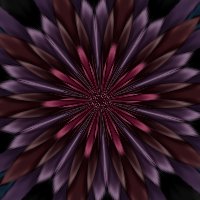
| This is where we left off |
| Your tile should look like this after STEP 4 with diamond setting |
| Your tile should look like this after STEP 3 without diamond setting |
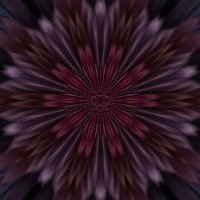
| STEP 5 go to Effects/Plug-in Filters/Simple/Diamond and click apply. That's all there is to it |
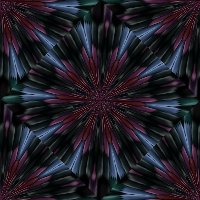 |
| STEP 5 go to Effects/Plug-in Filters/Simple/4 Way Adverage and click apply. That's all there is to it. |
 |
| Here are other examples |
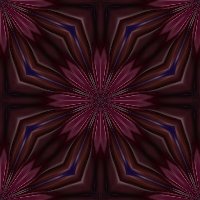 |
| STEP 6go to Effects/Plug-in Filters/Simple/Bliz and click apply. That's all there is to it. |
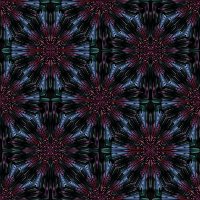
| STEP 6go to Effects/Plug-in Filters/Simple/Zoom and Flip and click apply. That's all there is to it. |
 |
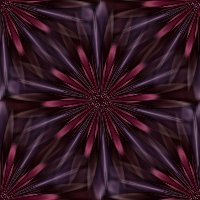
| STEP 6go to Effects/Plug-in Filters/Simple/Quick Tile and click apply. That's all there is to it. |
 |
| There is so many different ways you can use simple filters and very one is different. I hope you had fun doing this tutorial |
 |
| Back to my main index |

|