In this class, we will look at our first graphic type controls:
line tools, shape tools, picture boxes, and image boxes. And, with this
introduction, we need to discuss the idea of display layers.
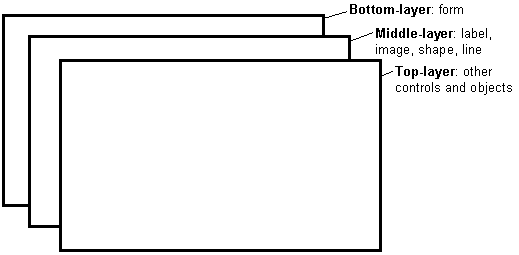
Items shown on a form are not necessarily all on the same layer of
display. A form's display is actually made up of three layers as sketched
below. All information displayed directly on the form (by printing or
drawing with graphics methods) appears on the bottom-layer.
Information from label boxes, image boxes, line tools, and shape tools,
appears on the middle-layer. And, all other objects are displayed
on the top-layer.
What this means is you have to be careful where you put things on
a form or something could be covered up. For example, text printed on
the form would be hidden by a command button placed on top of it.
Things drawn with the shape tool are covered by all controls except the
image box.
The next question then is what establishes the relative location
of objects in the same layer. That is, say two command buttons are in
the same area of a form - which one lies on top of which one? The order
in which objects in the same layer overlay each other is called the
Z-order. This order is first established when you draw the form.
Items drawn last lie over items drawn earlier. Once drawn, however,
the Z-order can be modified by clicking on the desired object and
choosing Bring to Front from Visual Basic's Edit menu.
The Send to Back command has the opposite effect. Note these two
commands only work within a layer; middle-layer objects will always
appear behind top-layer objects and lower layer objects will always
appear behind middle-layer objects.