Guaranteed Hits to your web site!


Learn Visual Basic 6.0


4. More Exploration of the Visual Basic Toolbox


Quick Example: The Open Dialog Box

  1. Start a new project. Place a common dialog control, a label box, and a command button on the form. Set the following properties:

    Form1: Caption Common Dialog Examples
    Name frmCommon
    CommonDialog1: DialogTitle Open Example
    Filter Bitmaps (*.bmp)|*.bmp|
    Icons (*.ico)|*.ico|Metafiles (*.wmf)|*.wmf
    GIF Files (*.gif)|*.gif|JPEG Files (*,jpg)|*.jpg
    (all on one line)
    Name cdlExample
    Label1: BorderStyle 1-Fixed Single
    Caption [Blank]
    Name lblExample
    Command1: Caption &Display Box
    Name cmdDisplay

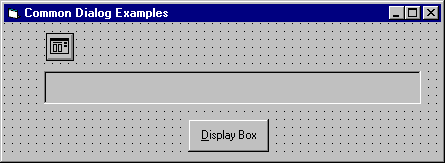
    When done, the form should look like this (make sure your label box is very long):


    Dialog Box


  2. Attach this code to the cmdDisplay_Click procedure.

    Private Sub cmdDisplay_Click()
      cdlExample.ShowOpen
      lblExample.Caption = cdlExample.filename
    End Sub


    This code brings up the Open dialog box when the button is clicked and shows the file name selected by the user once it is closed.

  3. Save the application. Run it and try selecting file names and typing file names. Notice names can be selected by highlighting and clicking the OK button or just by double-clicking the file name. In this example, clicking the Cancel button is not trapped, so it has the same effect as clicking OK.

  4. Notice once you select a file name, the next time you open the dialog box, that selected name appears as default, since the FileName property is not affected in code.


Pen Line


Counter Hit Counter Hit


This Homepage is special brought to you by CK Tan
Hosted by www.Geocities.ws

1