Guaranteed Hits to your web site!


Learn Visual Basic 6.0


4. More Exploration of the Visual Basic Toolbox


Example 4-2: Image Viewer

Start a new project. In this application, we search our computer's file structure for graphics files and display the results of our search in an image box.


Image Viewer Application Specifications


Develop an application where the user can search and find graphics files (*.ico, *.bmp, *.wmf) on his/her computer. Once a file is selected, print the corresponding file name on the form and display the graphic file in an image box using the LoadPicture() function.


    One possible solution to the Image Viewer Application:

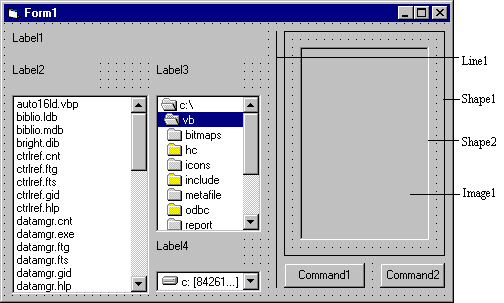
  1. Place a drive list box, directory list box, file list box, four label boxes, a line (use the line tool) and a command button on the form. We also want to add an image box, but make it look like it's in some kind of frame. Build this display area in these steps: draw a 'large shape', draw another shape within this first shape that is the size of the image display area, and lastly, draw an image box right on top of this last shape. Since the two shapes and image box are in the same display layer, the image box is on top of the second shape which is on top of the first shape, providing the desired effect of a kind of picture frame. The form should look like this:


    Image Viewer


    Note the second shape is directly beneath the image box.

  2. Set properties of the form and each object.

    Form1: BorderStyle 1-Fixed Single
    Caption Image Viewer
    Name frmImage
    Drive1: Name drvImage
    Dir1: Name dirImage
    File1: Name filImage
    Pattern *.bmp;*.ico;*.wmf;*gif;*jpg
    [type this line with no spaces]
    Label1: Caption [Blank]
    BackColor Yellow
    BorderStyle 1-Fixed Single
    Name lblImage
    Label2: Caption Files:
    Label3: Caption Directories:
    Label4: Caption Drives:
    Command1: Caption &Show Image
    Default True
    Name cmdShow
    Command2: Cancel True
    Caption E&xit
    Name cmdExit
    Line1: BorderWidth 3
    Shape1: BackColor Cyan
    BackStyle 1-Opaque
    FillColor Blue
    FillStyle 4-Upward Diagonal
    Shape 4-Rounded Rectangle
    Shape2: BackColor White
    BackStyle 1-Opaque
    Image1: BorderStyle 1-Fixed Single
    Name imgImage
    Stretch True

  3. Attach the following code to the drvImage_Change procedure.

    Private Sub drvImage_Change()
      'If drive changes, update directory
      dirImage.Path = drvImage.Drive
    End Sub


    When a new drive is selected, this code forces the directory list box to display directories on that drive.

  4. Attach this code to the dirImage_Change procedure.

    Private Sub dirImage_Change()
      'If directory changes, update file path
      filImage.Path = dirImage.Path
    End Sub


    Likewise, when a new directory is chosen, we want to see the files on that directory.

  5. Attach this code to the cmdShow_Click event.

    Private Sub cmdShow_Click()
      'Put image file name together and
      'load image into image box
      Dim ImageName As String
      'Check to see if at root directory
      If Right(filImage.Path, 1) = "\" Then
        ImageName = filImage.Path + filImage.filename
      Else
        ImageName = filImage.Path + "\" + filImage.filename
      End If
      lblImage.Caption = ImageName
      imgImage.Picture = LoadPicture(ImageName)
    End Sub


    This code forms the file name (ImageName) by concatenating the directory path with the file name. It then displays the complete name and loads the picture into the image box.

  6. Copy the code from the cmdShow_Click procedure and paste it into the filImage_DblClick procedure. The code is identical because we want to display the image either by double-clicking on the filename or clicking the command button once a file is selected. Those of you who know how to call routines in Visual Basic should note that this duplication of code is unnecessary - we could simply have the filImage_DblClick procedure call the cmdShow_Click procedure. We�ll learn more about this next class.

  7. Attach this code to the cmdExit_Click procedure.

    Private Sub cmdExit_Click()
      End
    End Sub


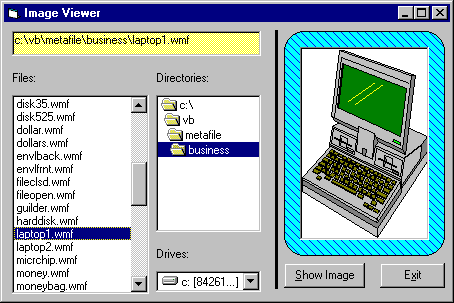
  8. Save your project. Run and try the application. Find bitmaps, icons, and metafiles. Notice how the image box Stretch property affects the different graphics file types. Here�s how the form should look when displaying one example metafile:


    Image Viewer


Pen Line


Counter Hit Counter Hit


This Homepage is special brought to you by CK Tan
Hosted by www.Geocities.ws

1